Inviting your team
You can give a colleague access in two ways: invite them to the whole workspace, or add them to a single project. Either way, what they can see is decided by the projects they are on.
Before you start: you need the Owner or Admin account role. The Invite button is hidden from members.
Warning: Everyone who joins your workspace or is added to one of its projects occupies a paid seat, including people from outside your workspace. See Members and seats.
Invite someone to the workspace
- Open Workspace settings with the gear icon in the top bar, or from the workspace switcher menu. Settings open on General.
- Go to Members. The page is titled People.
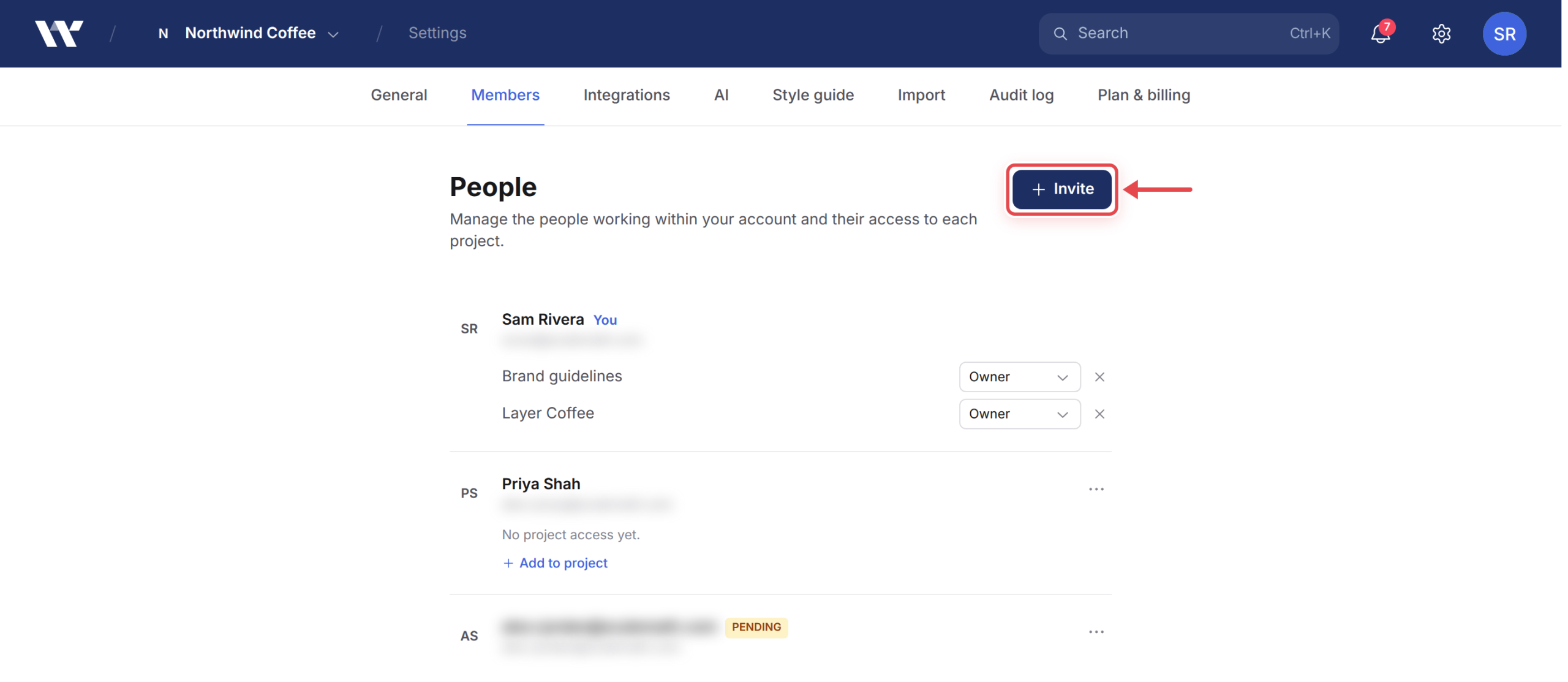
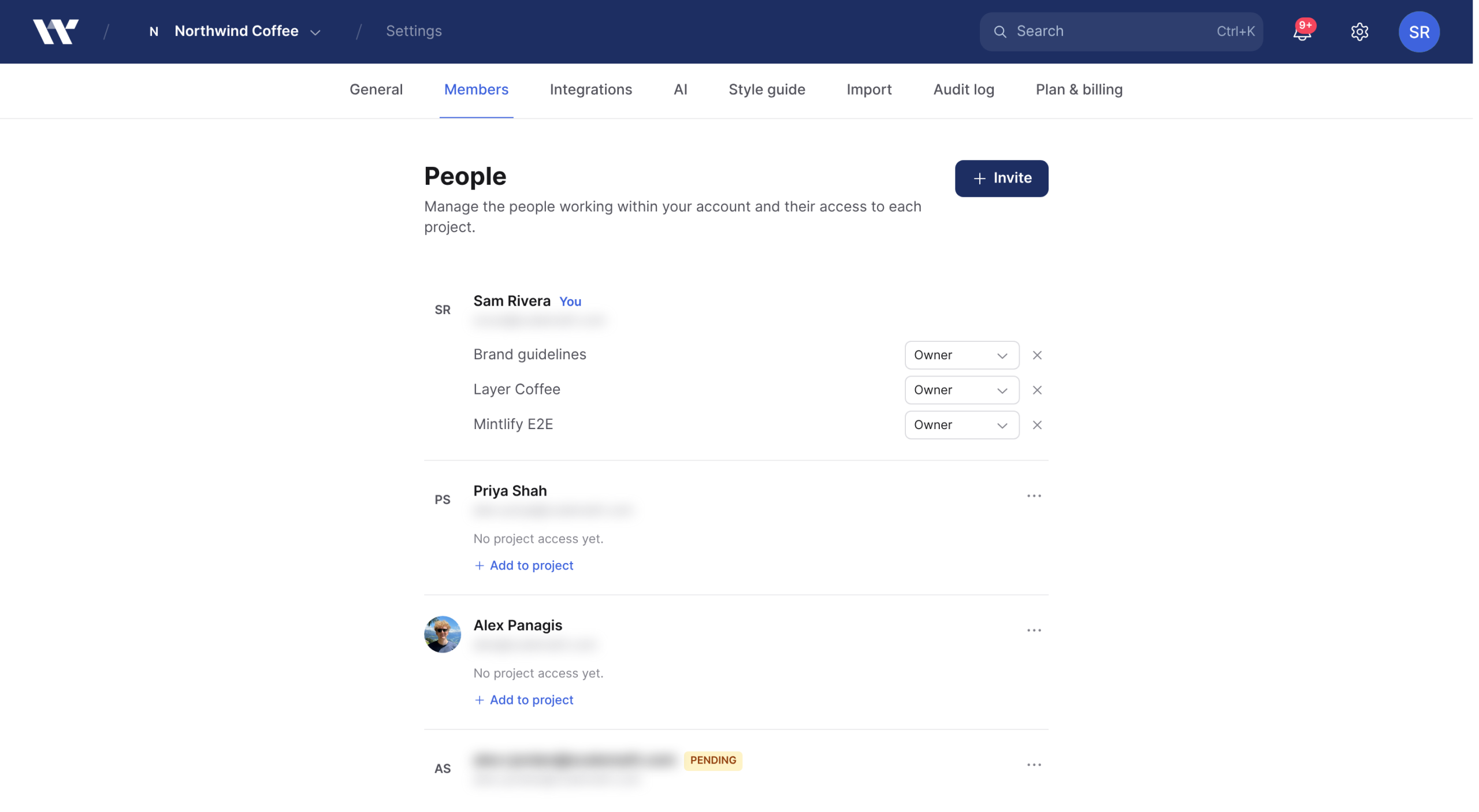
- Click Invite. The Invite to your account dialog opens.
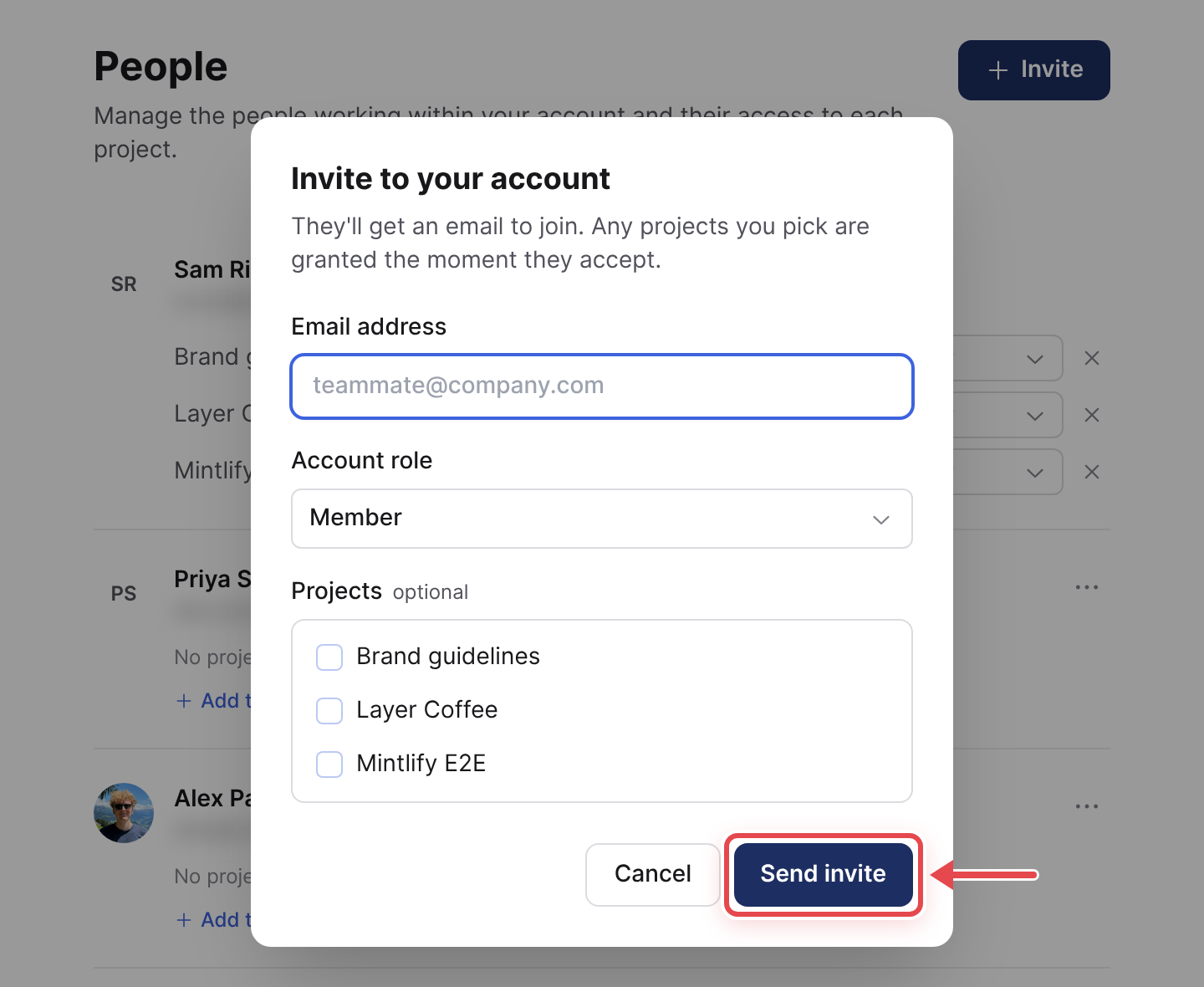
- In Email address, enter their email.
- In Account role, choose Member or Admin.
- Optionally, under Projects, tick the projects they should work on. They are added to those projects the moment they accept.
- Click Send invite.
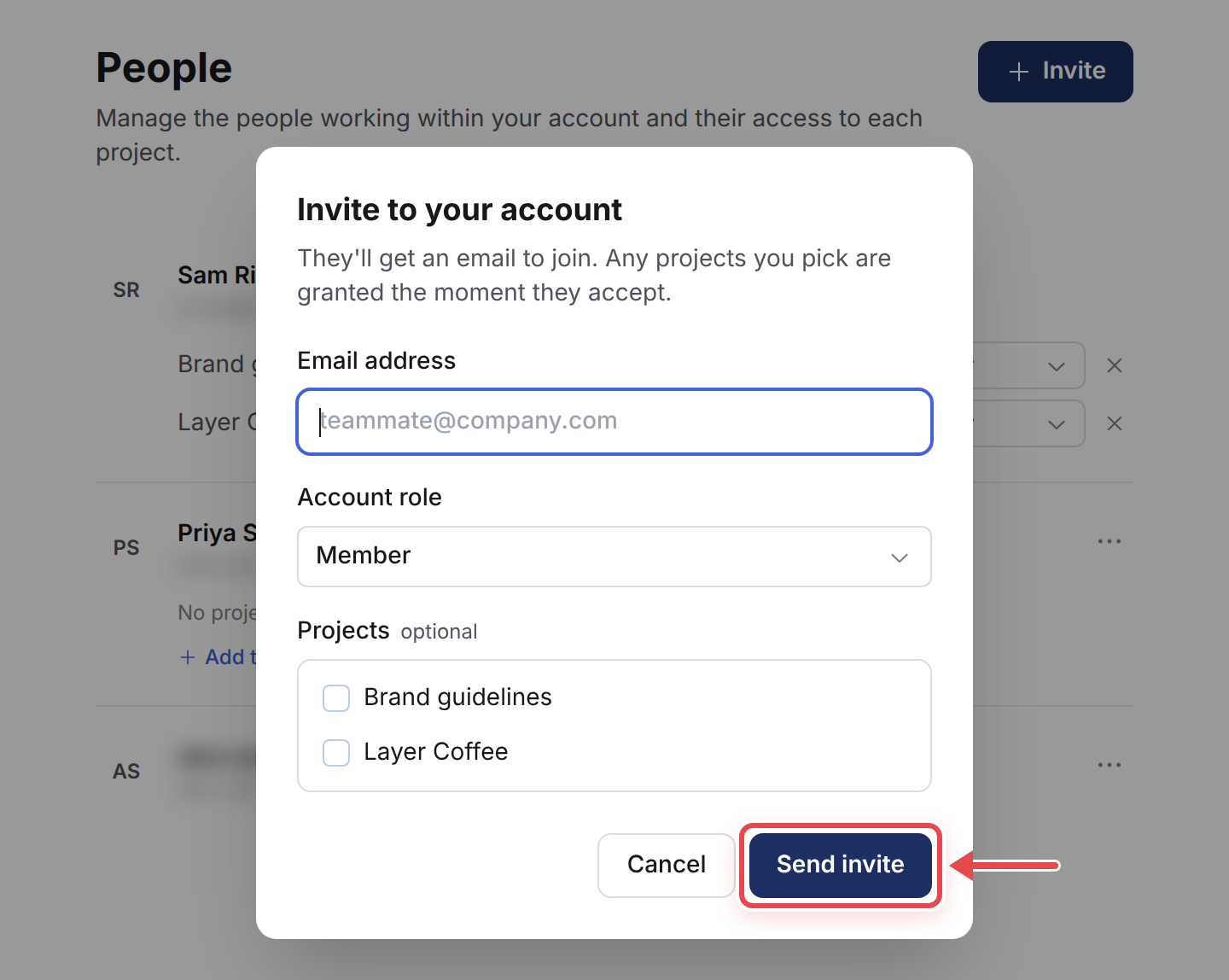
They get an email inviting them to join. Until they accept, they appear on the People page marked Pending. Someone who already works with you on a project shows Invited instead.
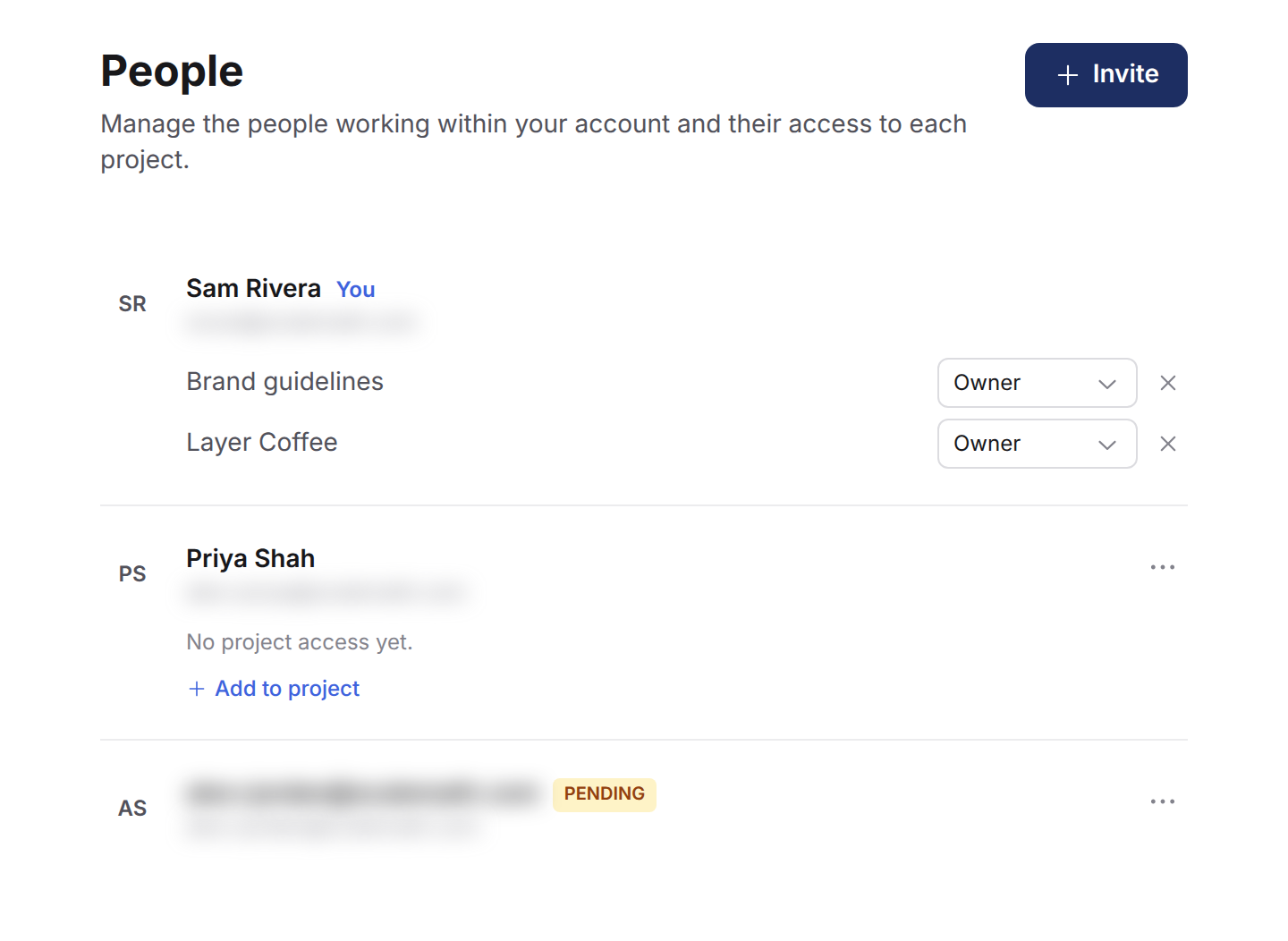
An invitation expires after 7 days. There is no resend button: to send a fresh one, open the pending person’s menu, choose Remove from account, and invite them again.
Note: If you did not tick any projects, joining the workspace puts them on no project, and their row shows “No project access yet.” Add them to projects from the People page once they have accepted, or from a project’s settings before then.
You can also invite people during sign-up, on the Invite your team step.
Add someone to a single project
Use this when a colleague only needs one project.
- Open the project and click Project settings.
- In the Members card, type their email address into the field that reads “Add member by email”.
- Click Add.
This works for anyone who already has a Workover account, and for anyone with a pending invitation to your workspace, whose project access is applied when they accept. Otherwise Workover shows “No Workover account or pending invitation found for” the address. Invite them to the workspace first.
Someone added this way becomes a member of your workspace and takes a seat, even if they came from another workspace.
They join the project with the Member role. To change it, go to the People page, find their row, and choose a different role in the dropdown next to the project: Owner, Admin or Member.
From the People page
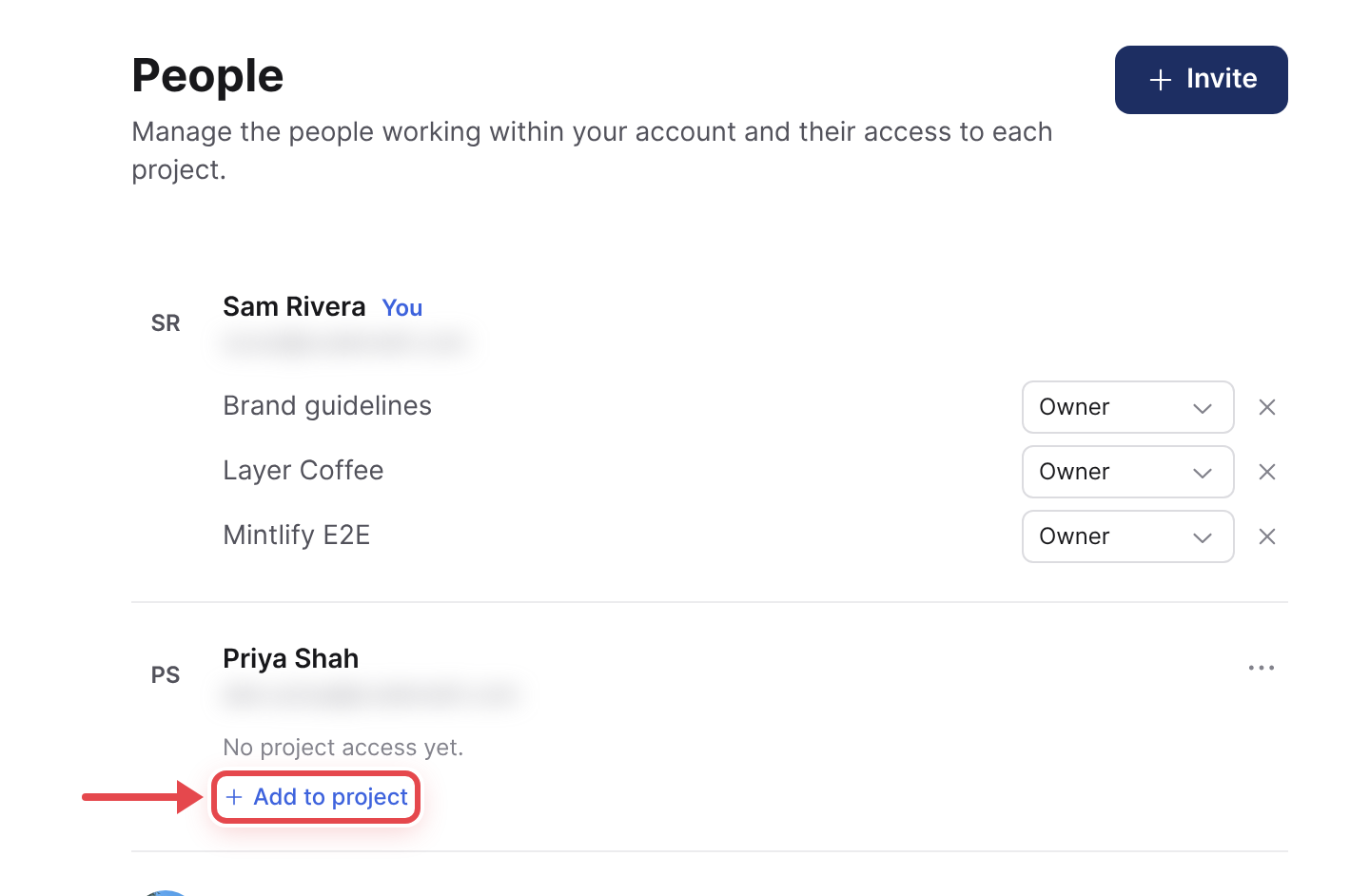
On the People page, click Add to project on a person’s row to add them to any project they are not on yet. It does not appear on rows that are still Pending.
Roles in brief
Roles work at two levels: an account role for the workspace, and a project role on each project.
- Account roles: the Owner is whoever created the workspace. An Admin can invite people and remove them from the account. A Member cannot manage people. An account role on its own opens no project.
- Project roles: the person who creates a project is usually its Owner. One exception: when someone who is not the workspace Owner creates a project by connecting a WordPress site, they get the Admin role on it. The last Owner of a project cannot be removed or given another role. A project Admin can manage who is on the project and its connection settings. A project Member works on the project’s documents but cannot manage access or the connection.
An account Owner or Admin can manage membership on any project, even one they are not on. Roles and permissions has the full detail.
Remove access
Removing someone from the workspace and removing them from a project are separate actions.
Warning: Remove from account does not take someone off the projects they were added to, and they keep occupying a paid seat until they are removed from those projects too.
- To remove someone from one project, on the People page click the remove control (×) next to that project in their row.
- To remove someone from the workspace, open the actions menu on their row and choose Remove from account. Then remove them from each project they are still listed on.
Related
Still need help?
Can’t find what you’re looking for? Our team is here to help.