Last updated
How to Edit a PDF in Google Drive Using Google Docs
Edit a PDF in Google Docs by opening it with Open with to convert it, making your changes, and downloading the result as a new PDF file.


Need to make a quick edit to a PDF without installing anything? Google Drive can open a PDF in Google Docs, which turns it into an editable Google Doc. You make your changes there and download the result as a new PDF.
This is a conversion, not true PDF editing: Google Drive converts the PDF to text in a Google Doc. It works best on simple, text-based files. This guide does not cover annotating or signing PDFs.
Warning: before you start, check that your PDF suits conversion. Google recommends files of 2 MB or smaller. Bold, italics, font size, font type and line breaks are likely to be retained, but lists, tables, columns, footnotes and endnotes are not likely to be detected.
Before you start: you need a Google account and the PDF on your computer or already in Google Drive.
Step 1: Upload your PDF to Google Drive
- Go to drive.google.com.
- If the PDF is already in Drive, find it and skip to step 2. Otherwise, drag the file from your computer into the Drive window, or click New > File Upload and choose it.
Step 2: Open the PDF with Google Docs
- Right-click the PDF in Drive.
- Point to Open with and click Google Docs.
Drive converts the file and opens the result in Google Docs as a Google Doc. The PDF itself is not edited; it stays in Drive as it was.
Step 3: Edit the document
Edit the text as you would any Google Doc. While you are online, Google Docs saves your changes automatically as you type.
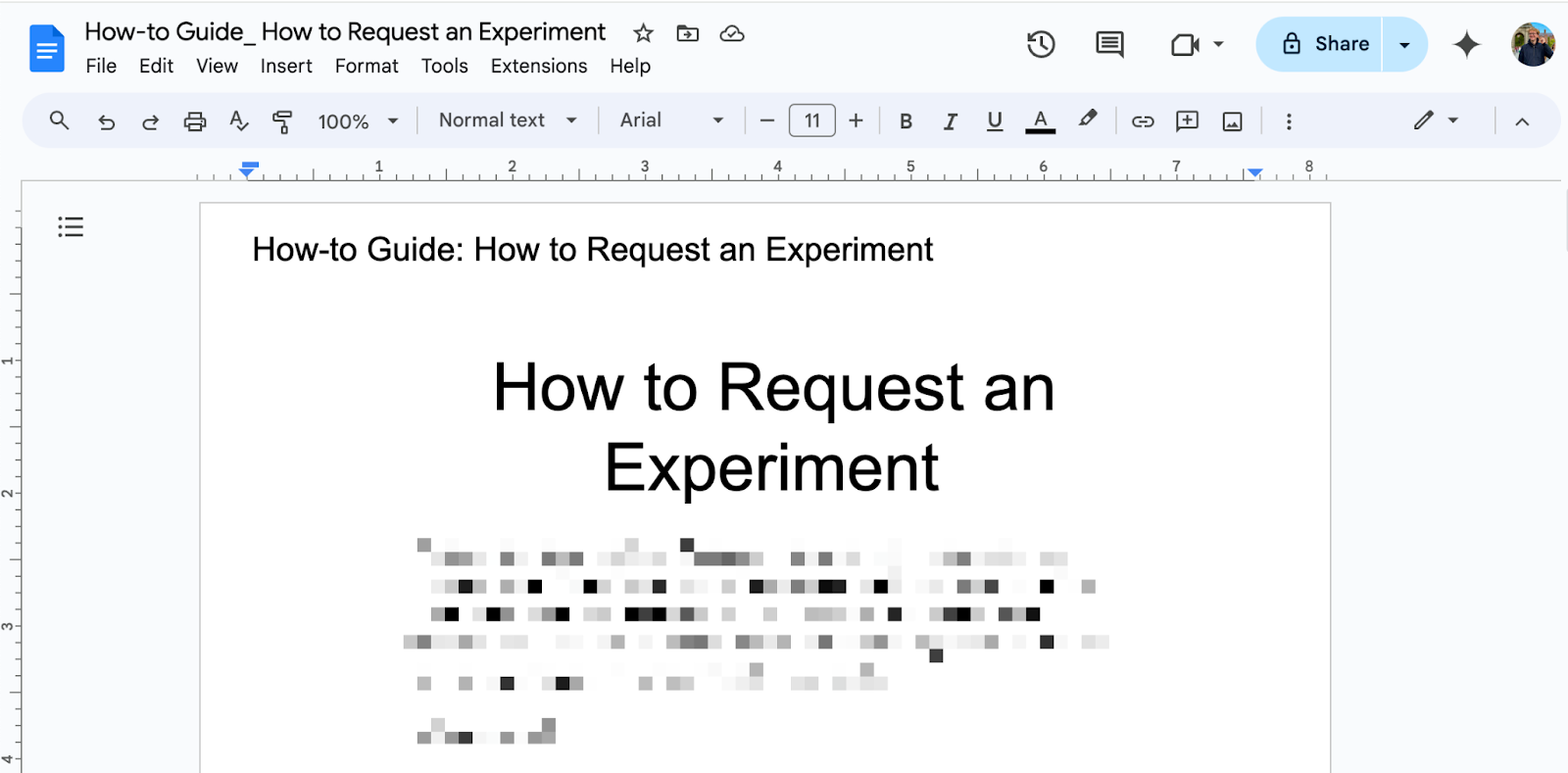
Check the layout carefully against the original, especially anywhere the PDF had lists, tables or columns.
Step 4: Download your edited PDF
- In Google Docs, click File > Download > PDF Document (.pdf).
- Save the file. This is a new PDF; the original in Drive is still the unedited version.
If you no longer need them, you can delete the converted Google Doc, or the original PDF, from Drive afterwards.
Summary
- Open with > Google Docs creates an editable copy; it does not change the PDF.
- Keep to simple PDFs of 2 MB or less, and check lists, tables and columns after conversion.
- Download the edited version with File > Download > PDF Document (.pdf).
Stop pasting drafts into your CMS.
Write, review and publish in one place, then let Monitor watch every page after it goes live.