Linking to other documents in a WordPress post
You can link from one Workover document to another by pasting the other document’s address as a link, the same way you add any link. This page explains what happens to those links when the document is pushed to WordPress, and what to do when Workover says a link needs attention.
What happens when you push
A Workover address only works for people signed in to your workspace, so publishing one on your site would send readers to a sign-in page or a 404. When you push, Workover checks each link to another Workover document and does one of three things:
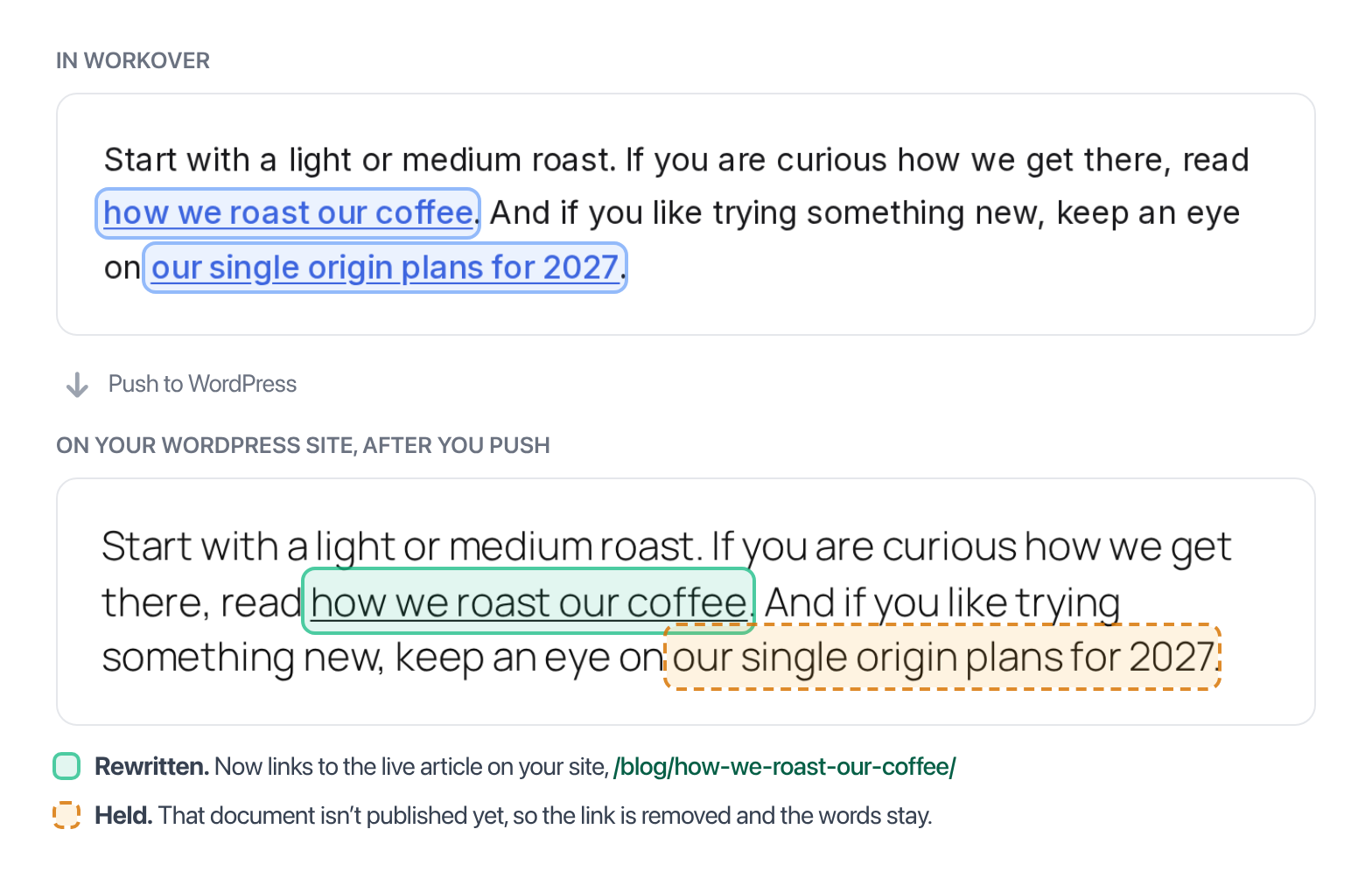
- The linked document is live on WordPress. The link is rewritten to that article’s live URL on your site. This also works when the article is on a different site you have connected.
- The linked document isn’t live. The link is held: it is removed, and its words stay in place as plain text.
- The link is a public share link. It is left as it is, because anyone can open it. If the document behind the share link is also a live article, the live article’s URL is used instead.
Workover keeps the Workover address in your document and works out the WordPress URL again on every push. So:
- A link to an article that wasn’t live yet fixes itself the next time you push after it goes live.
- Changing an article’s permalink in WordPress doesn’t break links to it for good. Push the articles that link to it again and they pick up the new URL.
- If a link ever looks wrong on your site, pushing again is the fix.
A rewritten link is treated as an internal link. Workover removes nofollow, so search engines pass authority between your own articles, and a link to an article on the same site opens in the same tab. A link to an article on a different site you have connected keeps opening in a new tab.
Here is the result for an article with one link to a live article and one to a document that isn’t live yet:
Before you push: the link count
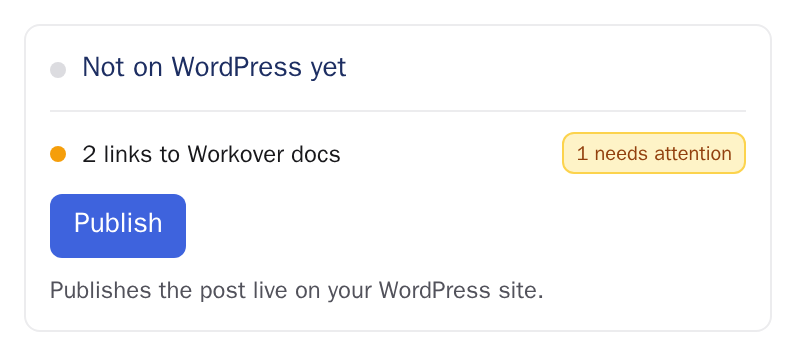
When a document contains links to other Workover documents, the WP tab shows how many, above the Push button:
- all resolve: no link will be held.
- 1 needs attention (or more): at least one link would be held.
The count uses the post statuses Workover last recorded, which it refreshes about every 30 minutes. When you push, Workover checks the held links with WordPress again, so a link counted here can still turn out to be live.
The “isn’t live” dialog
If any link would be held, pushing (or publishing a document for the first time) opens a dialog titled One link points at a document that isn’t live (or N links point at documents that aren’t live). The post itself has not been changed yet. The dialog lists each link and why it is held:
| What the dialog says | What to do |
|---|---|
| This document is not on WordPress yet. | Publish that document, then push this one again. |
| The WordPress post this points at is not live yet. | The post is a draft, pending, scheduled or private. Publish it in WordPress or from Workover. |
| We have not checked this document against WordPress yet. | Workover couldn’t read that post’s status from WordPress. Push again later. Workover refreshes post statuses about every 30 minutes. |
| This document is in the trash. | Restore it, or remove the link. |
| This link points at a document you do not have access to. | Ask someone who can see it. Workover doesn’t show its title. |
| This document is shared by link, but not publicly. | Publish the document, or make its share link public. |
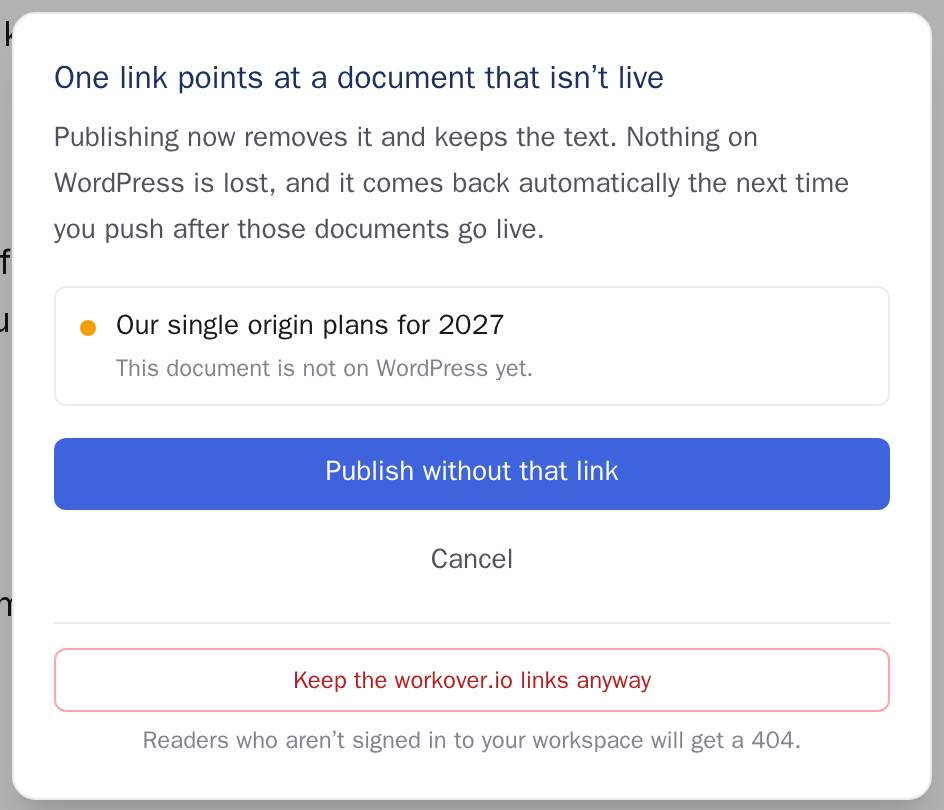
You have three choices:
- Publish without that link (or Publish without those links). The push goes ahead, and each held link becomes plain text. The links come back automatically the next time you push after those documents go live.
- Cancel. The post is not changed.
- Keep the workover.io links anyway. The push goes ahead with the Workover addresses left in. Links to documents you don’t have access to are still held.
Warning: With Keep the workover.io links anyway, readers who aren’t signed in to your workspace get a 404 when they click those links. Use it only when every reader is a member of your workspace. It isn’t offered when every held link points at a document you don’t have access to.
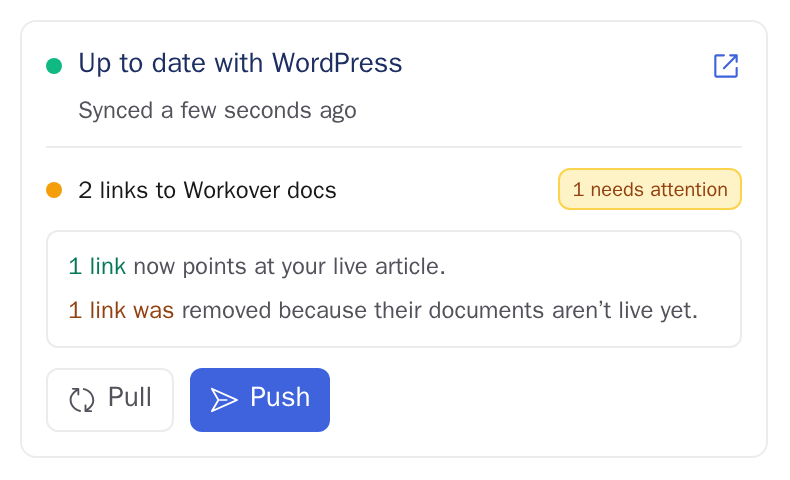
After the push, the WP tab shows what happened, for example 1 link now points at your live article and 1 link was removed because their documents aren’t live yet.
Scheduled publishes
Links are resolved when you schedule the publish, not when it runs. The scheduled copy is saved with the live URLs already in place. Scheduling doesn’t open the dialog and doesn’t check with WordPress: any link to a document Workover hasn’t recorded as live at that moment is held in the saved copy. So a document you link to must be live when you schedule, not only by the scheduled time. Scheduling again saves a fresh copy and checks the links again.
If a linked article stops being live between scheduling and publishing, for example it is moved back to draft, the scheduled publish still sends the saved copy, so the link keeps the URL it had when you scheduled.
Pushing from the CLI or MCP
A token can’t answer a dialog, so a push from the CLI or MCP server never stops over links. It holds any link that isn’t live, publishes the rest, and lists every held link and the reason in its response.
What this doesn’t cover
- Only links in the tab that syncs to WordPress are checked. Other tabs are never published.
- Links are rewritten when you push. Publishing a document doesn’t re-push the articles that link to it, so push those again to restore their held links.
- Projects connected to Webflow or Mintlify don’t get this link handling. It applies to WordPress only.
Related
Still need help?
Can’t find what you’re looking for? Our team is here to help.