How to push a document to WordPress
Once a document is linked to a WordPress post, your edits in Workover stay in Workover until you push them. Pushing sends the document’s body and the fields you changed in the WP tab to the post in one write. This page covers pushing a document that is already linked. To send a document to WordPress for the first time, see How to publish a document to WordPress for the first time.
Before you start: the project must be connected to WordPress, the document must be linked to a post, and your workspace needs an active plan or trial. Pushing is refused on a workspace without one.
Push your edits
- Open the document and click the WP tab in the editor’s side panel.
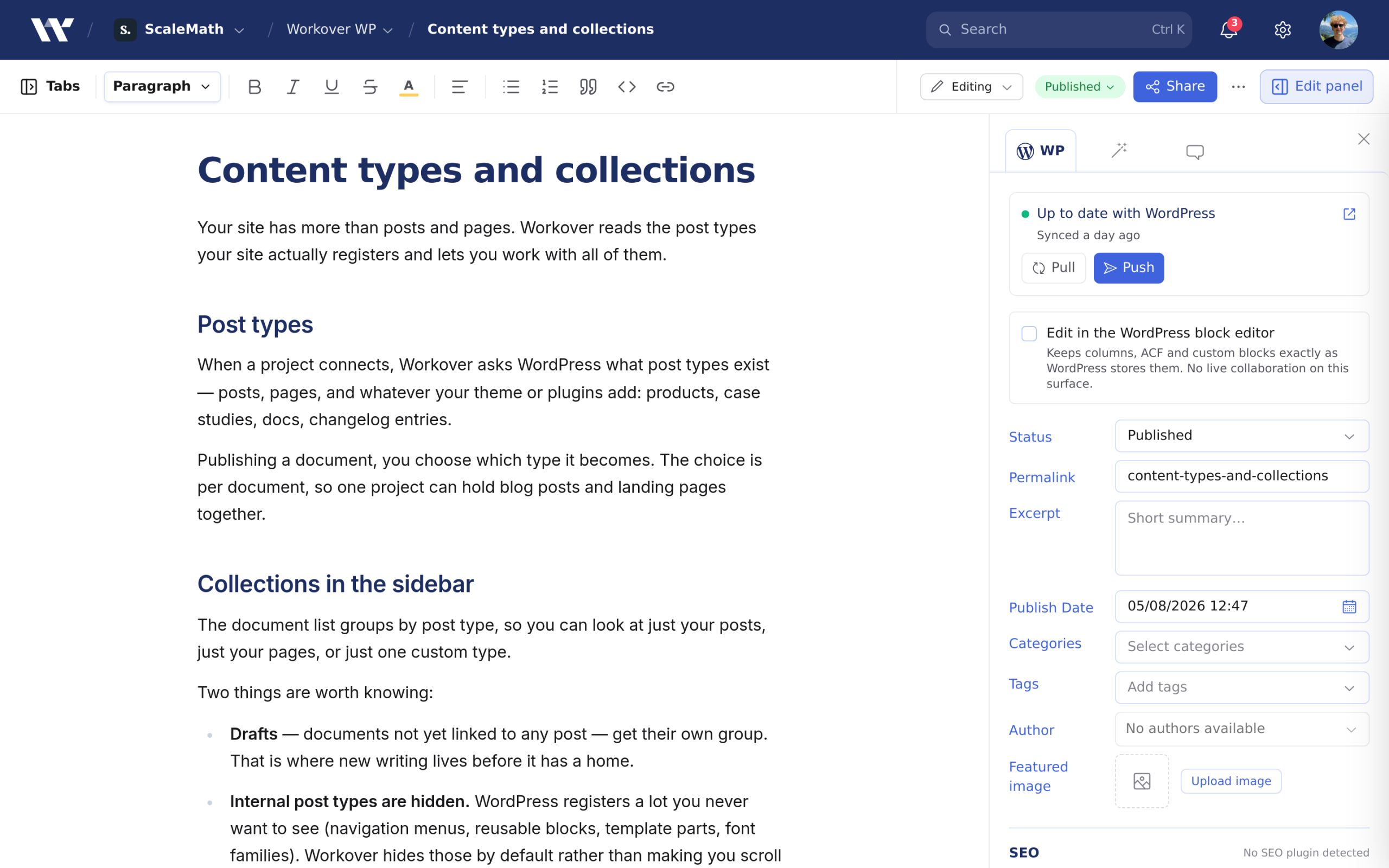
- Check the status at the top of the tab. Unpushed changes, or a count such as 2 unpushed field edits, means you have edits that haven’t reached WordPress. If it says New changes in WordPress, the post was edited in WordPress since you last synced: see If the post changed in WordPress before you push.
- If the document links to other Workover documents, check the line above the buttons. all resolve means every link will work on your site. 1 needs attention (or more) means at least one link points at a document that can’t be linked on your site yet, and Push will ask what to do with it: see Linking to other documents in a WordPress post.
- Click Push.

When the push succeeds, the status changes to Up to date with WordPress and the tab shows ✓ Pushed to WordPress. Your staged edits are now live on the post. Everyone else on the project is notified.
What a push sends
Each push writes to the linked post once, with:
- The body. Workover converts the document into WordPress block markup. If you edit the post with Edit in the WordPress block editor, the block markup is sent exactly as it is.
- The title. It is sent on every push.
- The fields you changed in the WP tab since the last push or pull: Status, Permalink, Excerpt, Publish Date, Categories, Tags, Author, Featured image, the SEO fields for Yoast or Rank Math, and Custom fields. Fields you didn’t touch are not sent, so a push never blanks a setting you left alone.
Before the write, images that are still stored in Workover are uploaded to your site’s media library, and links to other Workover documents are rewritten to those articles’ live URLs.
If Push is disabled
Push stays disabled while the document has unresolved suggestions, and the tab explains why. A push sends the document exactly as it stands, so an unresolved suggestion would put its tracked changes, including the replaced text, on the live site. Accept or reject each suggestion, then push. See Comments and suggestions.
If the post changed in WordPress
If the post was edited in WordPress since your last push or pull, clicking Push opens Before you push… instead of sending anything. The same dialog appears when the live post has embedded videos or media that the document doesn’t. It offers:
- Pull latest from WordPress first. Offered only when the post changed in WordPress. Workover asks Pull the latest version from WordPress?, and clicking Pull latest replaces the document’s body and fields with the post’s, discarding your unpushed changes. Reapply your edits, then push again.
- Overwrite anyway. Pushes your version over the post.
- Cancel. Sends nothing.
Warning: Overwrite anyway replaces the edits made in WordPress, or removes the embedded media the dialog names, and cannot be undone from Workover. Use it only after checking the post in WordPress.
How to fix a push to WordPress that failed walks through each case.
If WordPress refuses the push
If WordPress does not accept the push, a red box headed WordPress did not accept this appears in the tab with the reason, for example a refused connection or a post that no longer exists. Nothing on the post changes. How to fix a push to WordPress that failed lists each message and its fix.
If the tab says another tab is linked
A document sends one of its tabs to WordPress. If you are on a different tab, the WP tab shows Another tab is linked to WordPress. Click Go to the WordPress tab, then push from there.
Related
Still need help?
Can’t find what you’re looking for? Our team is here to help.