Sync status and conflicts
Sync status tells you how a document compares with the WordPress post it is linked to. It appears in two places: the WP tab in the document editor, and a pill next to the document’s title in the project’s document list. This page lists every state, what causes it and what clears it.
Where sync status appears
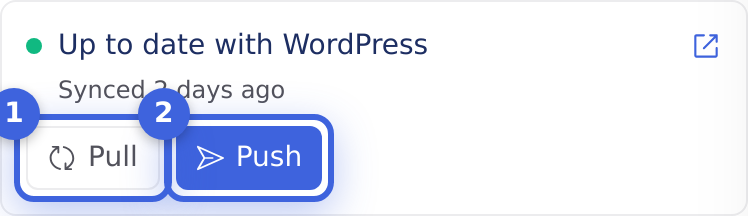
- The WP tab. A colored dot and a label at the top of the tab, with a line underneath giving relative times: “Edited in WordPress time · you synced time“, “Synced time” or “Not synced yet”. The buttons under it depend on the state: Pull and Push for a linked document, or a first-publish button for one that is not on WordPress yet.
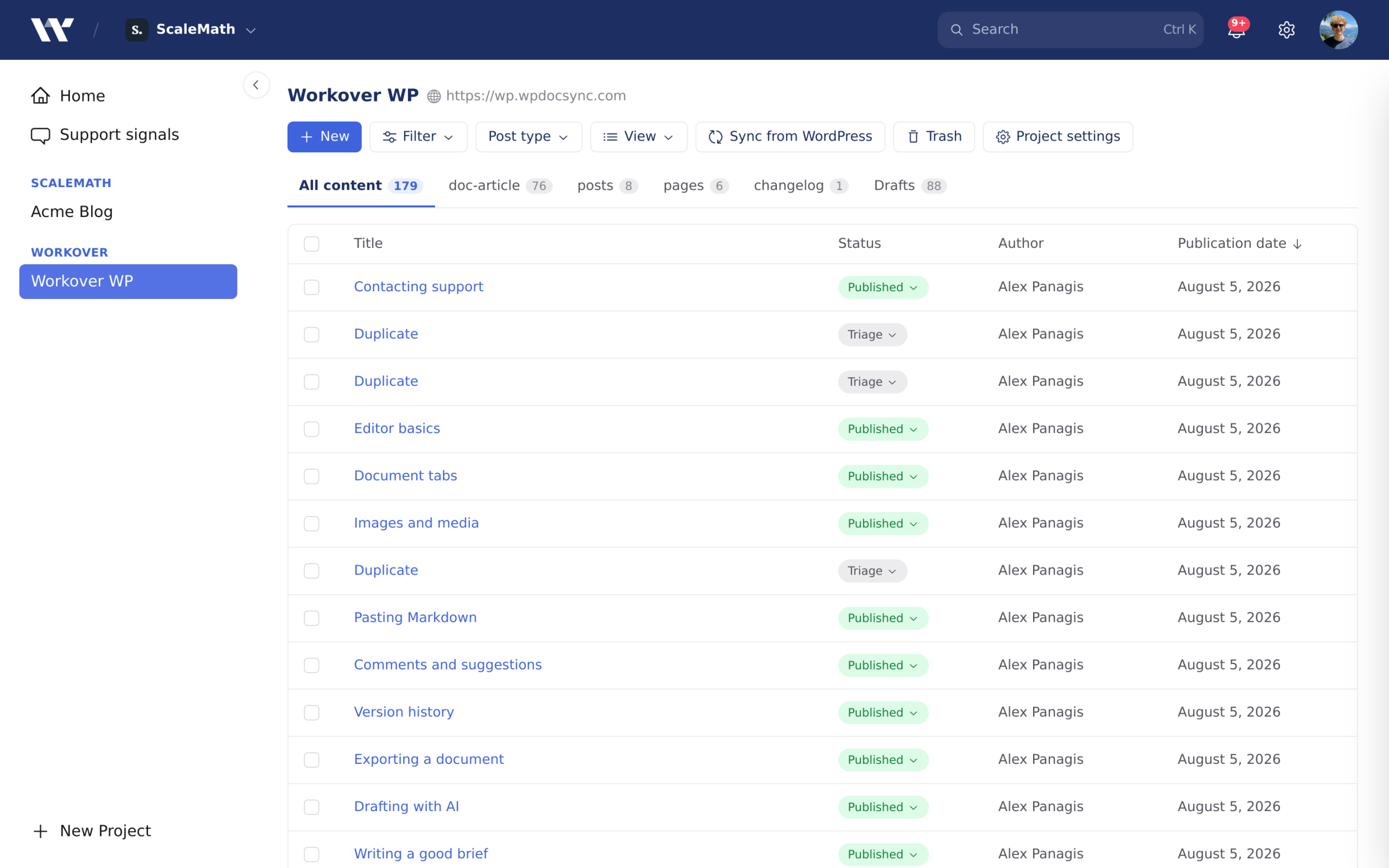
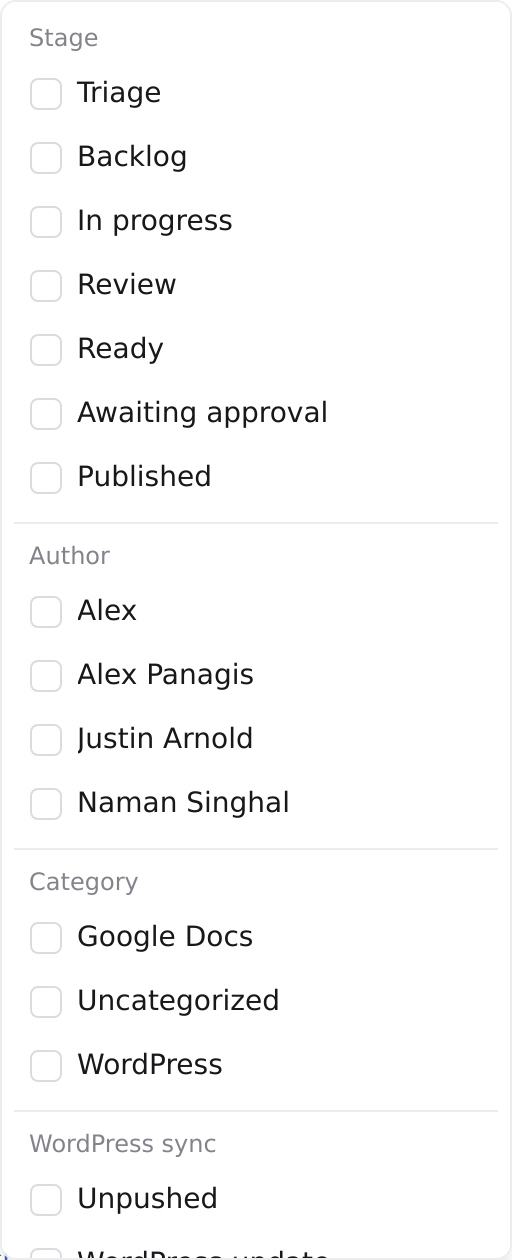
- The document list. A pill next to the title, shown only for the two states that need attention: Unpushed and WordPress update. A linked document that is up to date shows no pill. When the project has linked documents, the Filter menu has a WordPress sync section with Unpushed, WordPress update and In sync.
States in the WP tab
| Label | What it means | What clears it |
|---|---|---|
| Up to date with WordPress | Nothing has changed on either side since the last push or pull. | Editing the document (it becomes unpushed) or editing the post in WordPress (it becomes New changes in WordPress). |
| Unpushed changes | The document’s body has changed since the last push or pull, and possibly some fields too. | Clicking Push. |
| N unpushed field edits | Only fields in the WP tab have changed. This count covers Status, Permalink, Excerpt, Publish Date, Categories, Tags and Author. | Clicking Push. |
| New changes in WordPress | The post was edited in WordPress after Workover last synced it. This state wins over unpushed changes when both are true. | Clicking Pull (which replaces the document here), or pushing and choosing Overwrite anyway. |
| Not on WordPress yet | The project is connected, but this document is not linked to a post. | Publishing the document for the first time. See How to publish a document to WordPress for the first time. |
In the document list, Unpushed changes and N unpushed field edits both show as the Unpushed pill, and New changes in WordPress shows as the WordPress update pill.
Messages instead of a state
Sometimes the WP tab shows a message in place of the status:
| Message | What it means | What to do |
|---|---|---|
| Not connected to WordPress | The project has no working WordPress connection. | Connect the project in Project settings. See Connecting your WordPress site to Workover. |
| We cannot reach this WordPress site | Something in front of the site, such as a firewall or Cloudflare Access, answered instead of WordPress. The reason is shown underneath. | Follow How to let Workover through. See Let Workover reach a site behind a firewall or Cloudflare Access. |
| Another tab is linked to WordPress | The document syncs a different tab to WordPress. | Click Go to the WordPress tab. |
When a push is stopped
Clicking Push does not always send the document straight away. Workover stops and asks first in these cases:
| What stops the push | Dialog | Your options |
|---|---|---|
| The post was changed in WordPress since your last sync. | Before you push…, “This post was changed in WordPress since your last sync. Pushing overwrites those changes.” | Pull latest from WordPress first, Overwrite anyway or Cancel. |
| The live post has more embedded videos or media than the document. | Before you push…, “Pushing would remove N embedded video(s)/media that exists on WordPress but isn’t editable here.” | Overwrite anyway or Cancel. Workover skips this check when you edit with Edit in the WordPress block editor. |
| The document links to Workover documents that aren’t live. | One link points at a document that isn’t live (or N links point at documents that aren’t live) | Publish without that link (or those links), Cancel, and, when a link points at a document you can see, Keep the workover.io links anyway. See Linking to other documents in a WordPress post. |
| There are unresolved suggestions in the document. | No dialog. Push is disabled and a warning explains why. | Accept or reject the suggestions. |
The first two can appear together in one dialog. For step-by-step fixes, see How to fix a push to WordPress that failed.
A push made with a CLI or MCP token can never overwrite: if WordPress changed, the push stops and a person has to resolve it in the editor. Links to documents that aren’t live don’t stop a token’s push. They are removed, and the response lists them.
How fresh the status is
- Opening the WP tab reads the linked post live, so the tab shows WordPress as it is at that moment.
- The pill in the document list is not a live check. Workover refreshes it in the background, at most once every five minutes per project when the list loads, and across every connected project about every 30 minutes. A stale pill corrects itself without any action from you.
Related
Still need help?
Can’t find what you’re looking for? Our team is here to help.