Published content checks
Published content checks read the articles you have already published and raise what needs fixing: a misspelled word, a tracking tag left on a link, an editor’s note that went live, a brand name written the wrong way. They run in the background, so you hear about a problem without opening every post. This page lists what each check looks at, how often it runs and where its findings appear.
Before you start: published content checks are enabled per workspace, by arrangement. If you would like them for your workspace, contact us.
There are two checks:
- The spelling check reads every published article in Workover, in any project, whether or not the project publishes to a site.
- The live check reads the pages your WordPress site actually serves, for projects connected to a WordPress site.
Spelling check
The spelling check uses the same spelling engine as the editor, in your workspace’s English (American or British), and skips any word in your workspace’s dictionary. It skips code blocks and suggestions nobody has accepted yet.
- One item per word. A misspelling that appears in several articles is one item, with one fix for all of them.
- Sure or not. A word that is clearly misspelled goes to Fix now. One that may be intentional, such as an unfamiliar product name, goes to Review.
- No Workover AI. The spelling check does not use Workover AI, so it adds nothing to your AI usage.
- When it runs. Newly published and edited articles are checked within about an hour. Articles that have not changed are not checked again.
If a word is correct, dismiss the item: the word is added to your workspace’s dictionary and is not raised again.
Live check
The live check reads the HTML your WordPress site serves for each published post, not the document in Workover. A post edited in wp-admin, changed by a plugin, or pasted in from somewhere else is checked as it really is.
| What it looks for | Details |
|---|---|
Internal links marked nofollow or set to open in a new tab | Links to your own site that tell search engines not to follow them, or open a new tab. |
| Tracking parameters on links | Campaign tags such as utm_source, gclid or fbclid on internal links, and tags AI tools add, such as utm_source=chatgpt.com. Campaign tags on other external links are not raised. |
http:// links | Links that do not use HTTPS. |
| Leftover editorial notes and placeholders | Text such as “TODO”, “TK”, “[Image”, “Meta Description:”, “Note to editor” or lorem ipsum. Workover AI reads each one in context first, and clears it when it makes sense where it stands. |
| Brand names written differently from your style guide | Taken from the term rules in your style guide, such as “Use GitHub, not Github”. |
| Words your style guide avoids | Taken from the same rules. |
| Extra H1 headings | An H1 inside the post body, in addition to the post title. |
| FAQ sections without an FAQ block | An FAQ heading on a post that does not use the Yoast or Rank Math FAQ block. |
| Images without alt text | Images with no alt text at all, or an empty one. |
| Style guide check | The same check as the editor’s own document check, against your workspace’s own rules, for posts whose content changed and new posts edited in the last 30 days. It runs on up to 10 posts per project each time, and it does not check your back catalog the first time a site is checked. |
Some findings are certain, such as an internal link marked nofollow. Others need a person to look, such as a single H1 in the body, and are marked as worth checking.
How often it runs
Each project is checked at most every 6 hours. A post that has not changed since the last check is not read again, except once a week and whenever your style guide’s terms change.
Workover AI usage
Reading editorial notes and style terms in context, and the style guide check, use Workover AI, and count toward your AI usage the same way as the rest of Workover AI. Each note is judged once and the answer is kept. Without an AI key, possible editorial notes are shown as Worth checking rather than read in context.
What the live check does not cover
- Sites other than WordPress.
- Projects without a WordPress site of their own, where documents are linked to a site one by one.
- Posts the site does not return. Their earlier findings stay open.
Where findings appear
- With Suggestions enabled, findings appear in the Suggestions tab of your inbox, labelled Spelling, Live check or Style guide. See Suggestions in your inbox.
- Otherwise, each project member gets a notification in their inbox about published content in the project that needs a look. Opening it lists every open finding, grouped by post, with links to the live post and the editor and a Not an issue button for each.
Not an issue is permanent for that text. If the sentence is edited later, the check can raise it again as a new finding.
Fix what a check finds
- A misspelling or a brand name with an exact fix can be fixed from the inbox in one click. The fix is written into each article, and you choose when to publish.
- Changes to your site’s markup, such as removing
nofollowfrom a link, are made on your site or in the document. Then select Mark fixed. The next live check confirms it, and raises it again if it comes back.
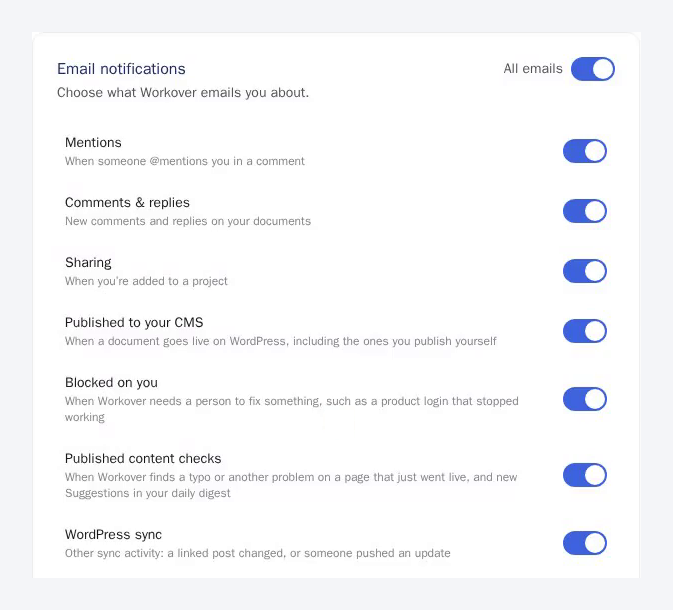
The Published content checks email preference controls the emails these checks send:
- An email right away when Workover finds a problem with an exact fix on a page published or updated in the last 24 hours.
- New findings in your daily digest.
To turn them off, open your account menu, choose Profile, select the Security tab and, under Email notifications, turn off Published content checks.
Related
Still need help?
Can’t find what you’re looking for? Our team is here to help.