Freshdesk
Turn Freshdesk ticket volume into a ranked list of docs worth writing.
Get startedConnect Freshdesk and Workover reads your ticket volume to surface the documentation that would deflect the most repeat questions, closing the loop between support and your content roadmap.
- Rank content ideas by Freshdesk ticket volume
- Close the loop on questions your team answers again and again
- Read-only agent access
How it works
- 1
Find your Freshdesk API key and subdomain
In Freshdesk, go to Profile settings → Your API Key and copy it. Note your subdomain too, the "acme" in acme.freshdesk.com.
- 2
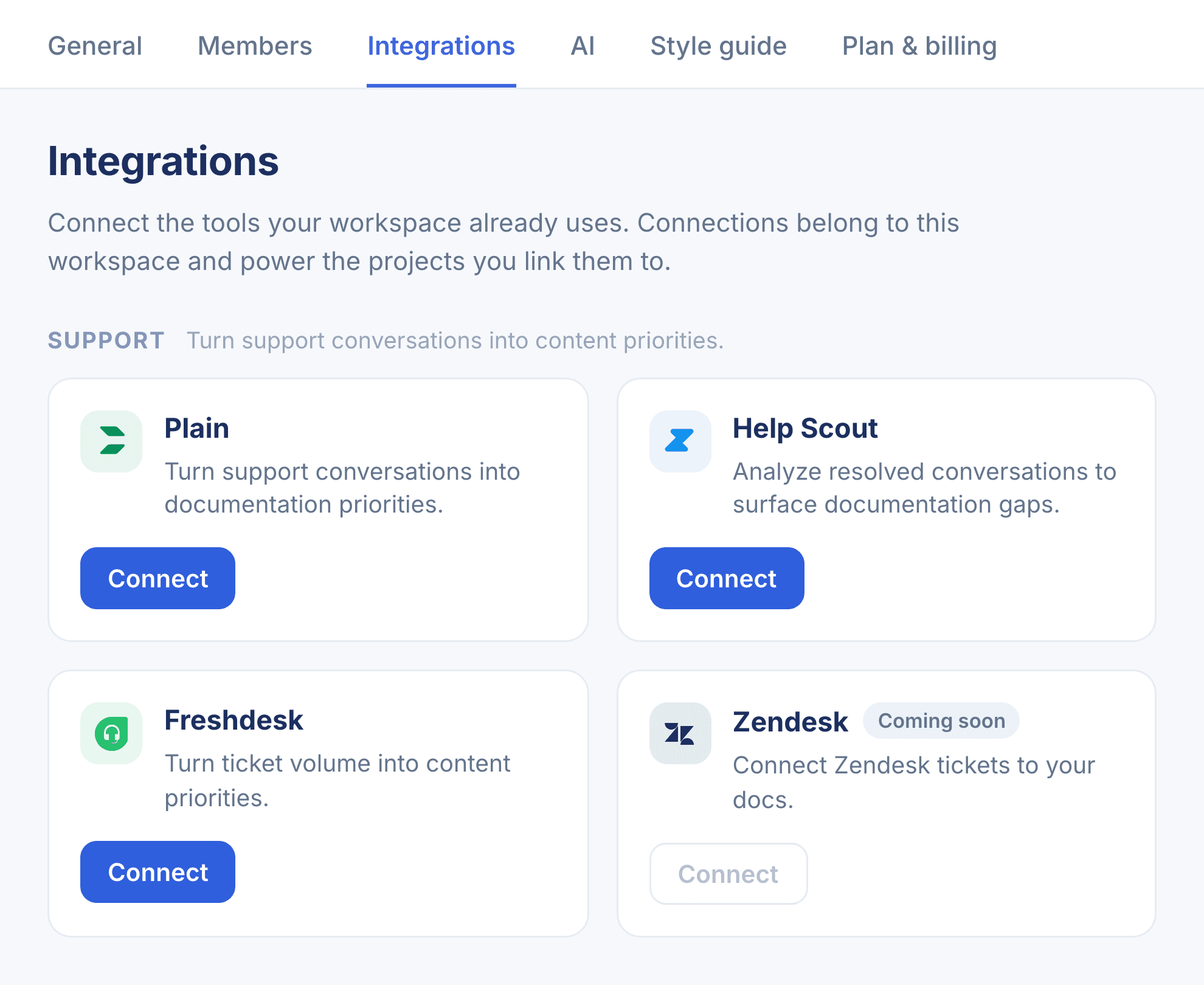
Open Settings → Integrations in Workover
In your Workover workspace, go to Settings → Integrations and find Freshdesk under the Support group, then click Connect.
- 3
Enter your domain and API key
In the Connect Freshdesk dialog, enter your Freshdesk domain and API key, then confirm. Credentials are stored in your workspace’s encrypted vault.
- 4
Mark your documentation project
In project settings, mark the project that holds your help articles as Product documentation. Workover checks your recurring tickets against those articles and suggests the ones worth writing.
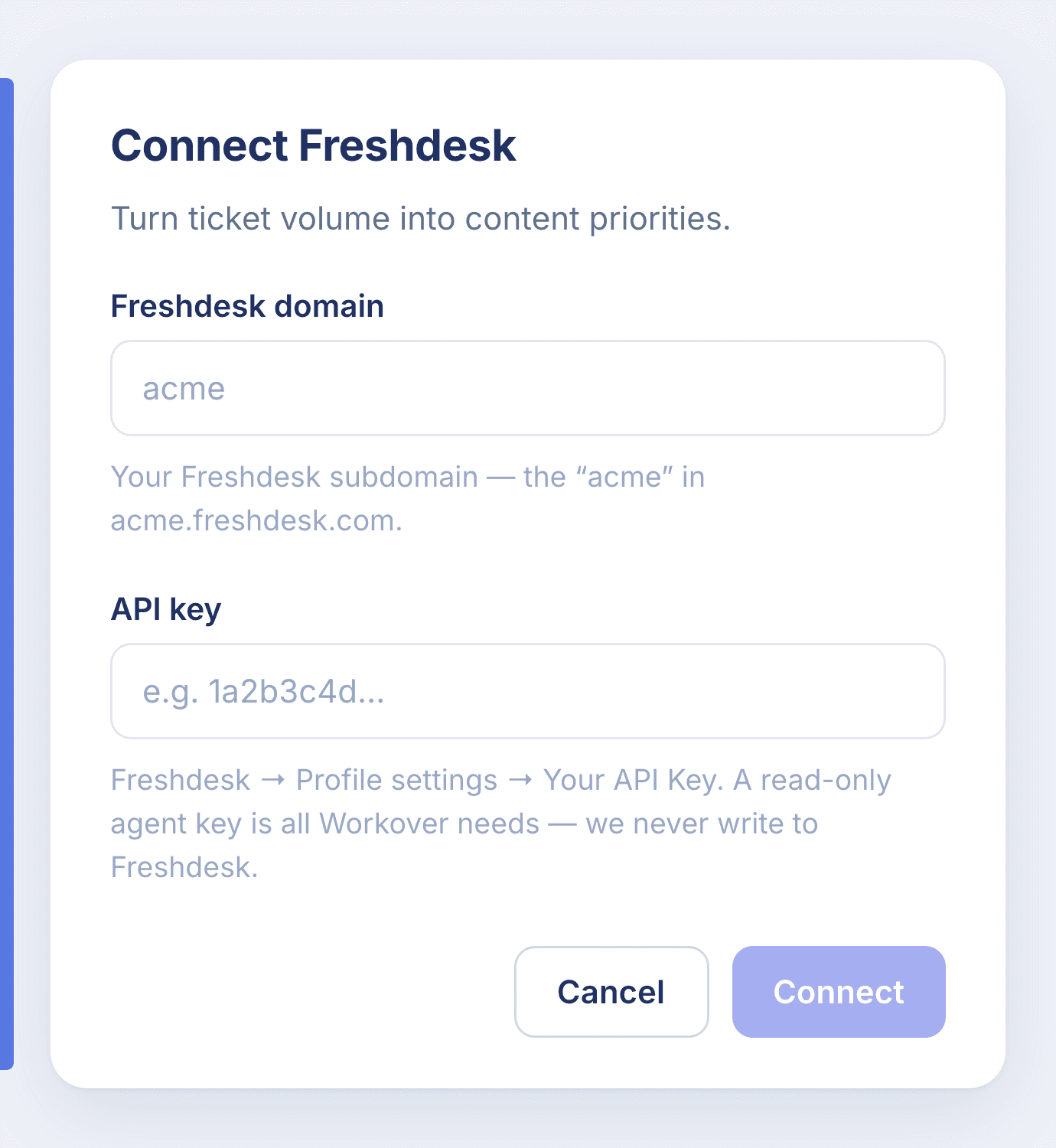
Read-only. A read-only agent key is all Workover needs, it never writes to Freshdesk.
Connect Freshdesk to Workover
Every connection belongs to your whole workspace. Set it up in a couple of minutes.