Help Scout Docs
Edit your Help Scout knowledge base in Workover, and publish it back.
Get startedConnect a Help Scout Docs site and your articles come into Workover with their formatting intact: callouts, HTML blocks, videos, tables, and code. Edit them with your team, then publish each article back to Help Scout, live or as a Help Scout draft. If someone changed an article in Help Scout in the meantime, Workover asks before it overwrites anything.
- Two-way sync: import collections, publish articles back, and pull changes made in Help Scout
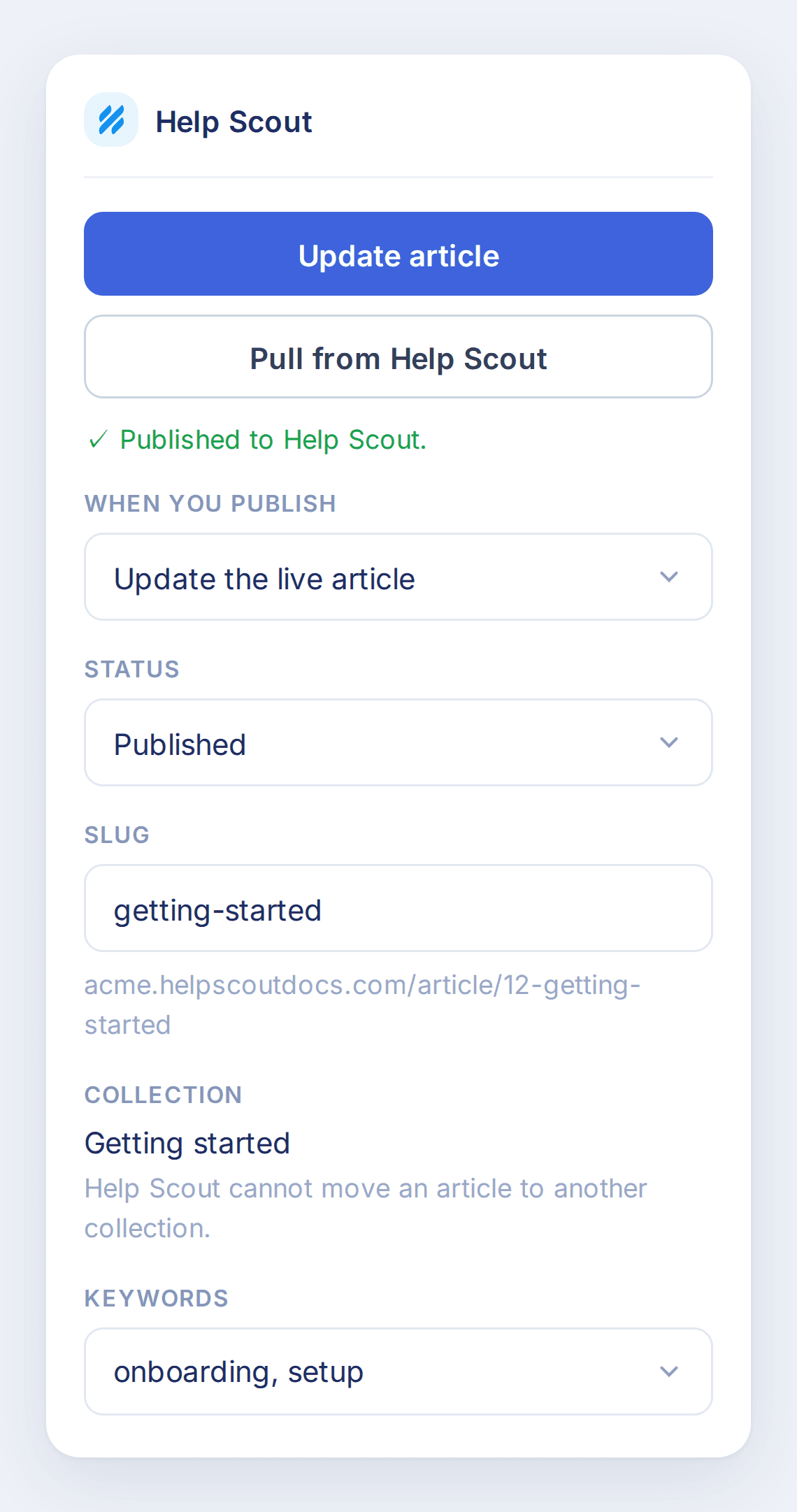
- Every article option in the editor: status, slug, collection, categories, keywords, and related articles
- Help Scout callouts and HTML blocks in the editor, published in Help Scout’s own markup
How it works
- 1
Create a Docs API key in Help Scout
In Help Scout, open Your Profile → Authentication → Docs API Keys and create a key. Your Help Scout user needs the Docs permission to see that tab.
- 2
Create a project for your knowledge base
In Workover, create a Website project, choose Help Scout Docs as its CMS, and click Connect to Help Scout Docs. Paste the key when asked.
- 3
Choose the collections to sync
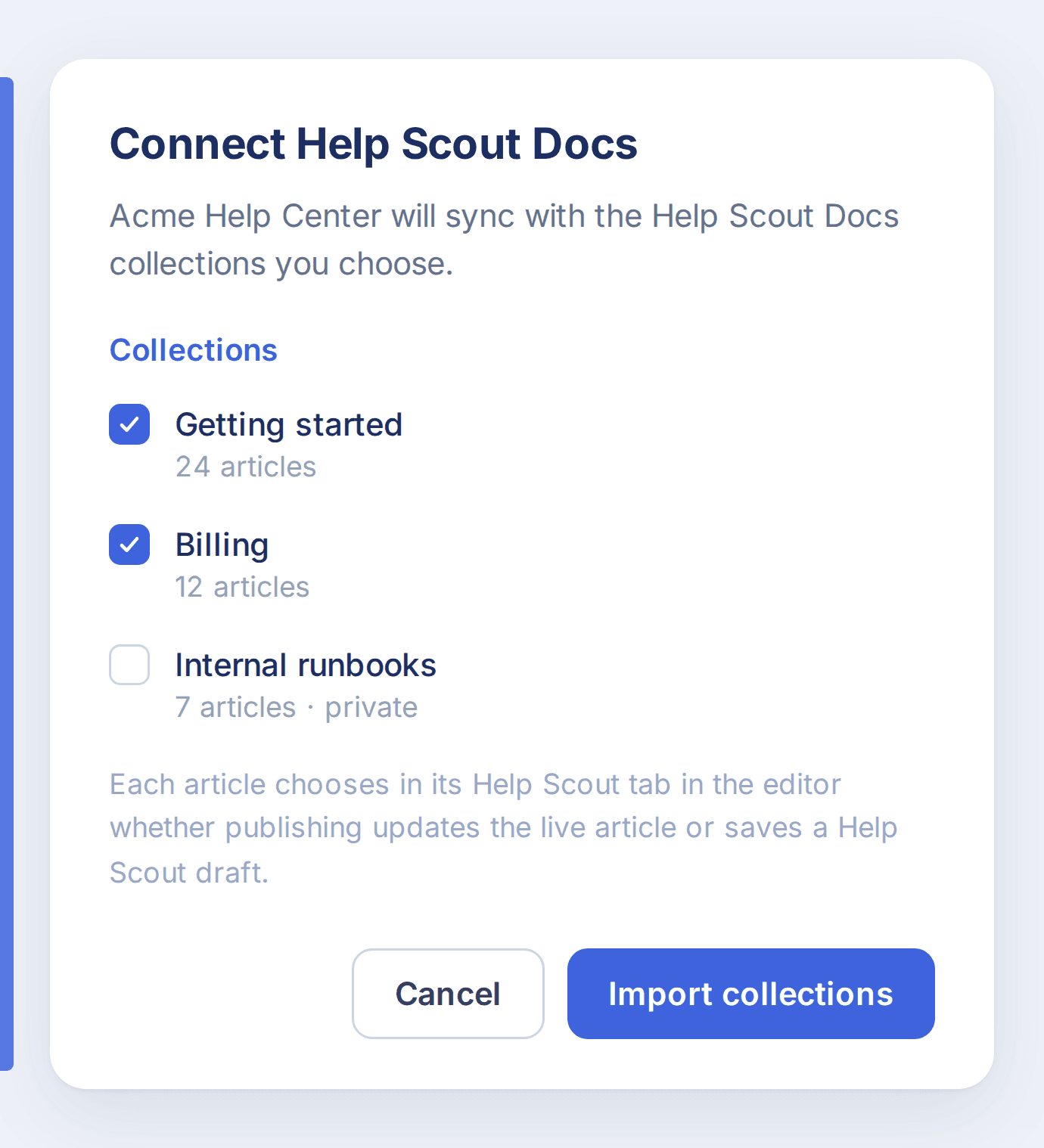
Tick the collections to bring in and click Import collections. Articles arrive in the background, and each collection becomes a tab in the project.
- 4
Edit and publish from the Help Scout tab
Open an article and use the Help Scout tab in the editor’s side panel to set its options and publish it, live or as a Help Scout draft.
Workover writes to Help Scout only when someone publishes an article, and never deletes one. The Docs API key is stored in your workspace’s encrypted credential vault.
Connect Help Scout Docs to Workover
Connect it to a project in a couple of minutes with a Help Scout Docs API key.