WordPress
Write in Workover and publish to WordPress as real posts and pages, with edits made in WordPress pulled back.
Get startedConnect a WordPress site and its existing posts and pages arrive in Workover as documents that are already linked to them. Write and review together, then save a draft to WordPress, send it for review or publish it, with its categories, tags and SEO fields. Workover checks the site for changes made in WordPress and tells you which side is ahead, so neither copy is overwritten without you choosing.
- Approve the connection in your WordPress admin, with no plugin to install
- Existing posts and pages import as linked documents
- Save drafts, send for review or publish, with categories and tags
- Apply your site’s own image block styles while you write
How it works
- 1
Create a website project
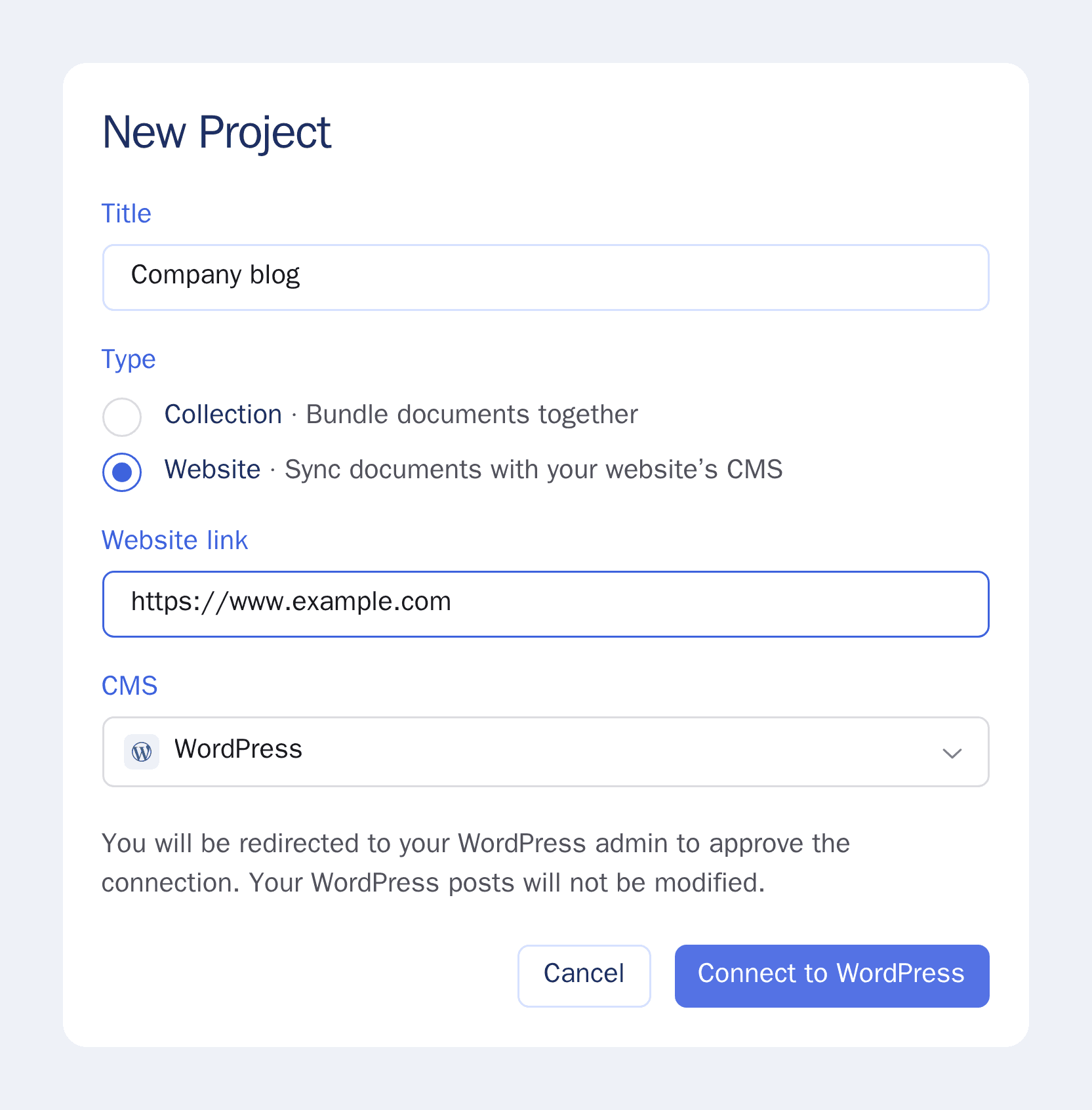
In Workover, click New Project, choose Website, type your site’s address in Website link, leave CMS on WordPress and click Connect to WordPress.
- 2
Approve the connection in WordPress
Your browser goes to your WordPress admin. Sign in as an administrator and click Yes, I approve of this connection. WordPress creates an application password for Workover, and nothing on the site is changed.
- 3
Your posts arrive as documents
Existing posts and pages are imported as linked documents, including drafts, scheduled and private posts the account can read. About every 30 minutes Workover checks the site, flags posts edited in WordPress and imports new ones. Sync from WordPress does the same on demand.
- 4
Save a draft, send for review or publish
In a document’s WP tab, choose a Status: Draft, Pending review or Published, then set the Categories, Tags, Permalink, Excerpt, Author, Featured image and Yoast or Rank Math SEO fields. Images go to your media library. Later edits go out with Push, which sends only the fields you changed.
- 5
Use your site’s image styles
Select an image and pick a style from its Style menu: Default, the Rounded style WordPress includes, and the styles your theme and plugins register. The image publishes with that style, so nobody has to apply it in wp-admin afterwards.
What it does not do
- Image block styles a site registers only in the block editor’s JavaScript are not listed in the Style menu.
- The site must be public over HTTPS with its REST API reachable, and Application Passwords must be turned on.
- Workover never merges an edit made in WordPress with one made in Workover. It shows which side is ahead and you choose to push or pull.
Workover signs in as the WordPress user who approved the connection, so it can do only what that user can do. It changes your site only when someone in your workspace pushes or publishes.
Connect WordPress to Workover
Each project connects to one WordPress site, from New Project or Project settings. It takes a couple of minutes.