Editor basics
The editor is where you write and review a document. This page explains how the screen is laid out, how saving works, and where each task lives, so the other pages in this section can point you straight to a control.
To type in a document you need the editor or owner role. Commenters and viewers see it read-only. See Roles and permissions.
The parts of the screen
A document opens at /app/<workspace>/docs/<document> with these regions:
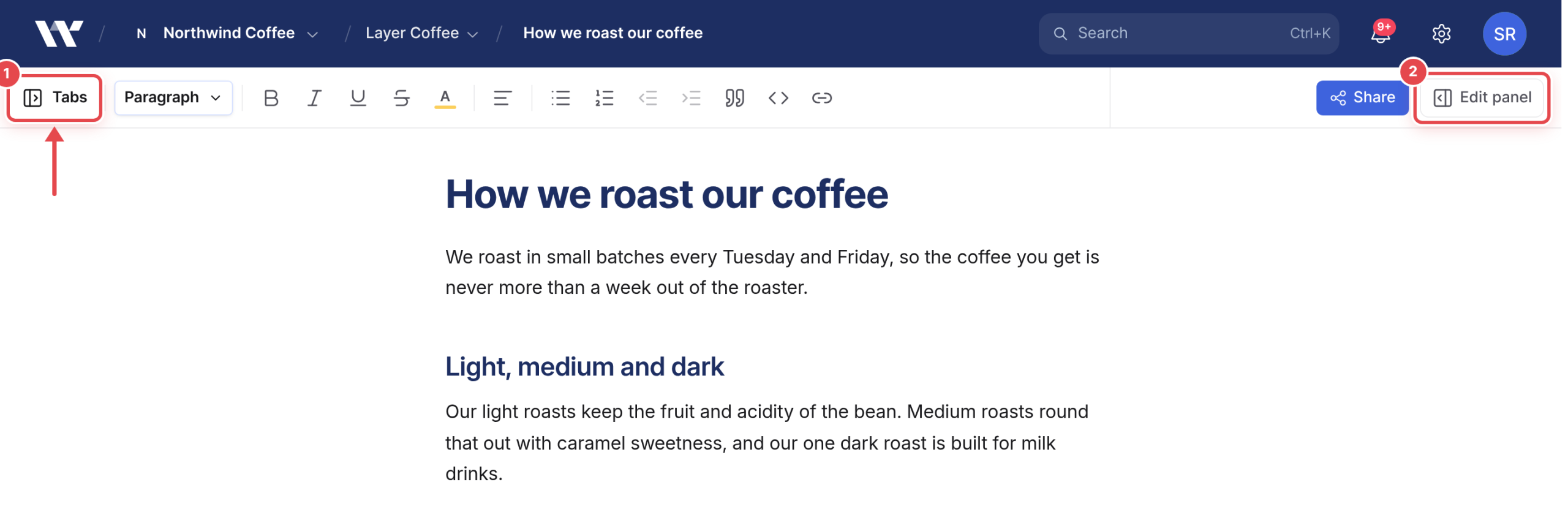
- Toolbar. A permanent row across the top. From left to right: Tabs, the text style picker (Paragraph, Heading 1 to Heading 4), Bold, Italic, Underline, Strikethrough, Highlight, an alignment menu (Align left, Align center, Align right), Bullet list, Numbered list, Outdent, Indent, Quote, Code block and Link. At the right end are Share, if you can share the document, and Edit panel. Guests, who reach the document because it was shared with them, get no Tabs or Edit panel; they see Comments at the right end instead.
- Document tabs rail. Opens on the left when you select Tabs. A document can hold several tabs, and only one of them syncs to WordPress. See Document tabs.
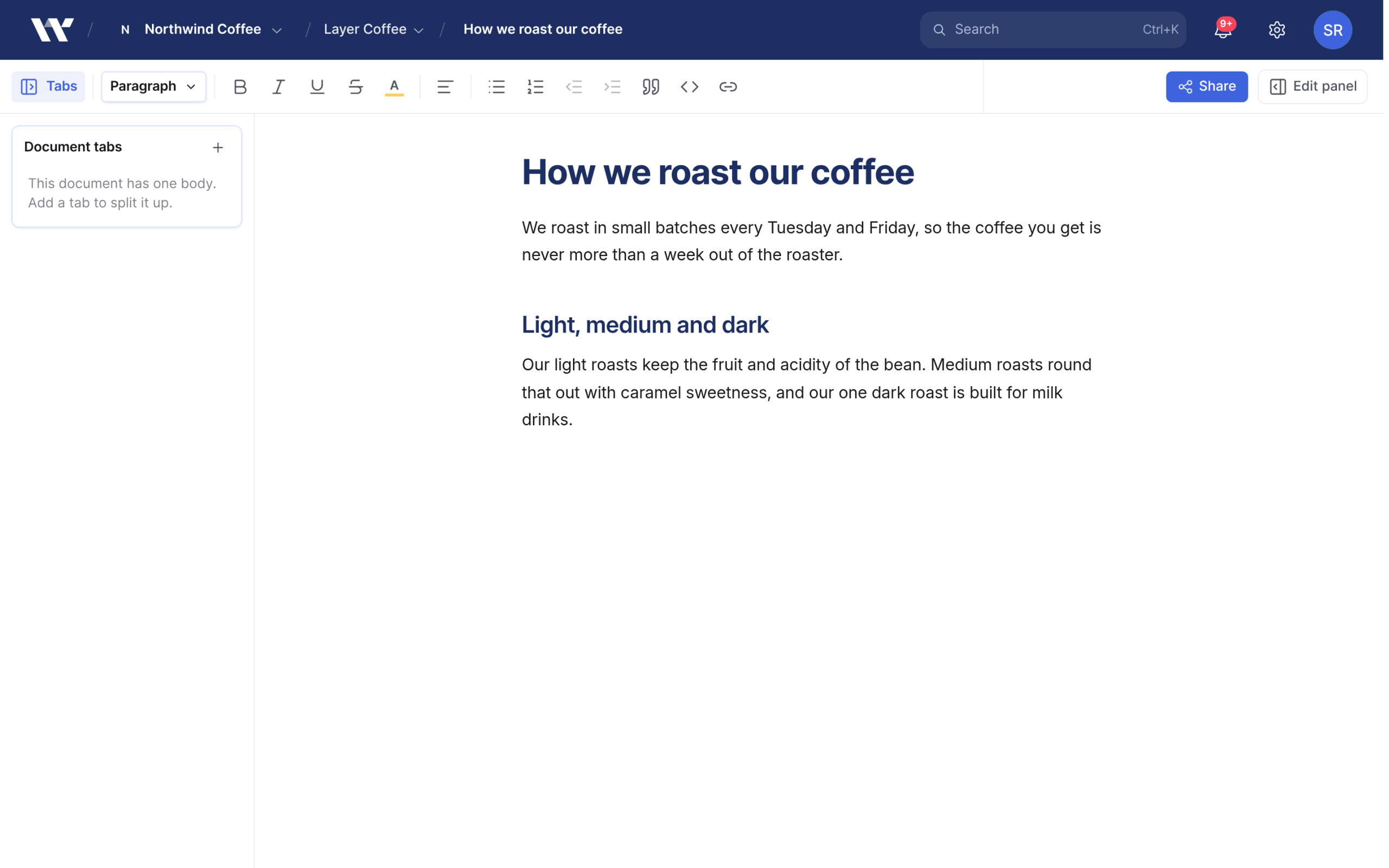
- The document. The body you type into.
- Selection bubble. Appears when you select text. It offers Comment, plus Improve, Shorten, Expand and Fix grammar when Workover AI is available to you. The AI actions replace the selected text directly.
- Edit panel. Opens on the right when you select Edit panel in the toolbar, and closes the same way.
The Edit panel
Most document-level controls live in the Edit panel rather than the toolbar.
- Mode sets how your typing is treated: Editing, Suggesting or Viewing. See How to suggest edits.
- Status shows the document’s status, and lets you change it if you can edit.
A row of tabs:
WP holds the WordPress fields and the push and pull controls. On a document connected to Webflow or Mintlify, this tab is labeled Webflow or Mintlify instead.
The AI tab (pointer icon) holds the Workover AI tools for the document. See Iterating on a draft.
The Comments tab (speech bubble icon) lists comment threads.
The History tab (clock icon) lists saved versions and activity. See Version history.
- More actions (•••), at the end of the tab row, has Download images (.zip), Copy as markdown, Download markdown (.md) and Delete document. See Exporting a document.
With the Edit panel closed, nothing on screen shows which mode you are in. If your typing appears as tracked changes, open the Edit panel and check Mode.
Saving
There is no save button. Your changes are saved as you type, and the toolbar shows Saving… while they are being written. Workover also records a version of the document at most every 10 minutes while it is changing, so you can go back to an earlier state.
Warning: If the toolbar shows Connecting… or Reconnecting…, your latest changes exist only in that browser tab until the connection returns. Do not close or reload the tab until the message clears, or those changes are lost.
Three ways to format
- Markdown shortcuts as you type.
##starts a heading,-a bulleted list,1.a numbered list,>a quote. Text wrapped in backticks becomes inline code. - The
/menu. Type/to insert a block such as a heading, list, table, code block, image or video. The menu shows 10 items at a time, so type after the/to filter, for example/tableor/image. See Keyboard shortcuts and slash commands. - The toolbar and keyboard shortcuts. Select text, then use a toolbar button or a shortcut such as
⌘B.⌘Kopens the command palette, not a link editor. To add a link, use⌘⇧Uor Link in the toolbar.
The editor also replaces some character sequences as you type: -- becomes a dash, ... an ellipsis, -> an arrow and (c) a copyright sign.
Pasting
Workover converts what you paste. Markdown pasted as plain text becomes formatted text, and rich text from Google Docs, Word or a web page keeps its structure while dropping fonts and colors. Pasting a URL over selected text turns the text into a link, and pasting the URL of another Workover document you can open inserts a link titled with that document’s name. See Pasting Markdown.
Tables, code and media
- Tables come from the
/menu. Drag a column edge to resize it. - Code blocks get syntax highlighting. See How to insert a code block.
- Images can be dragged in as a file, pasted as a file, or added from the
/menu. Each of these opens the Insert image dialog so you can set its file name and alt text first. See Images and media.
Working with other people
When someone else has the same document open, you see their cursor in the text and their avatar in the toolbar. You can both type at once, and the editor merges the changes without locking. See Real-time editing and presence.
To discuss text, select it and choose Comment. To propose a change for someone to accept, switch Mode to Suggesting. See Comments and suggestions.
Related
Still need help?
Can’t find what you’re looking for? Our team is here to help.