How to insert a code block
A code block shows code in a monospace font with syntax highlighting. You can insert one from the / menu, the toolbar, or by typing.
Before you start: you need the editor or owner role on the document.
Insert a code block
Use any of these:
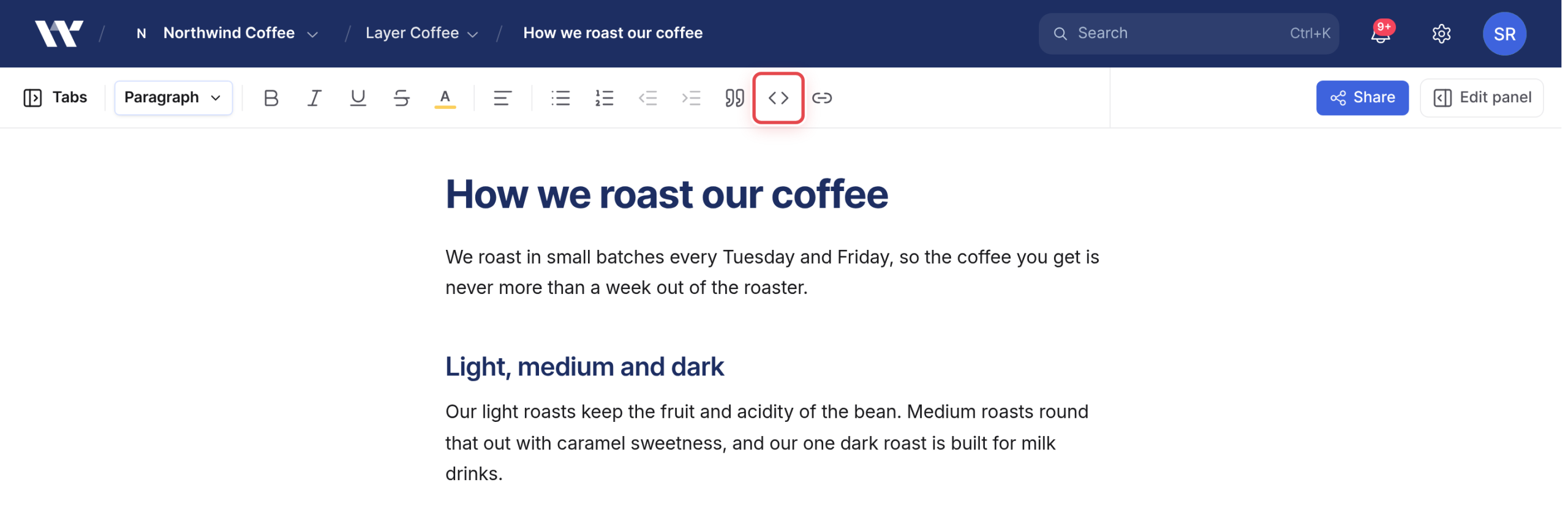
- Type
/codeand select Code block. - Select Code block in the toolbar.
- Type
```at the start of an empty line, then a space. - Press
⌘⌥C(Ctrl+Alt+C on Windows and Linux).
Then type or paste your code inside the block.
Set the language
There is no language picker. To set a language, type it straight after the backticks when you create the block, for example ```js or ```python, then a space. Without a language, Workover detects one automatically for highlighting.
Fenced code pasted as Markdown, such as a block starting with ```js, also keeps its language. See Pasting Markdown.
Inline code
For code inside a sentence, wrap it in single backticks, such as `npm install`, or select the text and press ⌘E.
From Google Docs
Text set in a monospace font in Google Docs, and Google Docs code blocks, become code automatically when you paste them into Workover. See Importing from Google Docs.
If code still does not come through as a code block, you can mark it with tags in the Google Doc before you bring it into Workover. Put [code] alone on the line before the code and [/code] alone on the line after it.
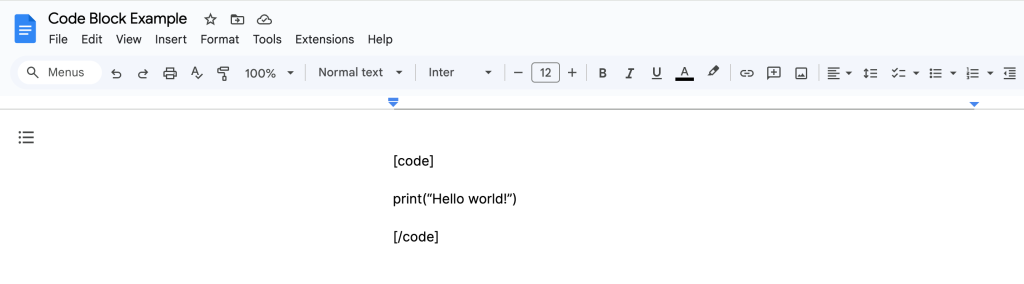
The tags stay visible as plain text in the Workover editor. They are turned into a WordPress code block only when you push the document, and only when each tag is on its own line.
Related
Still need help?
Can’t find what you’re looking for? Our team is here to help.