Exporting a document
You can copy a document as Markdown, download it as a .md file, and download its images as a zip. The Markdown and the images are designed to sit side by side, so unzipping the images next to the .md file keeps every image reference working.
Before you start: you need to be a member of the document’s project. People who open a document through a share link cannot export it.
Warning: Exports cover the tab you have open, not the whole document. If the document has several tabs, open and export each one you need. See Document tabs.
Copy or download as Markdown
- Open the document, and the tab you want to export.
- Select Edit panel in the toolbar.
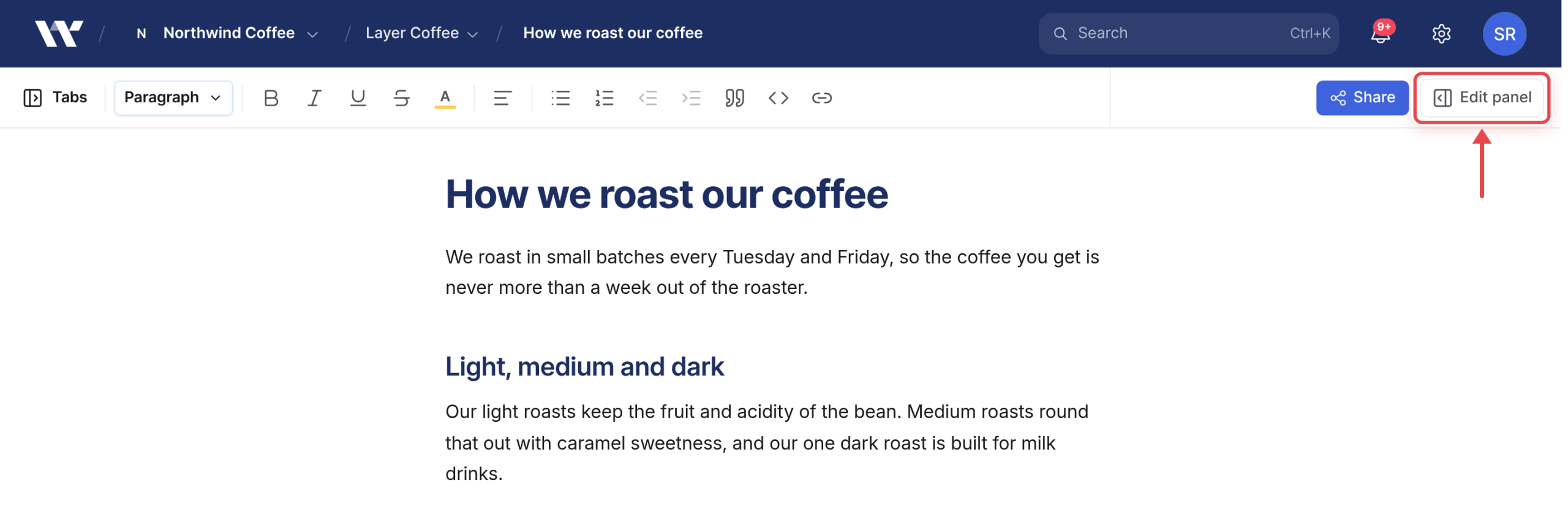
- Select More actions (•••) at the end of the Edit panel’s tab row.
Choose one:
Copy as markdown puts the tab’s content on your clipboard.
Download markdown (.md) saves a file named after the document’s title, such as
my-post.md.
Headings, lists, links, tables, code blocks and images all convert to GitHub-flavored Markdown. Each image becomes , pointing at a local filename rather than a web address. Those filenames match the ones in the images zip.
To copy only part of a document as Markdown, select the text, right-click and choose Copy as Markdown.
Download the images as a zip
- Open the document, and the tab you want the images from.
- Select Edit panel, then More actions (•••).
- Select Download images (.zip).
The zip is named after the document’s title, such as my-post-images.zip. Each image keeps its original upload or source filename rather than the name it is stored under. When two images share a name, the second gets -1 added.
If an image cannot be read, for example an external link that no longer works, it is left out and Workover tells you, such as “Downloaded 4 images (1 skipped).” If the tab has no images, you see “This document has no images.”
Leaving Workover
Warning: There is no bulk export. Documents that were never published exist only in Workover, so export each one, tab by tab, before you cancel.
Content you have already pushed to WordPress stays on your WordPress site. Publishing is a sync rather than an export: the document stays linked to its post and can be pushed again. See How WordPress sync works.
Related
Still need help?
Can’t find what you’re looking for? Our team is here to help.