How to cancel or resume your plan
Canceling Workover Essentials stops the plan at the end of the period you have already paid for. Until that date you can change your mind and resume it. This page shows how to do both, and what happens to the workspace when the plan ends.
Before you start: you need the Owner or Admin role in the workspace. Billing is per workspace, so canceling one workspace’s plan does not affect your other workspaces.
Warning: When the paid period ends, the workspace is blocked for all its members, including you, until an owner or admin starts a plan again. Your documents are kept, but you cannot read or export them from the app while the workspace is blocked. Export anything you need before the end date.
Cancel your plan
- Open the workspace switcher and choose Workspace settings.
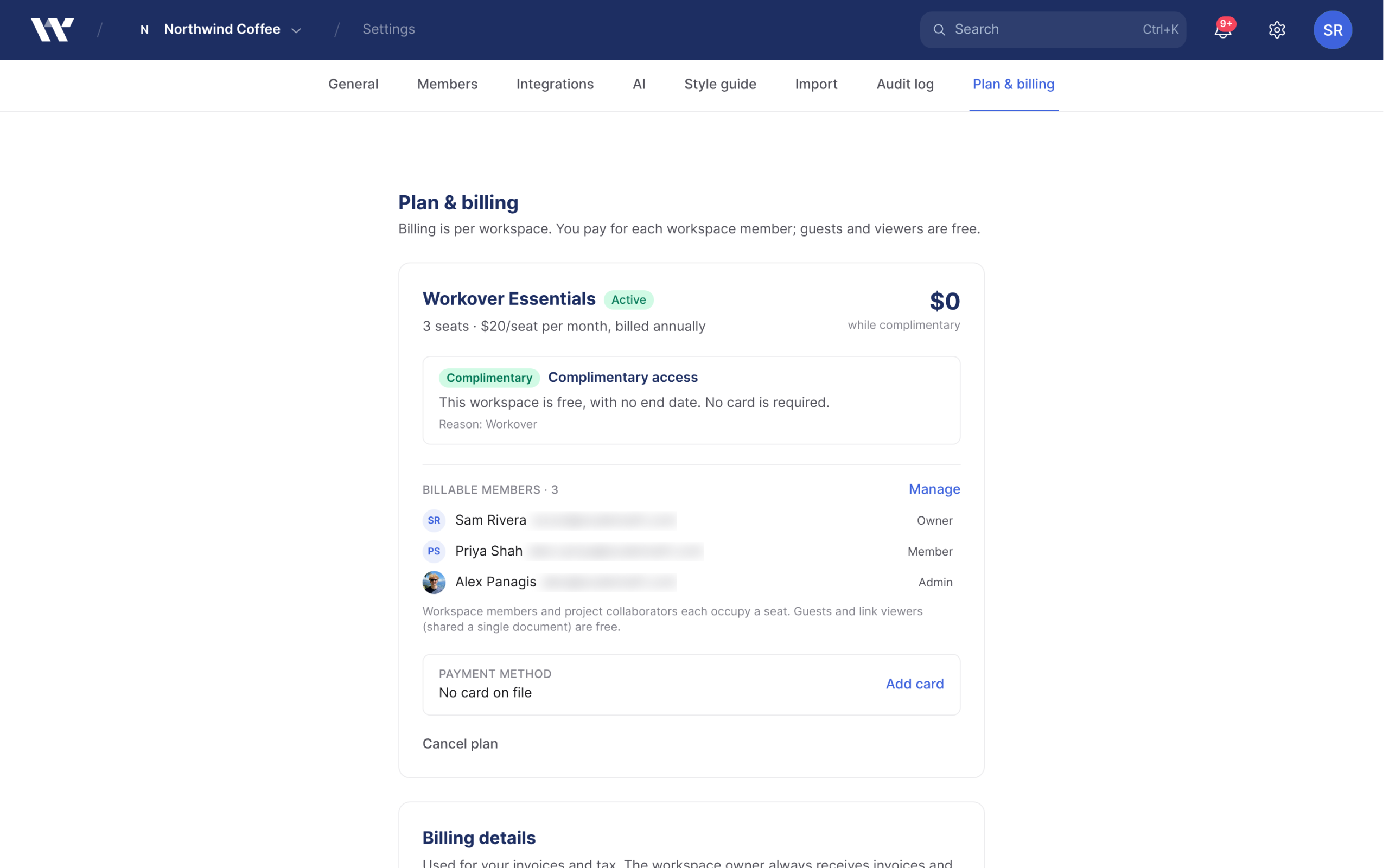
- Open the Plan & billing tab.
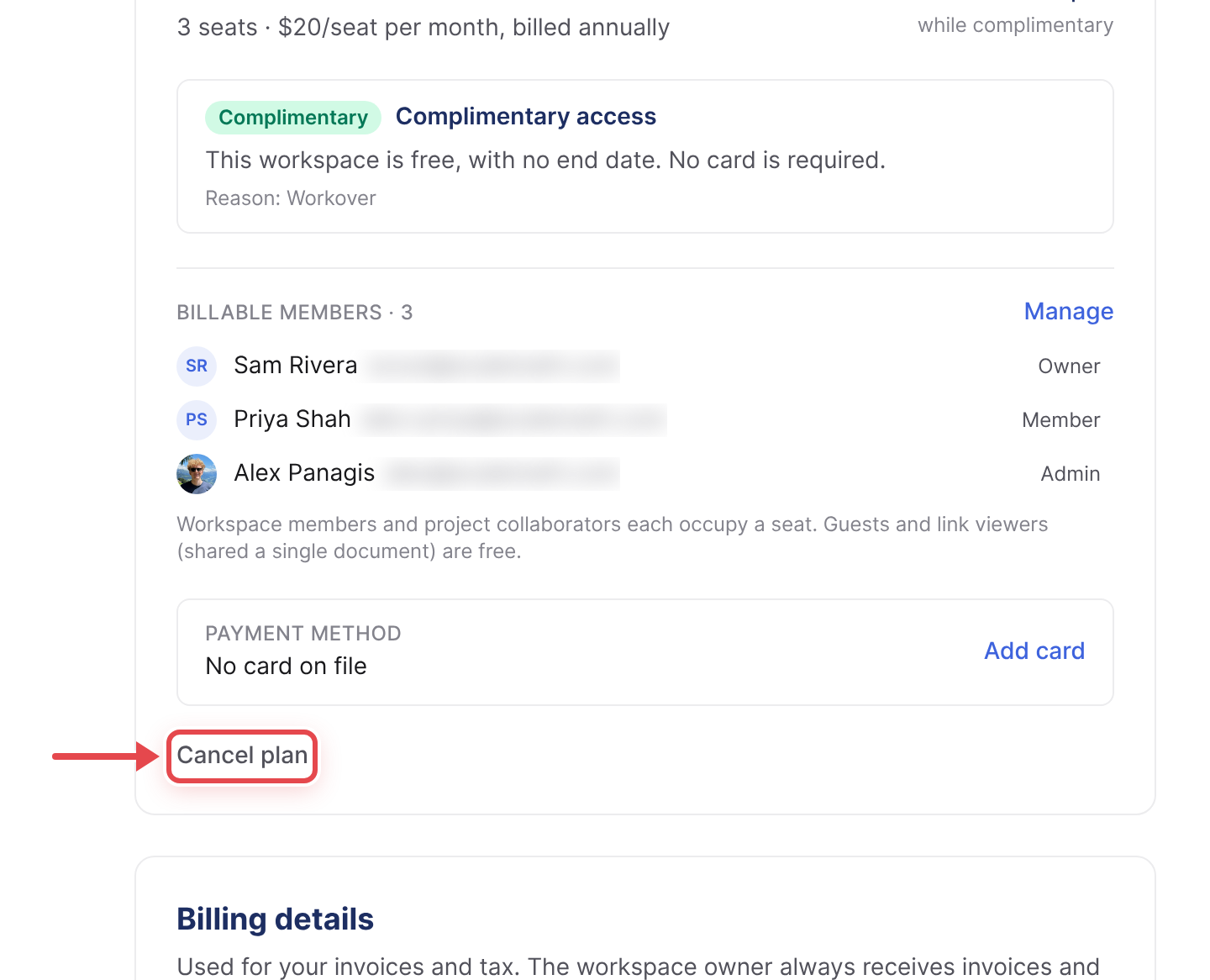
- Below the payment method, click Cancel plan. It is small, muted text.
- In the Cancel Workover Essentials? dialog, optionally pick a reason under What made you decide to cancel? and add a comment.
- Click Cancel subscription. To back out, click Keep my plan.
The plan is now scheduled to end. The badge next to Workover Essentials reads Ending, and the screen says “Your plan is set to cancel on” the end date, followed by “You’ll keep access until then.” You are not charged again.
Resume a canceled plan
You can undo a cancellation any time before the end date.
- Open Workspace settings > Plan & billing.
- Click Resume plan. It appears in place of Cancel plan while a cancellation is pending.
The plan continues and renews as normal.
What happens when the plan ends
| After the end date | |
|---|---|
| The workspace in the app | Blocked for all members. People who open it see Start your free trial to continue, the same screen as a workspace that has never had a plan. |
| Owners and admins | See a Start your free trial button that takes them to billing, where they can start a plan again. Plan & billing shows a Canceled badge. |
| Other members | Are told “Only a workspace owner or admin can set this up” |
| Your other workspaces | Unaffected. The blocked screen lists them so you can switch. |
| Documents in Workover | Kept, not deleted |
| Content already published to WordPress | Stays on your site. Nothing is unpublished. |
To get back in, an owner or admin opens Plan & billing and starts a plan again. See How to start your free trial or subscribe.
Workspaces created before Workover started requiring a plan are the exception: they are not blocked when their plan ends, and keep working without one.
Deleting the workspace is different: it is permanent and ends the subscription immediately rather than at the end of the period. See Workspaces.
Change between monthly and annual billing
You choose monthly or annual billing when you start the plan from Plan & billing. A plan started during sign-up is billed monthly. There is no option to switch in the app afterwards. Contact support if you need to change it.
Related
- What happens when a payment fails or your plan ends
- Members and seats: lower your bill by removing seats instead of canceling
- Exporting a document
- Plans and pricing
Still need help?
Can’t find what you’re looking for? Our team is here to help.