Version history
Every document keeps a history of saved versions, so you can see what it said earlier, bring back an older version, or copy an old version into a new document. History is always on. It sits in the Edit panel alongside the document’s activity, in one list.
Before you start: anyone who has the Edit panel can browse the history and make a copy of a version, including viewers and commenters. Guests do not have the Edit panel. Saving, naming and restoring versions need the editor or owner role.
What gets saved
- Automatic versions. While a document is changing, Workover saves a version at most every 10 minutes.
- Versions you save. Save current version records the document as it is right now.
- Marked versions. A version is labeled Saved when someone saved it by hand, Restored when it was created by a restore, and AI draft when it was saved as a checkpoint after Accept all on AI changes.
Each version shows its date and time and who contributed to it.
Version history shows only the document’s original tab, the one that held its text before any tabs were added. Other tabs you add are not shown in previews. See Document tabs.
Open the history
- Select Edit panel in the toolbar.
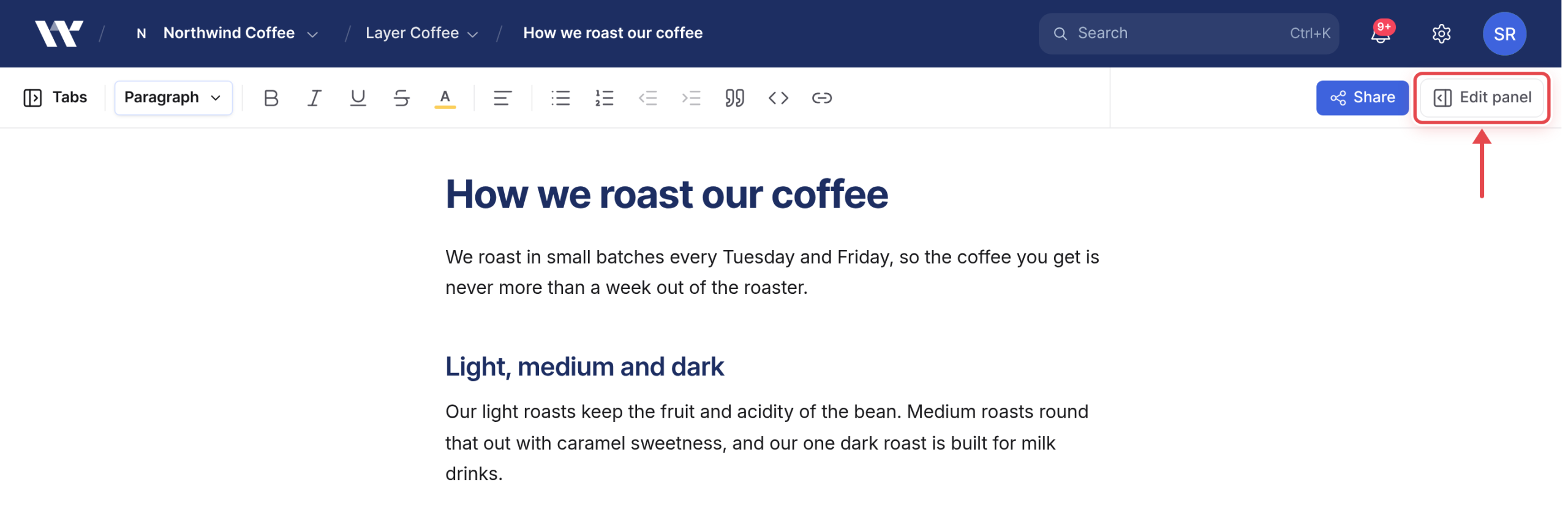
- Select the History tab (clock icon).
You can also press ⌘K and choose History.
The list runs newest first, with versions and activity interleaved.
Look at an old version
- In the History tab, select a version. The document area shows it as it was.
- To see what changed, tick Show changes. This compares the selected version with the one just before it.
Save and name a version
Save a version before any change you might want to undo, such as a big rewrite, a pull from WordPress or a restore.
- In the History tab, select Save current version.
- To give a version a name, such as “Sent for legal review”, select it, select the pencil (Name this version), type the name and select Save.
Restore a version
Warning: Restoring replaces the current content for everyone, and your current text is not saved first. Select Save current version before you restore, or the text you replace may only exist in an automatic version up to 10 minutes old.
- Open the document’s original tab. Restores use that tab’s text but write it into whichever tab is open, so restoring from another tab puts the text in the wrong place.
- In the History tab, select Save current version.
- Select the version you want to go back to.
- Select Restore this version.
- In Restore this version?, select Restore.
Workover adds a version labeled “Restored to” and the date of the version you restored.
Copy an old version into a new document
If you want the old text without changing the current document:
- In the History tab, select the version.
- Select Make a copy.
- Type a name and select Create copy. The new document opens in a new browser tab.
When history helps, and when it cannot
- An AI rewrite went wrong. Accepting all AI changes saves an AI draft version. Restore the version before it.
- Someone changed something. Each version shows who contributed to it, and the activity entries in the same list show what else happened to the document.
- A pull from WordPress replaced your text. A pull does not save a version first. Only the last automatic version, up to 10 minutes old, may hold your earlier text. Save a version before you pull. See Pulling changes from WordPress.
- A tab was deleted. Deleted tabs cannot be brought back from history.
Workover’s history is separate from WordPress. Your WordPress site may keep its own revisions of the published post, depending on how it is configured.
Related
Still need help?
Can’t find what you’re looking for? Our team is here to help.