Keyboard shortcuts and slash commands
The keyboard shortcuts, typing shortcuts, / menu items and right-click menu items in the Workover editor. On Windows and Linux, press Ctrl where this page shows ⌘, and Alt where it shows ⌥.
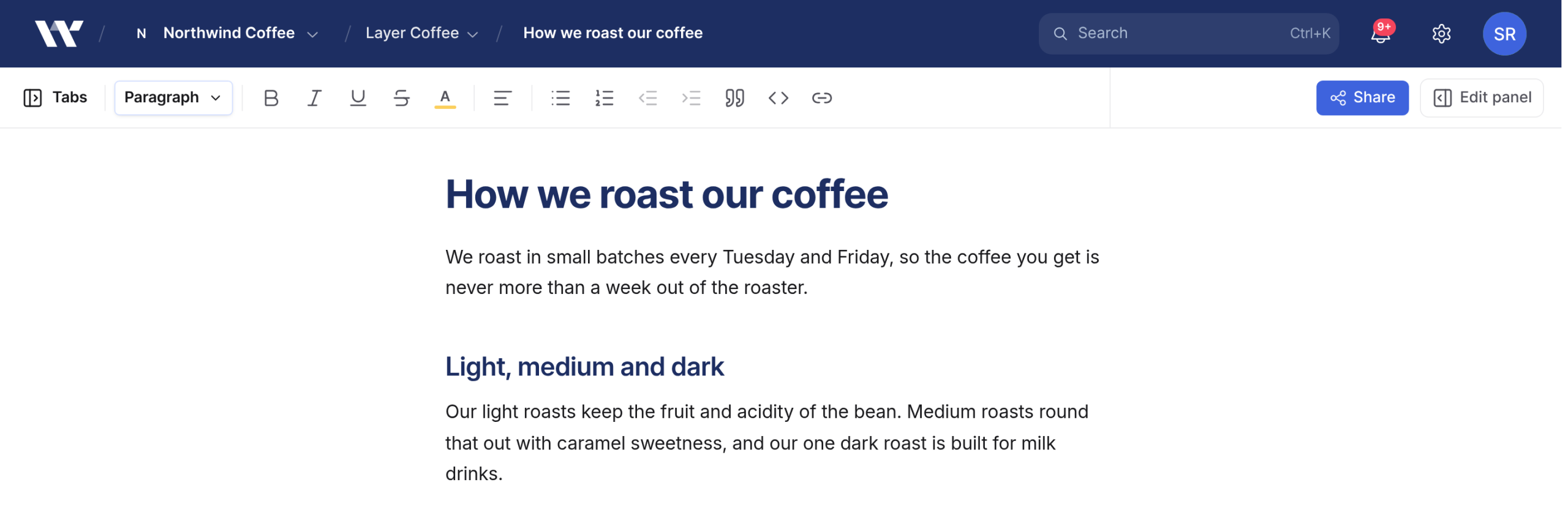
For how the editor is laid out, see Editor basics.
Keyboard shortcuts
Text formatting
| Shortcut | Action |
|---|---|
| ⌘B | Bold |
| ⌘I | Italic |
| ⌘U | Underline |
| ⌘⇧S | Strikethrough |
| ⌘E | Inline code |
| ⌘⇧H | Highlight |
| ⌘⇧U | Insert or edit a link |
⌘K does not create a link in Workover. It opens the command palette.
Blocks
| Shortcut | Action |
|---|---|
| ⌘⌥0 | Paragraph |
| ⌘⌥1 to ⌘⌥6 | Heading 1 to Heading 6 |
| ⌘⇧8 | Bullet list |
| ⌘⇧7 | Numbered list |
| ⌘⇧9 | To-do list |
| ⌘⇧B | Quote |
| ⌘⌥C | Code block |
| Tab | Indent a list item |
| ⇧Tab | Outdent a list item |
| ⇧↵ | Line break inside the same paragraph |
The toolbar’s text style picker offers Heading 1 to Heading 4. Heading 5 and Heading 6 are available from the keyboard and from pasted Markdown.
Alignment
Alignment applies to paragraphs and headings.
| Shortcut | Action |
|---|---|
| ⌘⇧L | Align left |
| ⌘⇧E | Align center |
| ⌘⇧R | Align right |
| ⌘⇧J | Justify |
Undo and redo
| Shortcut | Action |
|---|---|
| ⌘Z | Undo |
| ⌘⇧Z or ⌘Y | Redo |
Zoom
Zoom changes the size of the document only, not the toolbar or panels. It steps through 50%, 75%, 90%, 100%, 110%, 125%, 150%, 175% and 200%, and your choice is remembered in this browser. In the editor these shortcuts replace the browser’s own zoom.
| Shortcut | Action |
|---|---|
| ⌘+ or ⌘= | Zoom in |
| ⌘- | Zoom out |
| ⌘0 | Reset to 100% |
Anywhere in the app
| Shortcut | Action |
|---|---|
| ⌘K | Open or close the command palette |
| Esc | Close the command palette, the / menu or the link dialog |
Typing shortcuts
Type these at the start of an empty paragraph, followed by a space:
| Type | Result |
|---|---|
# to ###### | Heading 1 to Heading 6 |
-, * or + | Bullet list |
1. | Numbered list |
[ ] | To-do item |
> | Quote |
``` | Code block |
```js | Code block with its language set, here JavaScript |
Wrap text to format it as you type:
| Type | Result |
|---|---|
**text** | Bold |
*text* or _text_ | Italic |
~~text~~ | Strikethrough |
`text` | Inline code |
==text== | Highlight |
The editor also replaces some characters as you type:
| Type | Result |
|---|---|
-- | Em dash |
... | Ellipsis |
-> | Right arrow |
(c) | Copyright sign |
Slash commands
Type / at the start of a line or after a space to open the menu, then keep typing to filter it. The menu shows up to 10 items at a time, so type part of a name, such as /tab or /img, to reach items further down the list.
| Item | Inserts | Also found by typing |
|---|---|---|
| Text | A plain paragraph | paragraph, p |
| Heading 1 | Big section heading | h1, title |
| Heading 2 | Medium heading | h2, subtitle |
| Heading 3 | Small heading | h3 |
| Heading 4 | Smallest heading | h4 |
| Bullet list | Unordered list | ul, unordered |
| Numbered list | Ordered list | number, ol, ordered |
| To-do list | List with checkboxes | todo, task, checkbox |
| Quote | Blockquote | blockquote, callout |
| Code block | Syntax-highlighted code | code, snippet |
| Table | A 3×3 table | grid |
| Divider | Horizontal rule | hr, rule, separator |
| Image | Opens Insert image to upload an image | picture, photo, upload, img |
| Video / embed | Opens Insert video / embed for a YouTube, Vimeo or other link | video, youtube, embed, vimeo, media |
Some items appear only in certain projects:
| Item | When it appears |
|---|---|
| Yoast FAQ block | The project’s WordPress site runs Yoast SEO |
| Rank Math FAQ block | The project’s WordPress site runs Rank Math |
| Mintlify components, marked with the Mintlify logo | The document belongs to a Mintlify project |
If Workover cannot reach the site, or the site runs neither plugin, no FAQ item appears.
Right-click menu
Right-click in the document, anywhere except on an image or video, for these actions. Items that change the text are unavailable if you cannot edit.
| Item | What it does |
|---|---|
| Cut | Cuts the selection (⌘X) |
| Copy | Copies the selection (⌘C) |
| Copy as Markdown | Copies the selection as Markdown |
| Paste | Pastes (⌘V) |
| Paste without formatting | Pastes the clipboard’s plain text, with no Markdown conversion. Text containing HTML tags is still read as HTML |
| Paste from Markdown | Converts the clipboard from Markdown, even when Workover did not detect it as Markdown |
| Delete | Deletes the selection |
| Insert link | Opens the link dialog (⌘⇧U) |
| Clear formatting | Removes formatting from the selection and turns headings, lists and quotes in it back into paragraphs |
Related
Still need help?
Can’t find what you’re looking for? Our team is here to help.