Connecting your support tool
Connect your support tool so Workover can read your recent tickets, group them into topics and check each topic against your documents. The result, under Support signals, shows what to write, what to expand and what is already covered. Workover supports Plain, Freshdesk, Zendesk and Intercom.
Before you start: you need an API key or token from your support tool (see the table below). A read-only key is enough; Workover never replies to a ticket or changes anything in your support tool.
Warning: Workover analyzes one support connection per workspace: the first one you connected (Help Scout does not count, see below). If you connect a second support tool, it is not analyzed. Disconnect the first one if you want to switch.
Connect your support tool
- Open Workspace settings → Integrations.
- Under Support, click Connect on your tool’s card.
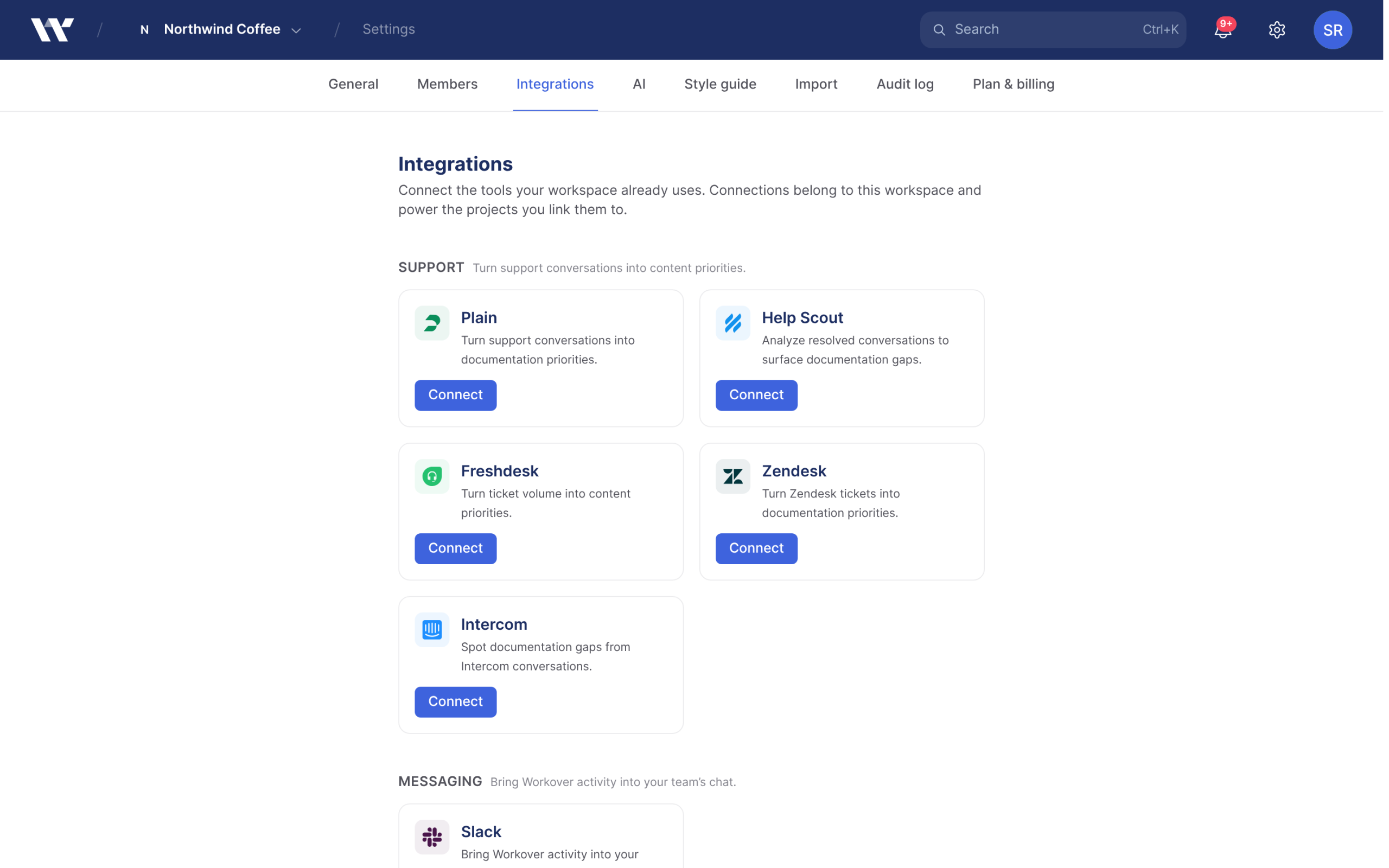
- Fill in the fields in the Connect dialog:
| Tool | Fields | Where to find them |
|---|---|---|
| Plain | API key | Plain → Settings → API keys. A read-only key with the “Threads: read” and “Customers: read” permissions. |
| Freshdesk | Freshdesk domain, API key | The domain is the “acme” in acme.freshdesk.com. The key is under Freshdesk → Profile settings → Your API Key. |
| Zendesk | Subdomain, Agent email, API token | The subdomain is the “acme” in acme.zendesk.com. The agent email is the user the token belongs to. Create the token in Zendesk Admin Center → Apps and integrations → Zendesk API → Add API token. |
| Intercom | Access token | Intercom → Settings → Developers → Developer Hub → your app → Authentication. The token needs read access to conversations. |
- Click Connect. Workover checks the credentials before saving them, and shows an error if the tool rejects them.
You do not need to choose a region for Plain or Intercom. Workover detects it.
See the results
- In the sidebar, open Support signals.
Read the list. Each topic shows how many tickets it covers and a verdict:
New doc: no document covers this topic. Click Draft this doc to start a draft from the anonymized ticket context.
Update: a related document exists but does not fully answer the question. Click Update: followed by the document’s title to open it and expand it.
Covered: an existing document answers it.
- Tick Gaps only to hide the covered topics.
- Click What customers are asking on a topic to see an anonymized summary and example questions.
Workover reads your recent ticket history, not only tickets that arrive after you connect, so there are results the first time you open Support signals. Results are reused for up to 30 minutes. To pick up new tickets and newly written documents sooner, click Re-analyze.
Coverage is checked against the documents in your workspace. If the workspace has no documents yet, every topic shows as a gap.
Hide a topic
Click the … (Manage this signal) menu on a topic and choose one of:
- Dismiss: hide this topic
- Snooze for 30 days
- Exclude from all analysis
See signals on a document
A document that support tickets refer to shows a banner in the editor, for example “3 support tickets reference this topic”. Click the banner to see the tickets.
Help Scout
The Help Scout card asks for a Docs API Key and connects to Help Scout’s knowledge base, not its conversations. It does not currently produce support signals: with only Help Scout connected, Support signals shows No support tool connected.
Disconnect
- Open Workspace settings → Integrations.
- On the tool’s card, click Disconnect, then confirm Disconnect.
Related
Still need help?
Can’t find what you’re looking for? Our team is here to help.