CLI commands and MCP tools
Every command in the Workover CLI (@workover/cli 0.11.0), every tool in the Workover MCP server (@workover/mcp 0.7.1), and the permission, or scope, each one needs. To install both and sign in, see Set up your agent.
The CLI and the MCP server share one sign-in. workover login stores a token in ~/.workover/config.json, and the MCP server reads the same file, so both have exactly the scopes you approved when you signed in.
Scopes
A token always holds read and propose. You add the others by passing a flag to workover login, and the browser lists every scope before you approve.
| Scope | Login flag | What the approval screen says | What it unlocks |
|---|---|---|---|
read | Always granted | Read your documents | Every command and tool marked Default below: listing, searching and reading documents, tabs, comments, activity and the style guide |
propose | Always granted | Suggest changes for you to review and accept | Also Default: proposing edits as suggestions, creating documents, uploading images, and adding or resolving comments |
publish | --publish | Publish to your connected WordPress sites, without asking again | The WordPress and Mintlify publishing routes of the HTTP API. No CLI command or MCP tool publishes. |
draft | --draft | Write drafts with AI. This spends AI credits, and signs in to the app you connected in Settings to capture screenshots | draft, draft-set, eval, doc reshoot, doc verify |
write | --write | Edit your documents directly, with no suggestions for you to review | doc write, doc tab-new, the --write option of doc reshoot and doc verify, workover_edit_doc, workover_create_tab |
rules | --rules | Add and change your style guide rules, which steer all future AI writing for everyone in the workspace | rules add, workover_add_style_rule |
Warning:
draftspends AI credits and lets Workover sign in to your connected app with the credential stored in Workover.writereplaces document text with no review step, so anything left out of the new text is deleted.ruleschanges the style guide for everyone in the workspace. Grant these only on a machine and agent you trust.
No scope reaches your account security, billing or token management. A token with publish still cannot push past a “WordPress is newer” conflict: a person has to resolve it in the browser.
CLI commands
In the tables below, Default means the command works with the read and propose scopes every token holds.
Every document command takes the numeric document id that workover doc list and workover doc search print as #123. Commands that take a body read it from --file <path>, or from standard input when you pipe text in. Add --json to most commands for machine-readable output.
Account
| Command | What it does | Scope |
|---|---|---|
workover login [--publish] [--draft] [--write] [--rules] [--client "<name>"] | Signs in through your browser. --client sets the name the token shows under Connected devices; the default is “Workover CLI”. Signing in again replaces the token stored on this machine; the old token stays valid, and listed under Connected devices, until you revoke it. | None |
workover logout | Revokes this machine’s token and deletes the local file | None |
workover whoami | Shows the server you are signed in to and the start of your token | None |
workover projects | Lists the projects you can reach, with their ids | Default |
Documents: workover doc
| Command | What it does | Scope |
|---|---|---|
doc list --project <id> | Lists the documents in a project | Default |
doc search "<query>" [--limit N] | Finds documents by title and content. Default limit 10. | Default |
doc read <docId> [--tab <tabId>] [--html] | Prints the document’s current text as Markdown, or HTML with --html | Default |
doc tabs <docId> | Lists the document’s tabs | Default |
doc activity <docId> [--limit N] | Shows who changed the document and how, newest first. Default limit 20. | Default |
doc create --project <id> --title "<title>" | Creates a document with the body written straight in. There is nothing to accept. | Default |
doc propose <docId> [--note "<why>"] [--tab <tabId>] | Suggests a complete revised version. The changes appear as tracked-change suggestions for a person to accept or reject. | Default |
doc write <docId> [--note "<why>"] [--tab <tabId>] | Replaces the body with no review step | write |
doc tab-new <docId> --title "<title>" [--parent <tabId>] | Adds an empty tab | write |
doc reshoot <docId> [--replace] [--write] | Workover AI retakes the document’s screenshots from its text. --replace drops the old screenshots. The result arrives as suggestions, or is written directly with --write. | draft, plus write for --write |
doc verify <docId> [--write] | Workover AI checks the text against the project’s linked repository and corrects what it finds wrong. The result arrives as suggestions, or is written directly with --write. | draft, plus write for --write |
Warning:
doc writereplaces the whole body of the document, or of one tab. Anything you leave out is deleted. Rundoc readfirst and pass the complete document.
A document with tabs holds several separate bodies. read, propose and write act on one tab: without --tab they act on the main body only. Run doc tabs first.
Comments: workover comments
| Command | What it does | Scope |
|---|---|---|
comments list <docId> [--all] | Lists open comment threads. --all includes resolved ones. | Default |
comments add <docId> "<text>" [--to <commentId>] [--quote "<text>"] | Adds a comment, a reply in a thread with --to, or a comment on a passage with --quote | Default |
comments resolve <commentId> | Marks a thread resolved | Default |
comments reopen <commentId> | Reopens a resolved thread | Default |
Style guide: workover rules
Each command takes --project <id> or --org <id>. With a project id, you get the project’s rules and the workspace’s rules together.
| Command | What it does | Scope |
|---|---|---|
rules list | Lists the rules in force | Default |
rules export | Prints the rules as a block to paste into AGENTS.md or CLAUDE.md, for example workover rules export --project 11 >> AGENTS.md | Default |
rules add "<the rule>" | Adds a rule for the project or the whole workspace | rules |
AI drafting and scoring
| Command | What it does | Scope |
|---|---|---|
draft --org <id> --project <id> "<brief>" [--ground yes|no|auto] [--type tutorial|how-to|reference|explanation] | Queues a draft and waits for it, printing Workover’s progress. --ground controls whether the draft reads the project’s linked repository; the default is auto. Stops waiting after 20 minutes. | draft |
draft-set --org <id> --project <id> --feature "<name>" [--kind documentation|content] [--dry-run] [--yes] | Plans a set of articles for a feature, prints the plan, then asks once before drafting. You can answer with the numbers of articles to skip. --dry-run prints the plan only. --yes skips the question. --kind defaults to documentation. | draft |
eval --org <id> --project <id> [--limit N] | Scores the project’s documents against an editorial rubric, one AI call per document, and prints the weakest criteria and the top fix for each | draft |
MCP tools
| Tool | What it does | Scope |
|---|---|---|
workover_search_docs | Finds documents by title and content | Default |
workover_read_doc | Reads a document, or one tab, with the style guide attached | Default |
workover_list_projects | Lists your projects | Default |
workover_list_tabs | Lists a document’s tabs | Default |
workover_style_guide | Reads a project’s style guide, including workspace-wide rules | Default |
workover_create_doc | Creates a document with its body written straight in, optionally filed under the category names you give it | Default |
workover_propose_edit | Proposes a complete revised document as suggestions | Default |
workover_upload_image | Uploads a local image into a document’s media and returns its URL | Default |
workover_edit_doc | Replaces a document’s body, or one tab, with no review step | write |
workover_create_tab | Adds an empty tab | write |
workover_add_style_rule | Adds a style guide rule for a project or the whole workspace | rules |
Without the scope a tool needs, it returns a permission error. Neither the MCP server nor the CLI publishes to WordPress.
MCP usage data
The MCP server sends Workover one event per tool call: the tool name, how long it took, whether it succeeded or what kind of failure it was, which MCP client called it, and the MCP server’s version. It never sends your documents, the arguments you pass or the results. To turn it off, set either environment variable:
export DO_NOT_TRACK=1
export WORKOVER_TELEMETRY=0
Tokens
| Fact | Detail |
|---|---|
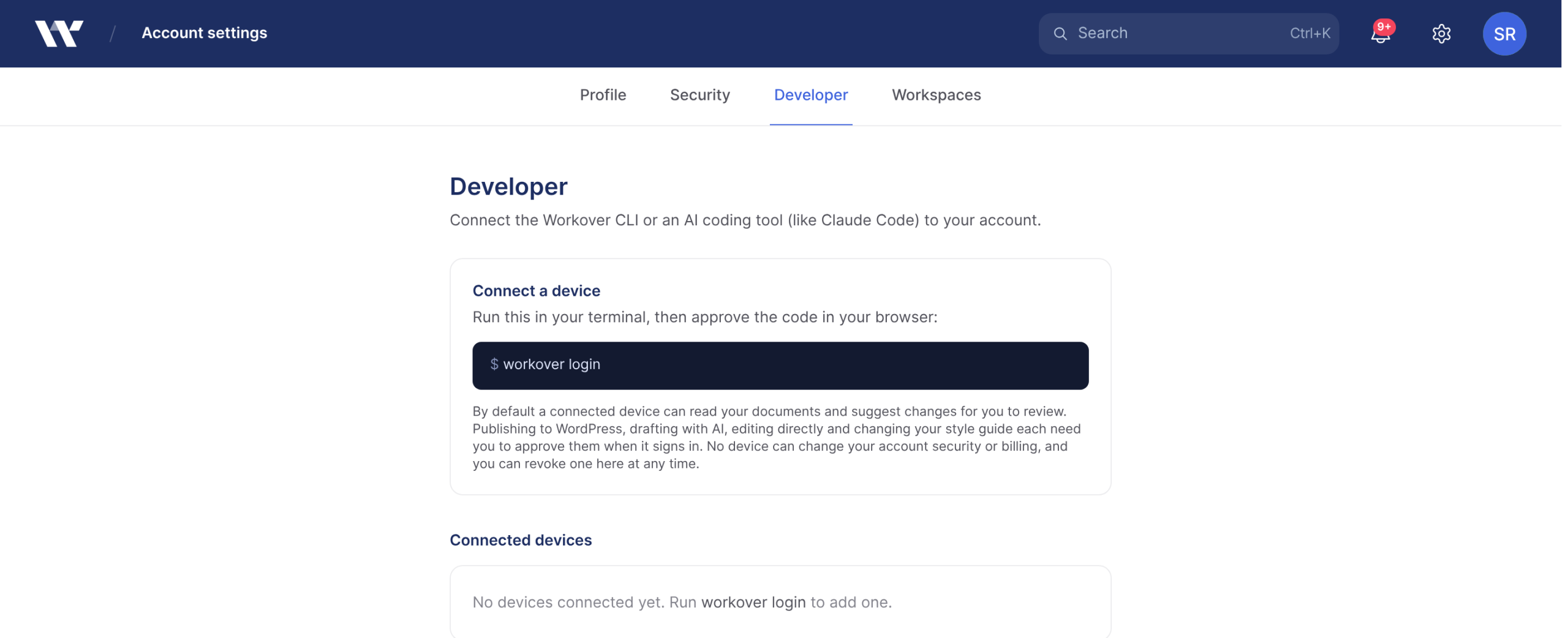
| Where you see them | Account settings → Developer → Connected devices. Each row shows the token’s name, when it was added, and when it was last used or “not used yet”. |
| How you get one | Only by signing in with workover login. There is no button to create one. |
| Where it is stored | On your machine in ~/.workover/config.json, readable only by you. Workover keeps only a hash. |
| Format | Starts with wk_ |
| Expiry | Tokens do not expire. Revoke them when you no longer need them. |
| Changing scopes | Scopes are fixed when the token is created. Sign in again with different flags to get a new token. |
| Revoking | Click Revoke on the token’s row, or run workover logout on that machine. Revocation takes effect immediately. |
You can also call the HTTP API directly with a token in an Authorization: Bearer wk_… header. The API reference lists each endpoint and the scope it needs.
Related
Still need help?
Can’t find what you’re looking for? Our team is here to help.