Offline editing
You can keep writing in Workover when your connection drops. What you type is saved on your device and sent to Workover when you are back online. You can also mark documents Available offline, so they open even with no network at all.
This page explains what works offline, how to keep documents on a device, and what happens when your edits meet changes your team made while you were away.
When the connection drops
If you lose your connection while a document is open, keep typing. The save status reads “Offline – saved on this device”, and a banner across the top of the app says:
“You’re offline. Documents you’ve opened on this device still open, and your edits are saved here until you’re back. Everything else needs a connection.”
Your edits stay on the device even if you reload the page, close the tab, or your browser crashes. The next time the document opens online, Workover sends whatever the server is missing. When you are back online, the banner says “Connected again. Everything is up to date.”
Any document you have already opened on a device opens offline on that device.
What needs a connection
Only the document text is edited offline. Features that need the server, such as Workover AI, publishing, scheduling, version history, sharing, and image uploads, stay visible but say they need a connection instead of failing.
Changes outside the text, such as a document’s status, a comment, or a new document, are not saved while you are offline. You see “You’re offline, so this change wasn’t saved. Try again when you’re back online.” Make the change again once you are connected.
Keep documents available offline
To open a document with no network, even one you have never opened on this device, keep it on the device.
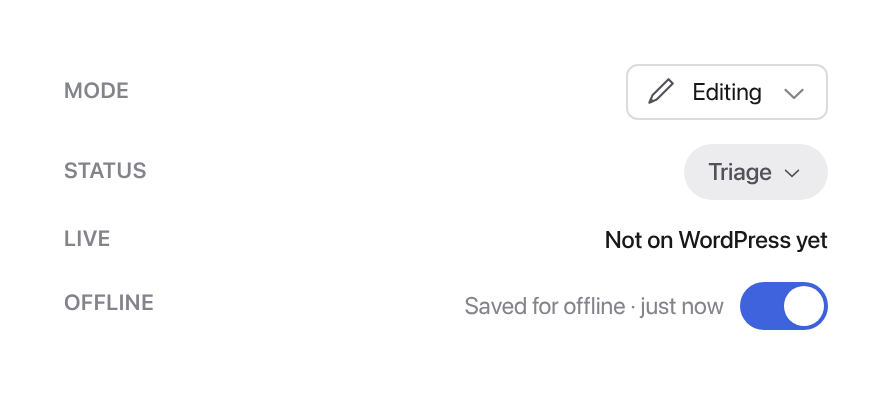
One document: open the document, select Edit panel, and switch on Offline. The panel says “Saving for offline…” and then “Saved for offline” with the time. A document kept because of its project says “Kept with the project”, and its switch follows the project’s setting.
A whole project: open the project, select Project settings, and under Offline switch on Available offline on this device. Workover keeps up to 200 of the project’s documents, newest first, and adds new ones as they appear.
Saving for offline needs a connection. This is your choice for your device: it does not change the document or the project for anyone else, and anyone who can open a project can use it.
In a project’s document list, documents kept on the device say On this device. While you are offline, the list shows which documents are Available offline and which Needs a connection.
When Workover opens online, and whenever your connection comes back, it adds new documents from the projects you keep and saves a fresh copy of any kept document last saved more than six hours ago, so the copy on your device stays current.
See what this device keeps
Go to Account settings → Offline to see the documents and projects this browser keeps, and roughly how much storage Workover is using.
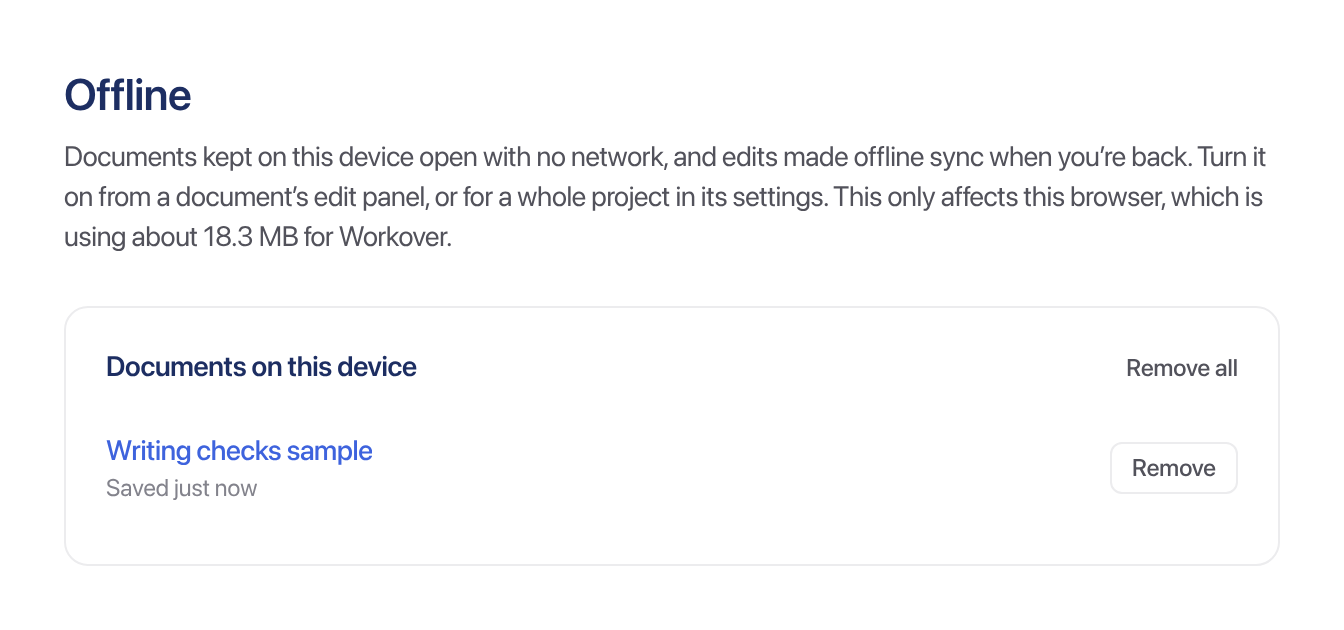
- Remove stops keeping one document or project.
- Remove all stops keeping everything.
- Retry appears when a document could not be saved.
A document kept because of its project says “kept with its project”. Remove the project to stop keeping it.
These settings apply only to the browser you are using. On another computer or browser, mark documents again.
Warning: signing out removes everything Workover kept on this device, including edits made offline that have not synced yet. If there are any, Workover asks before it signs you out.
When your team edited the same document
Workover merges your offline edits with changes other people made meanwhile, without a conflict dialog. Edits to different paragraphs both land.
Two people rewriting the same passage, or someone deleting a paragraph you typed in, can produce text that reads oddly. So before merging, Workover saves two versions in the document’s version history:
- Before merging offline edits: the document as it stood on the server.
- Offline copy before merging: the document exactly as you last saw it, with your offline edits.
After the merge, everyone in the document sees a notice, for example “Your offline edits were merged with changes made while you were away.” Select Open version history to compare the versions and put anything right. See Version history.
If you lost access while offline
If your access to a document changed while you were offline, so that you can no longer edit it, your offline edits are not saved to it. The editor says “You can’t edit this document any more, so the changes you made while offline weren’t saved. Copy them before you discard them.” Select Copy my version to copy your text, then Discard my offline changes.
Related
Still need help?
Can’t find what you’re looking for? Our team is here to help.