The inbox and Suggestions
Your inbox has two tabs. For you is personal: what people said to you or asked of you. Suggestions is shared by the whole workspace: every check that suggests a change to an article puts its findings there, one item per problem. A misspelling that appears in three articles is one item with one fix, and everyone can see who took it and who fixed it.
This page explains what each tab holds, where suggestions come from, and how to work through them.
The two tabs
Open Inbox in the sidebar. The tabs sit at the top of the list.
- For you holds your notifications: comments and mentions, sharing and publishing, document reviews, and approvals waiting for you. Filter it by type, for example Approvals. See Notifications.
- Suggestions holds changes worth making to your articles. It is the same list for everyone in the workspace.
The Inbox count in the sidebar includes open suggestions as well as your unread notifications.
How Suggestions is organized
Items are grouped by what they need:
| Section | What it holds |
|---|---|
| Fix now | Something wrong on a published page that has an exact fix, such as a misspelled word. |
| Review | Something that needs a decision, with the change already drafted, such as edits documentation review suggested. |
| Write | Articles that are missing. |
| Done today | Everything fixed or closed today, by anyone, with who did it. |
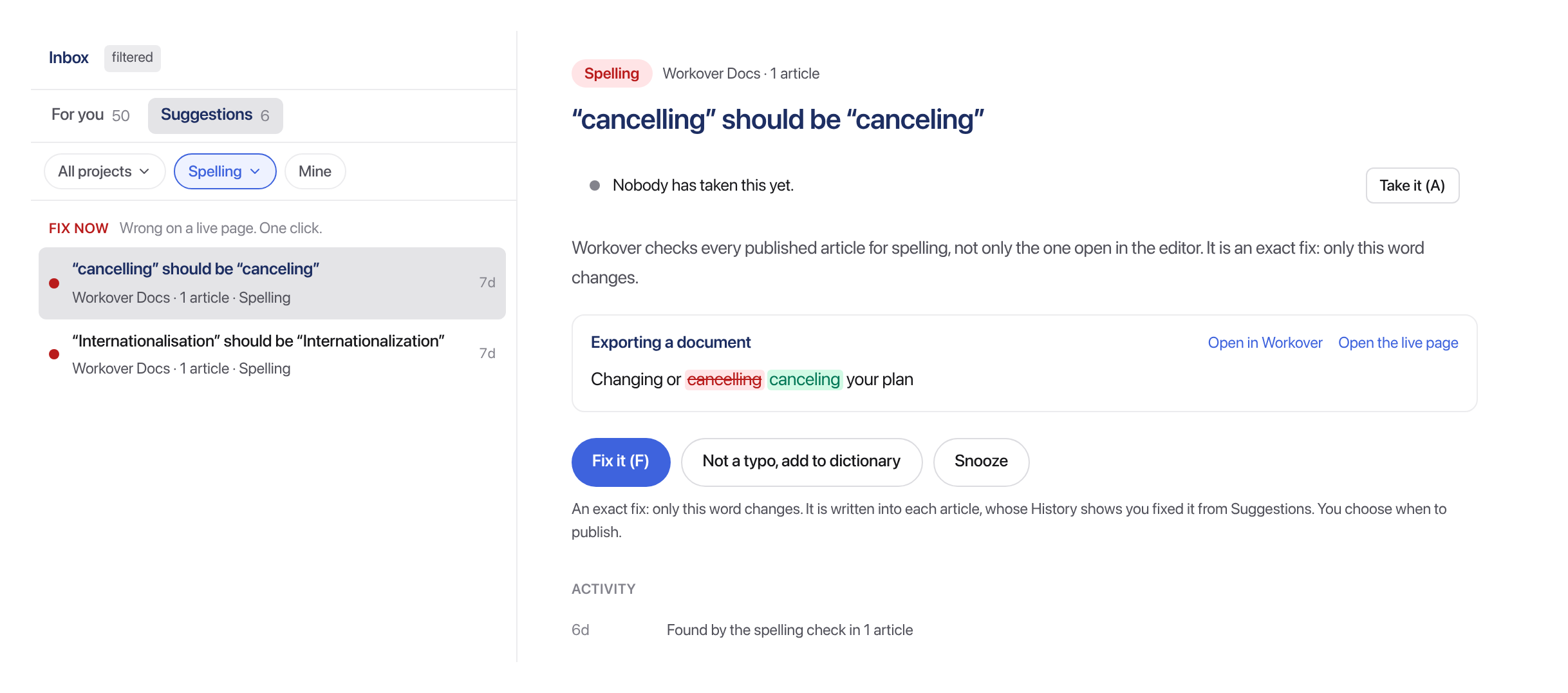
Select an item to see each article where the problem was found, with the words marked, and links to Open in Workover and Open the live page. The Activity list under it records each step, for example “Found by the spelling check in 1 article”, and who took or fixed it.
Where suggestions come from
Each item names the check that raised it.
| Check | What it finds | Section |
|---|---|---|
| Spelling | Misspellings in your published articles. Workover checks every published article in the background, not only the one open in the editor. | Fix now, or Review when the word may be intentional |
| Product change | Edits that documentation review suggests after code changes merge. | Review |
| Product check | Articles that may no longer match your product, for example an article that names a control Workover could not find in your app. | Review |
| Support signals | Topics from your support conversations that no article answers, or answers only in part. See Connecting your support tool. | Write |
| New article | An article Workover AI drafted after a code change. | Write |
Which checks appear depends on what your workspace has connected. Product changes and new articles need a linked code repository and the documentation reviewer, product checks need your app connected for documentation review, and support signals need a support tool. Live check and Style guide items appear only in workspaces where the live check of published content checks is turned on, by arrangement.
Work through an item
- Open Inbox and select the Suggestions tab.
- Select an item.
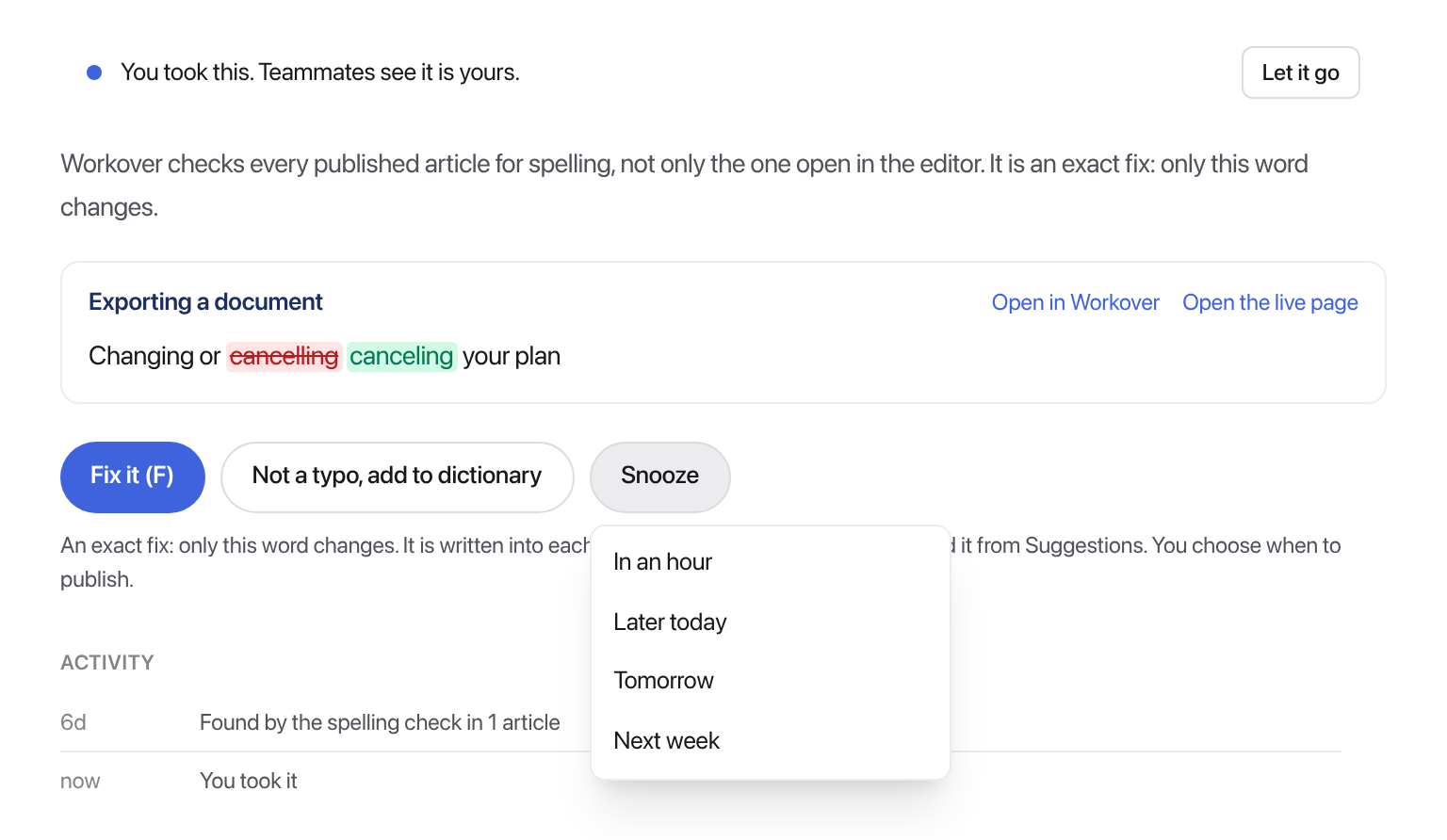
- Select Take it (A) to tell your team you are on it. Teammates see that it is yours. Let it go hands it back.
- Select the main button. What it does depends on the item, and the sentence under the buttons says so:
- Fix it, or Fix all with a number, writes the exact fix into each article. Only the marked words change, and each article’s History shows that you fixed it from Suggestions. Nothing is published yet.
- Accept the changes, or Accept all followed by the number of articles, applies documentation review’s suggested edits as tracked changes, the same as accepting them in the editor.
- Mark fixed is for a problem Workover cannot fix for you. Change the article yourself, then mark it fixed. The next check confirms it.
- Draft this article or Draft the update asks Workover AI to draft from the support conversations and your product. Review the draft opens a draft that is already written. Nothing is published until someone approves it.
- If the fixed articles are on WordPress, a Publish to WordPress box lists them. Select Publish with the number of pages to update the live pages now, or publish each article later from its document.
Warning: Publishing from this box updates the live pages on your site. It cannot be undone from Workover.
When it is not a problem
The second button closes the item without changing anything. Depending on the check, it reads:
- Not a typo, add to dictionary for spelling. The word is added to your workspace’s dictionary, so it is not raised again in any article.
- Not a difference for a product check.
- Not needed for a Write item or suggested edits.
- Not an issue for anything else.
Snooze and undo
- Snooze hides an item until In an hour, Later today, Tomorrow, or Next week.
- Undo reverses closing an item, a snooze, or Mark fixed. A fix that was written into articles is undone from each article’s version history instead.
An item you close is not raised again, including when the same thing appears in a new article.
When a fixed item comes back
A check keeps reading your articles after an item is fixed. If the same problem turns up in an article the fix did not cover, or again in an article that was fixed, the item reopens with the articles where it is now, and its activity says “Found in an article the fix did not cover.”
Until you publish a fix, the live page still shows the old text. That does not reopen the item, as long as the problem is only in the articles you already fixed.
Filter the list
- All projects narrows the list to one project.
- All checks narrows it to one check.
- Mine shows only the items you took.
Keyboard shortcuts
| Key | Action |
|---|---|
| J / K | Next / previous item |
| F | The main button: fix, accept, mark fixed, or draft |
| A | Take it, or let it go |
| E | Close it as not an issue |
| H | Snooze |
| Z | Undo |
Workover Asks
Some questions cannot be settled from the article alone. Is “Beka” a typo, or someone’s name? Does your app still have the button an article mentions? Workover checks what it can first. What it still cannot tell becomes a short question under Workover Asks, at the top of the Suggestions tab.
Only workspace owners and admins see Workover Asks.
Each question says why Workover is asking, shows the evidence, and offers answers that say what choosing them will do. For example:
- Is “…” spelled correctly? Yes, it’s a name or brand adds the word to the workspace’s dictionary, so it is never flagged again. No, it’s a typo raises it in Suggestions with the fix. When Workover already knows the right spelling, this answer reads No, it should be “…” instead.
- Does … still have “…”? Yes, it’s still there stops raising it. No, it was renamed or removed raises it in Suggestions so the articles get updated.
Every question also offers Don’t know. You can change an answer at any time. What Workover learned lists every answer in force in the workspace as the rule it became, with Undo to take it back. Undoing reverses what the answer did, and Workover asks again.
Suggestions email you in two ways:
- Right away when a Fix now item is on a page published or updated in the last 24 hours. The email goes to the article’s author when they are a member of the project, and otherwise to the project owner, once per item.
- In your daily digest for everything else that appeared since the day before, for every member of the project, unless your Delivery is set to Off.
Neither is sent for an item someone already took, fixed, or closed. Turn both off with Published content checks in your email preferences. See Notifications.
Related
Still need help?
Can’t find what you’re looking for? Our team is here to help.