Writing checks
Workover checks what you write in the editor and underlines what could be better. Click an underline to see the suggestion, then accept or dismiss it. Nothing in your document changes unless you say so.
This page explains what the checks look for, what you can do with a suggestion, and where to change how they work for you.
What gets underlined
Each kind of check has its own color:
| Check | Color | What it finds |
|---|---|---|
| Spelling & grammar | Red | Misspellings, typos, grammar, and punctuation. While it is on, your browser’s own spell check is off in documents, so words are not underlined twice. |
| Clarity | Blue | Wordy or hard-to-read sentences, with a clearer version you can use. |
| Style guide | Purple | A term written the way your style guide says not to, for example “runcloud” where it says “RunCloud”. |
| Tone | Green | Phrasing that sounds harsher, vaguer, or more casual than you mean. |
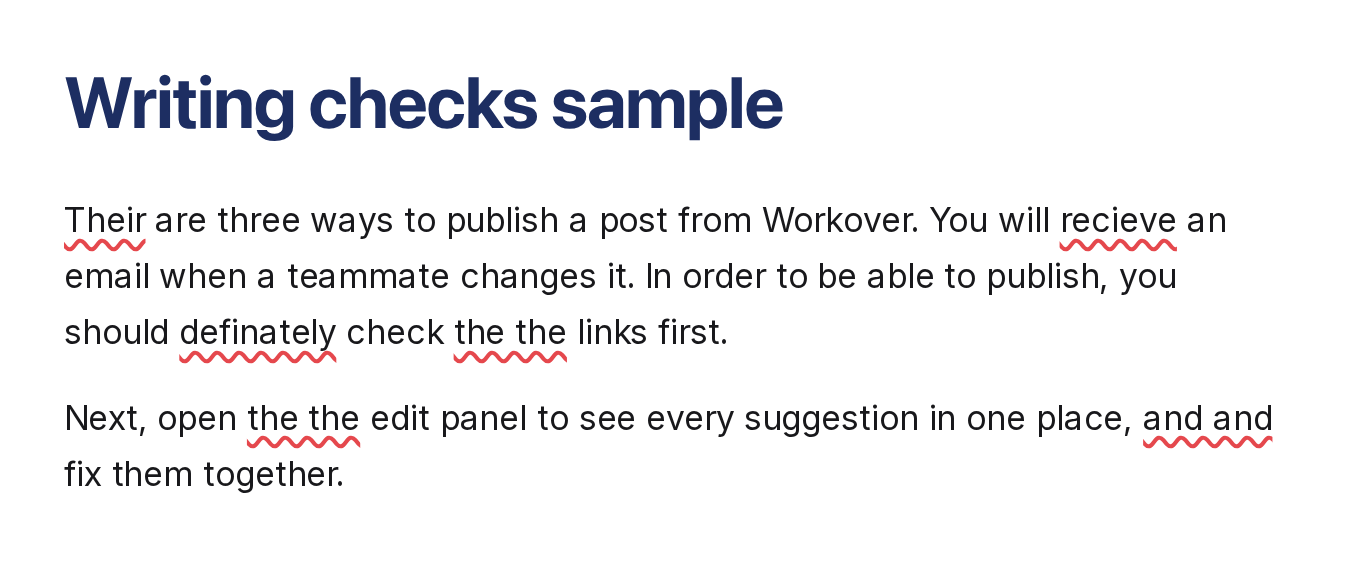
Spelling, grammar, and style guide terms are checked as you type. Clarity and Tone suggestions, and some grammar fixes a rule cannot catch, come from Workover AI. See “Checks that use Workover AI” below.
Accept or dismiss a suggestion
Click an underlined word to open its card. The card says what is wrong and why, and shows the fix, or a choice of fixes when there is more than one.
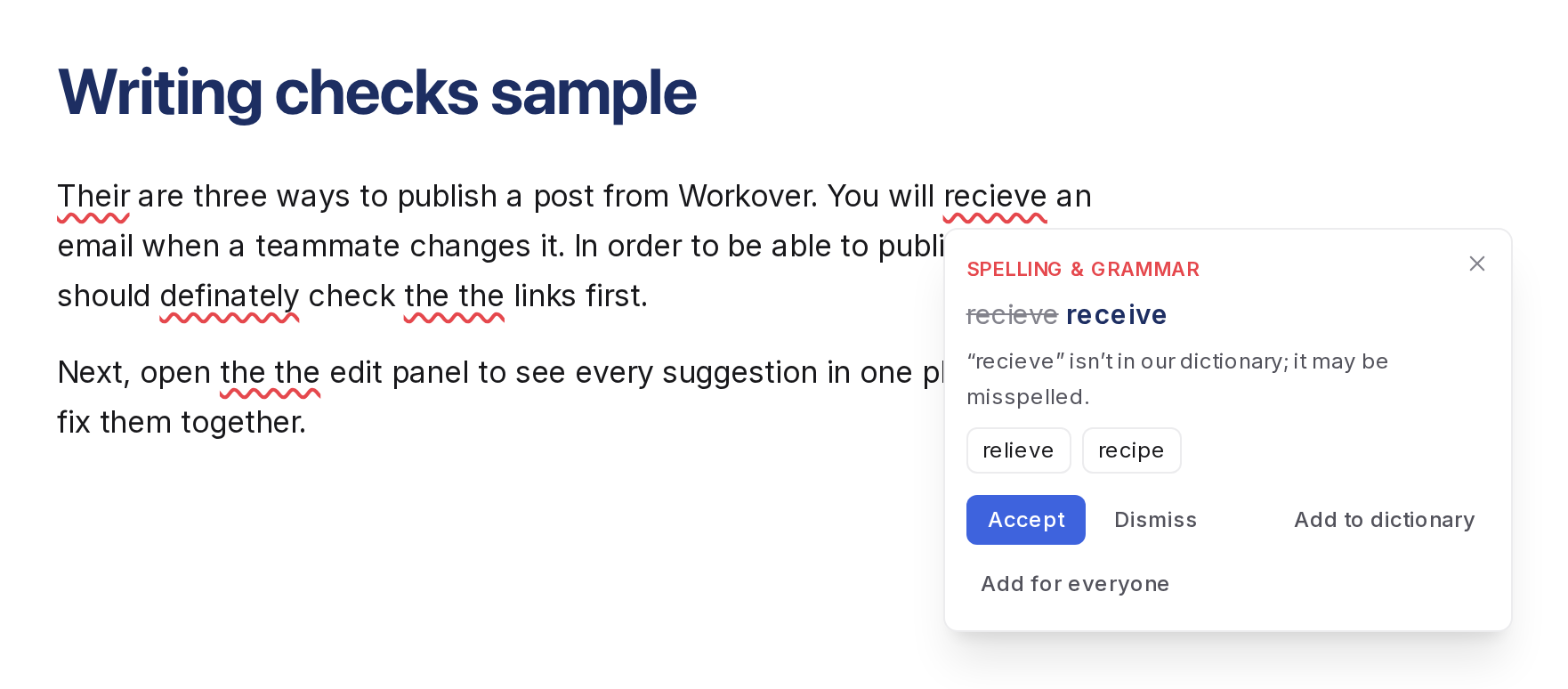
- Accept makes the change. For a rewrite from Workover AI, the button reads Use this version.
- Accept all appears when the same fix applies in more than one place, and makes them all.
- Dismiss leaves the text as it is.
- Add to dictionary appears on a misspelling. The word goes into your own dictionary and is not flagged for you again.
- Add for everyone appears for workspace owners and admins, and adds the word to the workspace’s dictionary instead.
- Stop suggesting this turns off that kind of suggestion for you, in every document.
Dismissing the same spelling, grammar, or consistency suggestion three times turns that kind off too. Style guide terms and Workover AI suggestions are never turned off this way. You can turn it back on under Settings → Writing (see below).
In Suggesting mode, accepting a suggestion records it as a tracked change, the same as any other edit you make in that mode, and the buttons read Suggest all and Suggest this instead of Accept all and Apply this. See How to suggest edits.
The Writing tab
Open Edit panel in a document and select the Writing tab to see every suggestion in the document in one place.
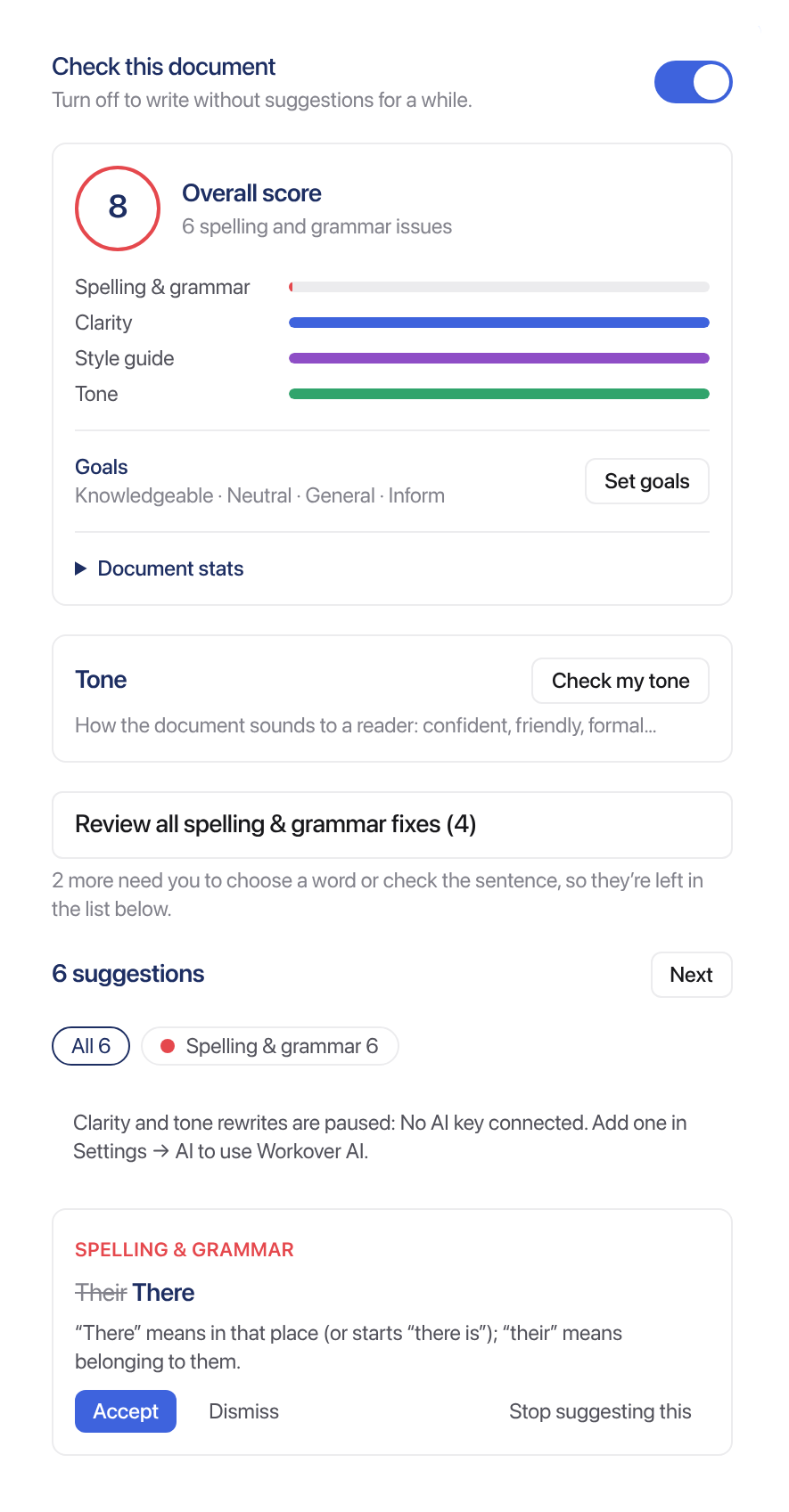
- Check this document pauses the checks while you write a first draft. Turning it off affects only you, on this device.
- Overall score rates the document out of 100, with a bar for each kind of check and a line saying why it is not 100.
- Goals describe who the document is for: audience, formality, domain, and intent. Select Set goals to change them. The clarity and tone suggestions follow them, and the score judges readability against the audience you choose. Goals are kept on this device, per document.
- Document stats shows words, reading and speaking time, reading ease, grade level, very long sentences, likely passive voice, and word variety.
- Check my tone describes how the document sounds to a reader.
- The list shows each suggestion with the same buttons as its card. Filter it by kind of check, and select Next to step through them in order.
Fix several at once
When there are three or more spelling and grammar fixes that are safe to make together, the tab shows Review all spelling & grammar fixes with the number of fixes. Select it to see each fix in its sentence, before and after, and choose Apply this or Skip. Nothing changes until you reach the end. Then the fixes you chose go in as one edit, so one undo takes them all back.
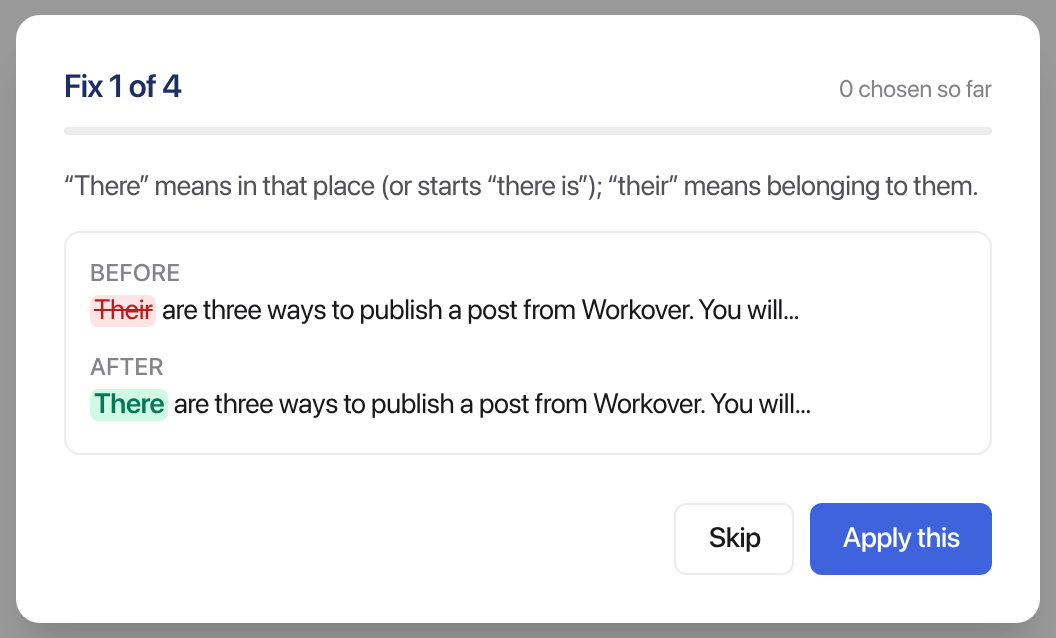
Only mechanical fixes are included. Clarity and tone rewrites are never part of it, and neither is a misspelling with more than one possible correction, or a fix that takes words out (other than a repeated word, such as “the the”). Those stay in the list for you to decide one at a time.
Choose your checks under Settings → Writing
Go to Settings → Writing to choose which checks you see.
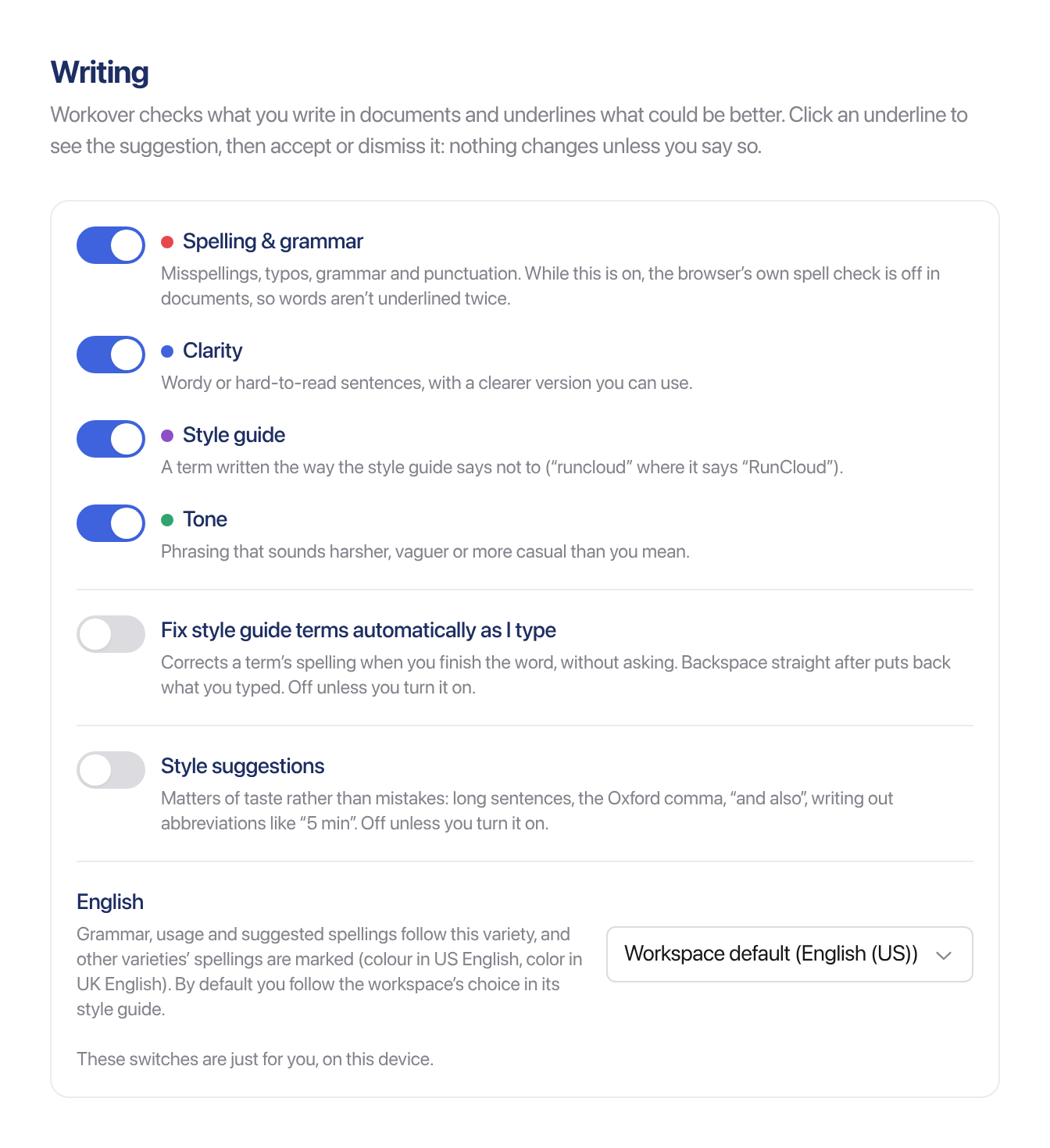
- A switch for each check: Spelling & grammar, Clarity, Style guide, and Tone. All four start on.
- Fix style guide terms automatically as I type corrects a term’s spelling when you finish the word, without asking. Pressing Backspace straight after puts back what you typed. It is off unless you turn it on.
- Style suggestions adds matters of taste rather than mistakes, such as long sentences, the Oxford comma, “and also”, and writing out abbreviations like “5 min”. It is off unless you turn it on.
- English sets the variety that grammar, usage, and suggested spellings follow: English (US), English (UK), English (Australia), English (Canada), or English (India). Spellings from other varieties are marked. By default you follow the workspace’s choice in Settings → Style guide.
These switches are yours alone, and they apply on the device you set them on. A teammate’s settings do not change yours.
Dictionaries
The same page holds two lists of words that are never flagged as misspellings:
- Your dictionary applies to you, in every document in the workspace. Add to dictionary on a suggestion puts a word here.
- Workspace dictionary applies to everyone in the workspace: names, products, and jargon. Your style guide’s terms count too. Only workspace owners and admins can edit it.
When several people have added the same word to their own dictionaries, owners and admins see it under Add these for everyone?, with Add for everyone and Not now.
Suggestions you turned off
Kinds of suggestion you stopped, or dismissed three times, are listed under Suggestions you turned off. Select Turn back on to see them again.
Checks that use Workover AI
Clarity and Tone suggestions, Check my tone, and some grammar fixes run on your workspace’s AI provider, which an owner or admin chooses under Settings → AI. See Choose who provides Workover AI.
- Workover AI looks at a paragraph only after you pause typing, never at the paragraph you are still writing, and only at paragraphs of at least eight words.
- An unchanged paragraph is not sent again.
- Spelling, grammar, and style guide checks keep working without an AI provider.
If your workspace cannot use Workover AI, for example because no provider is connected, the Writing tab says so: “Clarity and tone rewrites are paused: No AI key connected. Add one in Settings → AI to use Workover AI.”
Related
Still need help?
Can’t find what you’re looking for? Our team is here to help.