Last updated
On-page SEO: what to check on every page (with a 14-point checklist)
What on-page SEO covers, what Google’s own documentation says about each element, and what we found on 73 pages that rank on page one. With a 14-point checklist you can run on any page.


On-page SEO is everything you control on the page itself to help search engines understand it and people choose it: the title, the URL, the headings, the words, the links, the images, and a handful of tags in the HTML that visitors never see. This guide covers all of it, in the order it matters, with the rule for each element taken from Google’s own documentation rather than from other guides, and tested against pages that rank today. It also includes something the other guides do not: a scan of 73 pages that rank on Google’s first page today, showing what Google actually did with their titles, and what happened to those pages between the HTML and the browser.
If you only have ten minutes, skip to the checklist near the end and run it on your most important page. If you have an hour, read the elements first.
What on-page SEO is, and is not
A page ranks when a search engine can tell what it is about, decides it is a good answer, and shows a result people want to click. On-page SEO covers all three:
- Understanding. The title element, headings, URL, body text, image alt text and structured data tell search engines what the page is about.
- Quality. Whether the content answers the question the searcher had, says something the other results do not, and comes from someone who knows the subject.
- Presentation. What the search result looks like: the title link and the snippet, both of which Google builds from what is on the page.
The three kinds of SEO overlap, but the division of labor is clear enough to put in a table.
| Kind | On-page | Technical | Off-page |
|---|---|---|---|
| What it is | What the page says and how it is marked up | Whether search engines can reach, render and index the page | What other sites say about the page |
| Who fixes it | The writer or editor | A developer or the platform | Whoever earns the links |
| Examples | Title, meta description, headings, content, internal links, images, structured data | Crawlability, sitemaps, redirects, speed at the server, HTTPS | Backlinks, mentions, reviews |
| How fast it changes | Every edit, every template update | Every deploy | Slowly |
Two technical items, canonicals and JavaScript rendering, sit close enough to the page that this guide treats them as on-page. Writers do not set them, but writers get blamed when they go wrong.
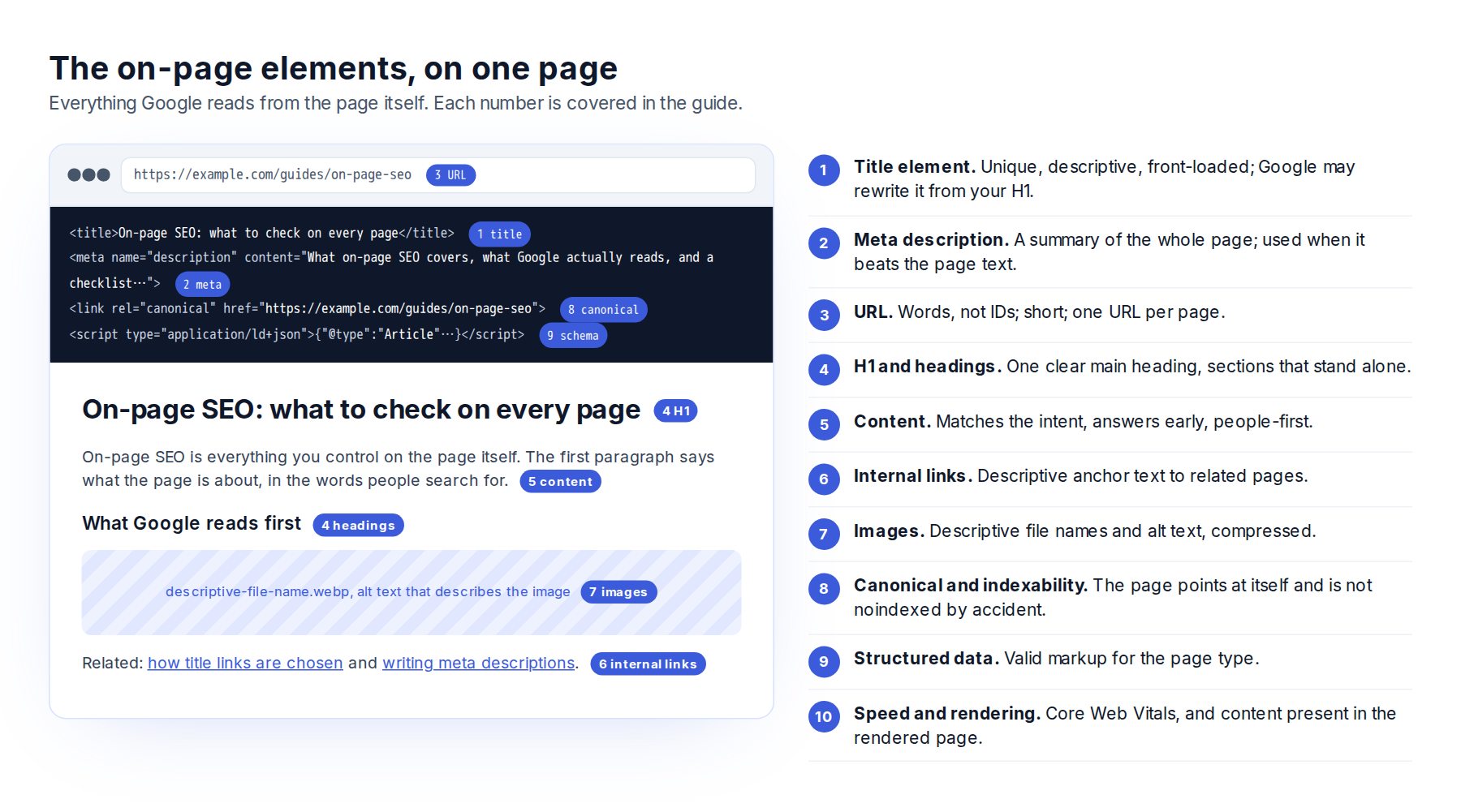
The on-page elements, with what Google says about each
Most on-page advice is passed from one guide to the next without a source. Where Google documents a rule, it is quoted and linked here. Where Google is silent, that is said too.
1. The title element
The title element is the strongest single statement of what a page is about, and it is usually the text Google turns into the blue title link in results. Google’s documentation on title links asks for titles that are “unique to the page, clear and concise, and accurately describe the contents of the page”, and says to make sure “every page on your site has a title specified in the title element”.
Four things in that documentation contradict common advice:
- There is no length limit. Google says “there’s no limit on how long a title element can be”. Title links are truncated to fit the device, so the rule is to put the important words first, not to count characters. The 50 to 60 character guideline is a rough estimate of what survives truncation on desktop.
- Google rewrites titles it does not trust. Half-empty titles (“| Site Name”), boilerplate that differs by one word across pages, titles with stale years, and titles that do not match the page are replaced from other sources: the page’s main visible heading, the
og:title, other prominent text, and the anchor text of links pointing at the page. - The site name is handled separately. Google shows a site name beside the result and may drop a brand suffix from the title link when it would repeat it. Our scan below puts a number on how often that happens.
- Repeating words is a spam signal. Keyword stuffing in a title “doesn’t help users and can look spammy”, and anywhere on the page it violates Google’s spam policies.
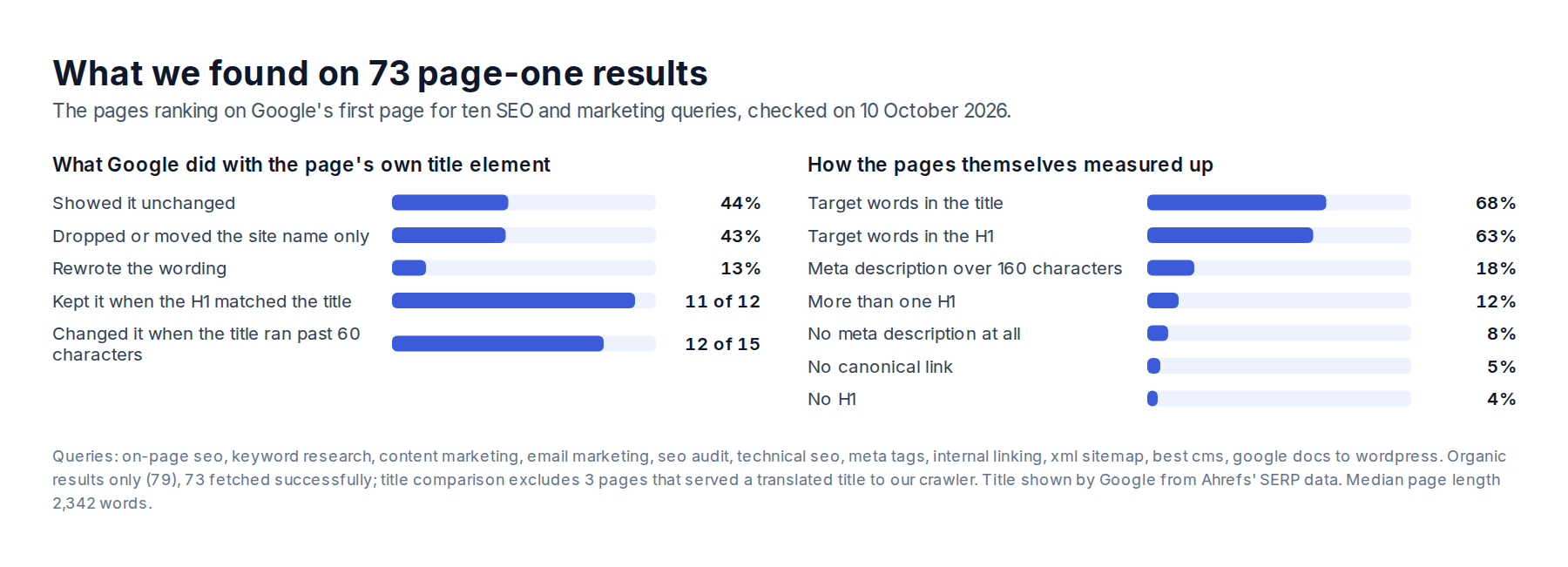
What we found. We fetched the 79 organic results on Google’s first page for ten SEO and marketing queries, from on-page SEO to keyword research to content marketing (the full list is under the chart), compared each page’s title element with the title Google showed in the result, and read the page’s H1. Of the 70 pages where the comparison was clean:
- Google showed the title element unchanged for 44%.
- It dropped or moved the site name and left the rest alone for 43%.
- It rewrote the wording for 13%.
- When the H1 matched the title element, Google kept the title in 11 of 12 cases.
- When the title ran past 60 characters, Google changed it in 12 of 15 cases, nearly always by cutting the site name.
The rewrites are the useful part. In three of the four clearest cases, the title Google showed was the page’s own H1, word for word. Ahrefs titled its keyword research guide “Keyword Research: The Beginner’s Guide by Ahrefs” and Google showed the H1, “How to Do Keyword Research for SEO (Start to Finish)”. WP Engine’s “Using Google Docs with WordPress | WP Engine” became its H1, “How to Integrate Google Docs with WordPress”. Semrush’s “What Are Meta Tags? How to Use Them for Google SEO” became its H1, “Meta Tags: What They Are & How to Use Them for SEO”.
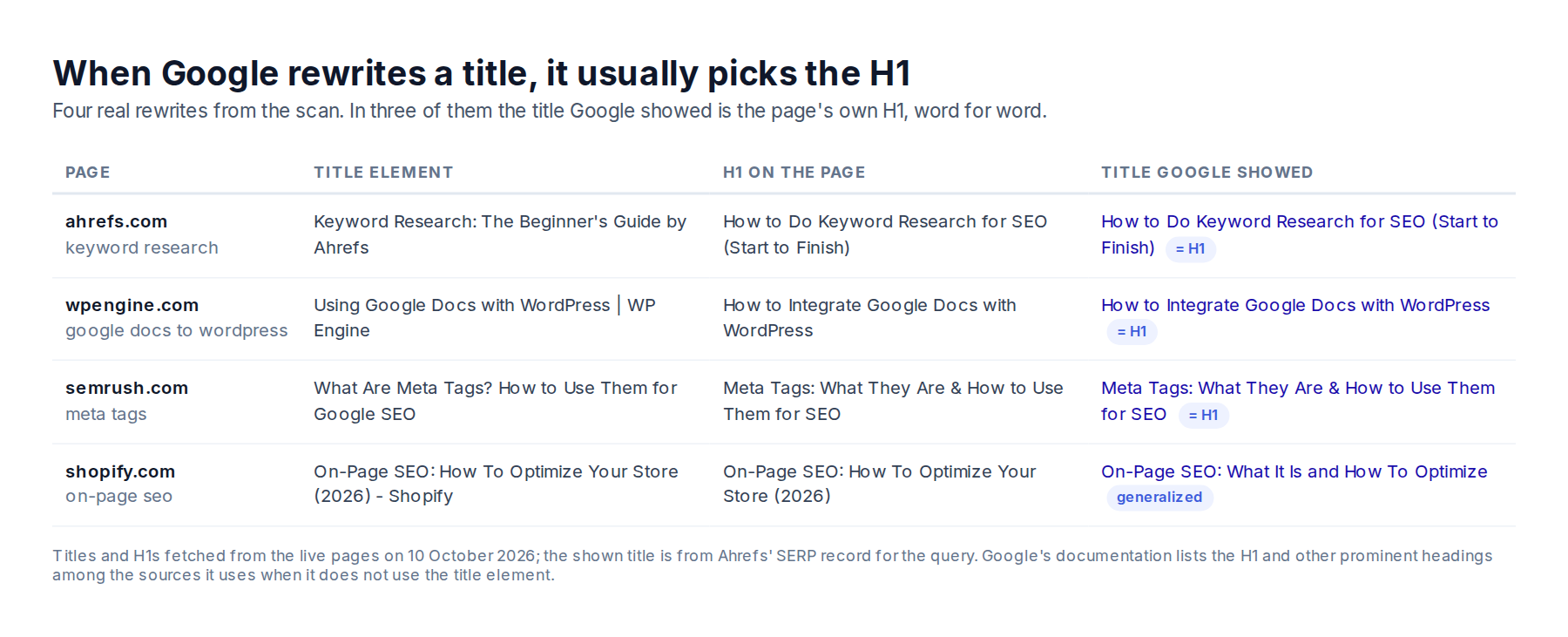
So the practical rule is simpler than the character-counting advice: write one title, use it as both the title element and the H1, put the words people search for at the start, and let Google handle the brand.
2. The meta description
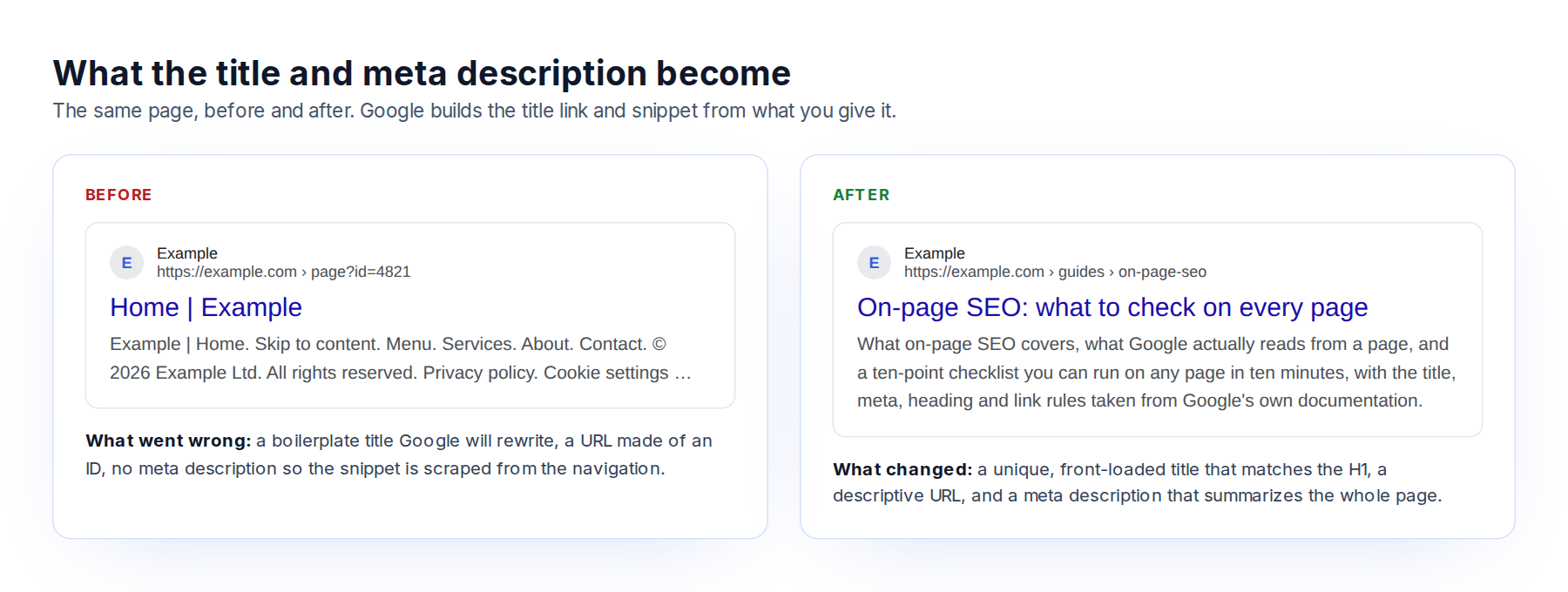
The meta description does not affect rankings. It affects whether people click, because Google may use it as the snippet under the title link. Google’s snippet documentation says snippets are “primarily created from the page content itself” and the description tag is used when it gives “a more accurate description of the page than would be possible purely from the on-page content”. When it does not, Google writes its own snippet from the page text, which is how a page with no description ends up with a snippet made of navigation links.
Google’s guidance, in order of importance: make each description unique; summarize the whole page rather than one anecdote from it; be specific (a single product name is too short); include details such as author, date or price when they matter; and do not write a list of keywords, which is “less likely to be displayed”. Large sites can generate descriptions programmatically provided they are “human-readable and diverse”. There is no length limit here either; the snippet is truncated to fit the device.
In our scan, 6 of 73 page-one results had no meta description at all (Wikipedia pages, a protocol spec, a free tool page), and 13 had descriptions over 160 characters. Neither stopped them ranking, which is the point: the description is for the click, not the rank.
3. The URL
Google’s URL structure guidance is specific: “use readable words rather than long ID numbers”, separate words with hyphens rather than underscores (“use hyphens instead of underscores”), keep the structure simple, and remove parameters that do not change the content. Google treats /Apple and /apple as different URLs, so pick one case and stick to it.
Keep slugs short, leave out dates unless the page is about that date, and never let tracking parameters or session IDs become the URL people link to. One page, one URL: if the same content answers at two addresses, pick one and canonicalize the other (element 9).
Changing a URL after publishing costs more than it gains. The words in the slug are a minor signal, and every change needs a redirect and loses some of the links pointing at the old address. If you publish through a CMS, set the slug before the page goes live; Workover’s WordPress sync sends the slug with the post so it is not generated from a working title.
4. The H1 and the headings
Give the page one clear main heading that matches the title element, and make it, in Google’s words, “the most prominent text on the page”, usually by putting it in the first visible <h1>. When a page has several large headings styled the same way, Google says it may use the first one as the title.
In our scan, 9 of 73 page-one pages had more than one H1 and 3 had none. All of them rank, so one H1 is not a ranking requirement. It is a way of making sure Google picks the heading you meant.
Below the H1, headings exist for people. Google’s SEO starter guide says heading order does not matter for Search (“it doesn’t matter if you’re using them out of order”), so H2 and H3 are for readers and for the AI systems that extract one section at a time. Write each heading as the question or statement the section answers, and answer it in the first sentence underneath. A heading that says “Step 3” tells nobody anything.
5. The content
Everything else on this list describes the content. The content itself is what gets ranked, and Google’s documentation on creating helpful content describes what it wants in three words: “helpful, reliable, people-first”. In practice:
- Match the intent. Look at what ranks for the query and give that kind of page. For “best cms” the first page is listicles and a Reddit thread; for “xml sitemap” it is Google’s own documentation and a generator. A beautiful essay does not rank for a query where everyone wants a tool.
- Answer early. State the main point in the first paragraph and under each heading. Readers, featured snippets and AI overviews all take the first clear answer they find. Google’s featured snippet documentation says there is no way to mark a page as a snippet; the system picks pages that answer the query directly.
- Add something. Original data, a tested procedure, a correction of a common mistake. The scan in this guide exists for that reason. Google’s helpful content questions ask whether the page “provides original information, reporting, research, or analysis”.
- Show who wrote it and why they know. Google’s guidance on experience, expertise, authoritativeness and trust (E-E-A-T) describes what its quality raters look for; the starter guide also lists “E-E-A-T is a ranking factor” under misconceptions. It is a description of good content, not a score, so bylines, credentials and first-hand detail help because they make the content better, not because they tick a box.
- Use the searcher’s words, then write normally. The target phrase belongs in the title, the first paragraph and a heading or two. In the scan, 68% of page-one results had every word of the query in the title and 63% in the H1. Google does not use the keywords meta tag (“Google Search doesn’t use the keywords meta tag”) and treats repetition as spam.
- Keep it current. A page with “2024” in its title and 2024 advice in its body loses to the page that was updated. Google’s title documentation specifically lists obsolete years as a reason it rewrites titles.
6. Internal links
Internal links tell search engines which pages matter and what they are about. Google’s link guidance has one rule about the text: “write good link text”, meaning words that describe the destination, not “click here” or the bare URL. Links must also be real links (<a href>), not buttons that navigate with JavaScript, or Google will not follow them.
Link from new pages to the existing pages they relate to, then go back and link from existing pages to the new one, because a page nobody links to (an orphan page) is hard to find and ranks poorly. Links in the body carry more meaning than links in a footer or sidebar. For links to sites you do not control, check they are trustworthy, and add rel="nofollow" (or ugc or sponsored, which Google also recognizes) to links you cannot vouch for, including anything users post.
7. External links
Linking out does not leak anything. Citing the source of a claim is how a page shows its work, which is why the Google rules in this guide link to the page they came from the first time they appear. Link to the primary source rather than to someone else’s summary of it, use descriptive anchor text, and check external links periodically, because the pages you cite move and die. In the scan, Google’s own documentation pages ranked on page one for three of the ten queries; the primary source is often the best page to link to.
8. Images
Google’s image documentation asks for three things: descriptive alt text, which the starter guide calls “a short, but descriptive piece of text that explains the relationship between the image and your content”; descriptive file names (“my-new-black-kitten.jpg” rather than “IMG00023.JPG”); and placing images next to the text they illustrate, with a caption where it helps. Leave the alt attribute empty for purely decorative images.
Compress images (WebP for photographs, SVG for logos and icons), and give them width and height attributes so the layout does not shift while they load, which is one of the Core Web Vitals (element 11). If you write in Google Docs and publish to WordPress, the images are the step that usually breaks: pasted images stay hosted on Google and can stop loading. Our guide to moving a Google Doc into WordPress without broken images covers the three ways to do it, and the difference between alt text and the image title is its own short article.
9. Canonical and indexability
These two tags decide whether any of the above counts.
The canonical link (<link rel="canonical">) names the one URL that should be indexed when the same content is reachable at several. Google’s duplicate URL documentation explains that it is a hint, not a directive, and that Google may choose a different canonical if the signals disagree. It should point at the page itself unless the page is a deliberate duplicate. A canonical pointing at the wrong page, a staging host, or the HTTP version of an HTTPS site quietly hands the page’s ranking to the wrong address. In the scan, 4 of 73 page-one results had no canonical at all and one pointed at a different URL from the one that ranked.
The robots meta tag (<meta name="robots" content="noindex">) tells search engines not to index the page. It is right on thank-you pages and internal search results and catastrophic when a plugin or a template applies it to the whole site. 43 of the 73 scanned pages carried a robots meta tag, almost all of them harmless max-image-preview:large or index, follow declarations set by SEO plugins, which is a reminder that these tags are set by software, not by writers, and change when the software does. Google also notes that blocking a page in robots.txt “may not always prevent them from being indexed”; noindex is the tool for that.
10. Structured data
Structured data, usually JSON-LD, describes the page in a vocabulary search engines agree on: this is an article, by this author, published on this date; this is a product at this price. Google’s structured data introduction says it is used “to understand the content of the page” and to enable rich results such as review stars, FAQs and recipe cards. It does not promise rankings, and Google’s AI features documentation says “there’s also no special schema.org structured data that you need to add” for AI Overviews, only that the structured data should match the visible text.
Use the type that fits the page, fill in properties with the same facts that appear on the page, and test it with the Rich Results Test before and after publishing. A typical article looks like this:
{
  "@context": "https://schema.org",
  "@type": "Article",
  "headline": "On-page SEO: what to check on every page",
  "author": { "@type": "Person", "name": "Alex Panagis" },
  "datePublished": "2026-10-10",
  "dateModified": "2026-10-10",
  "image": "https://workover.io/images/on-page-seo-elements-diagram.png"
}
11. Speed and Core Web Vitals
Page experience is measured by the three Core Web Vitals: Largest Contentful Paint (how long the main content takes to appear; good is 2.5 seconds or less), Interaction to Next Paint (how quickly the page responds to a tap or click; 200 milliseconds or less), and Cumulative Layout Shift (how much the layout jumps while loading; 0.1 or less). Google measures them from real Chrome users and reports them in Search Console; PageSpeed Insights shows the same field data with a lab run underneath.
Google’s page experience documentation is careful about what this means for rankings: Core Web Vitals are used by ranking systems, but “great page experience” does not override “great content”. For on-page work the practical items are the ones a writer controls: image sizes, image dimensions, embeds, and anything that loads above the content and pushes it down.
12. Rendering: what Google actually sees
This is the element every guide on page one for this query leaves out.
A growing share of pages set their title, meta description, canonical or whole sections with JavaScript after the HTML has loaded. Google’s JavaScript SEO documentation says it processes pages in three phases, crawling, rendering and indexing, that pages are queued for rendering and “may stay on this queue for a few seconds, but it can take longer than that”, and that “you can use JavaScript to set or change the meta description as well as the title element”. So JavaScript-set elements work, eventually, as long as Google can render the page. A crawler that only reads the HTML never sees them at all.
We checked this on the same 73 pages, fetching each once as raw HTML and once in a real browser after JavaScript ran. For 7 of them the meta description differed between the two. For 4 the number of H1s changed: GeeksforGeeks went from one H1 in the HTML to five after rendering, Loops from three to one. And 4 pages, three of them Google’s own documentation, served a translated title to our crawler and English to the browser, because they chose the language from the request rather than the URL.
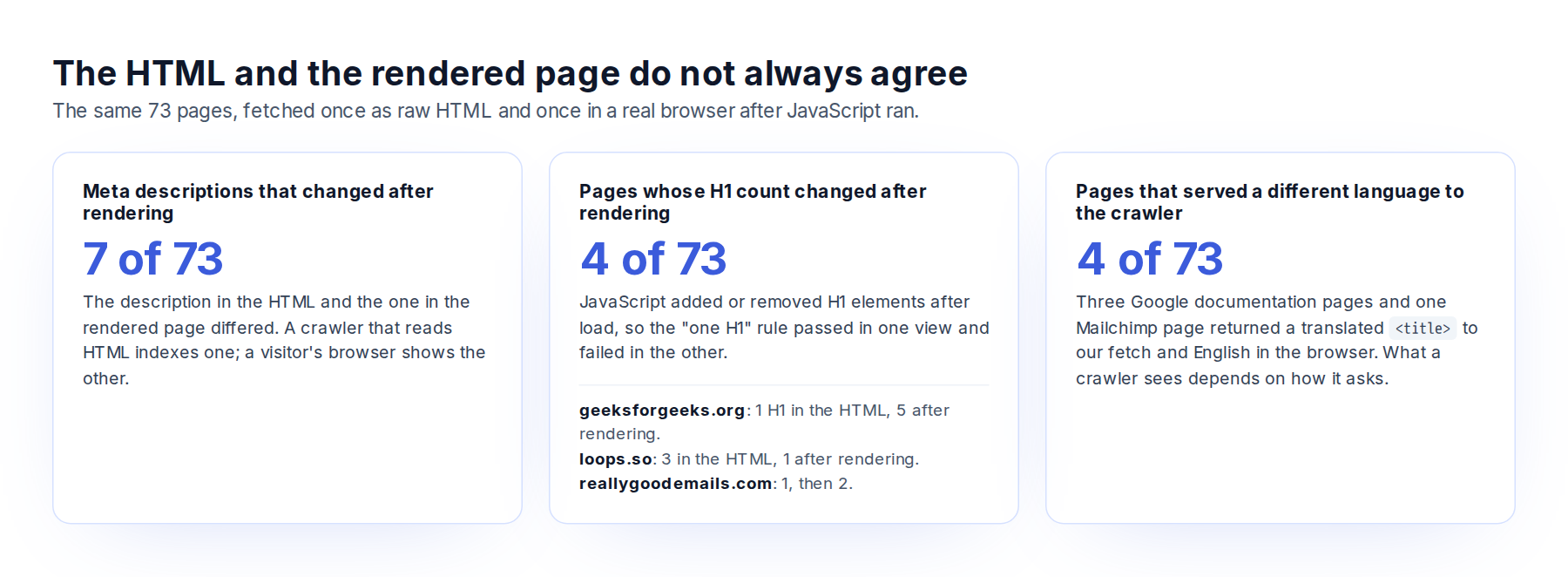
So check the rendered page, not the source. Google’s own advice is to “use the Rich Results Test or the URL Inspection Tool and look at the rendered HTML”. A monitor that renders pages in a real browser and compares the result with the raw HTML on every check shows the difference as it happens. Workover Monitor does this (yes, that is us; we own up properly a little further down), and so do a few of the enterprise crawlers.
13. Open Graph and social previews
Open Graph tags (og:title, og:description, og:image) control how the page appears when shared on LinkedIn, Slack, iMessage and most other places a link is pasted. They are defined by the Open Graph protocol, not by Google, but Google’s title documentation lists og:title among the sources it draws on when it rewrites a title, so an og:title that disagrees with the title element gives Google a second option. Set the three tags on every page, make the image 1200 by 630 pixels, and keep og:title identical to the title element unless you have a reason for the share preview to say something different.
14. Mobile and readability
Google indexes the mobile version of a page, so whatever is hidden, collapsed or removed on small screens is what Google reads. Keep the main content visible on mobile, keep the headline and first paragraph above the fold, and do not hide text behind tabs or “read more” toggles that the snippet documentation warns against. Short paragraphs, lists where the content is a list, and a table where the content is a comparison are not SEO tricks; they are how people read on phones.
The on-page SEO checklist
Run this on any page in ten minutes. The numbers match the sections above.
- Title: unique on the site, describes the page, important words first, identical to the H1, brand at the end or not at all.
- Meta description: present, unique, summarizes the whole page, specific, not a keyword list.
- URL: short, made of words, hyphenated, lowercase, no dates or IDs, one URL per page.
- H1 and headings: exactly one H1 with the same meaning as the title; every section heading says what it answers, and the answer follows in the first sentence.
- Content: matches the intent of the query, answers in the first paragraph, adds something the other results lack, uses the searcher’s words without repeating them, carries a byline and a date.
- Internal links: at least three descriptive links out to related pages, and at least three pages linking in.
- External links: every claim that comes from somewhere links to the primary source; no dead links.
- Images: descriptive file names, alt text that describes the picture, compressed, with width and height set.
- Canonical and robots: canonical points at this URL; no accidental noindex; the page is not blocked in robots.txt.
- Structured data: valid markup for the page type; the Rich Results Test passes.
- Core Web Vitals: green in Search Console or PageSpeed Insights for the three vitals.
- Rendering: the title, description, canonical and H1 are the same in the rendered page as in the HTML.
- Open Graph: title, description and a 1200 by 630 image set.
- Mobile: the full content is visible on a phone, headline and first paragraph first.
Pages do not stay optimized
Every guide on the first page of results for this topic ends when the page is published. That is exactly when the trouble starts.
A page that passes the checklist on Monday can fail it by Friday without anyone editing it. A theme update changes the heading template and the H1 becomes an H2. An SEO plugin update resets the title format and every title on the site gains “| Home”. A migration moves the site and the canonicals still point at the old host. A developer adds noindex to staging and the setting ships to production. None of these show up in the CMS. They show up in Search Console weeks later as a drop, and in the next audit months later as a list.
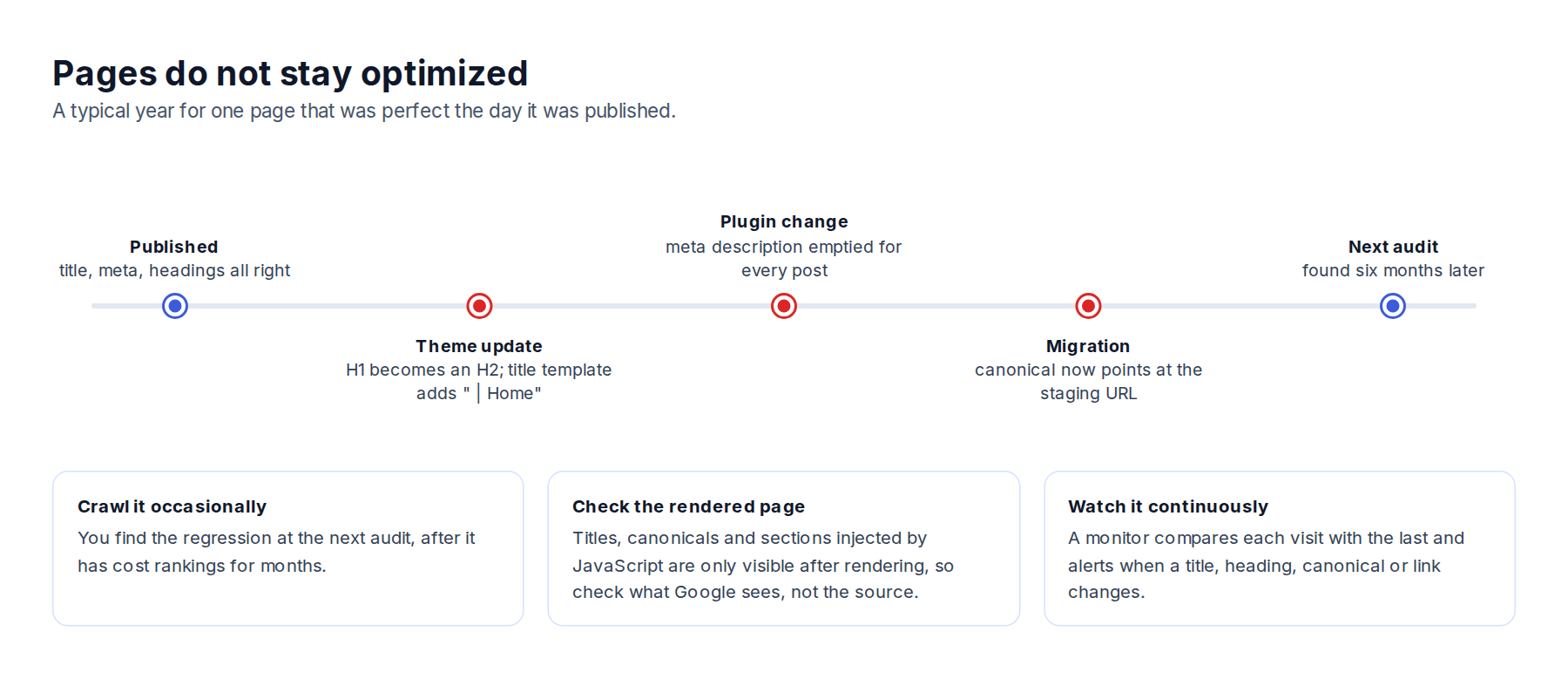
There are three ways to catch this, from least to most useful:
- Re-run the checklist on a schedule. Quarterly for most pages, after every release for the pages that earn the traffic. Cheap, and better than nothing, but a quarter is a long time to rank with the wrong title.
- Watch Search Console. The Page indexing report shows pages that dropped out of the index and why; the Performance report shows clicks and impressions falling for a page. Both are lagging indicators: Google has to recrawl and re-rank before anything changes there.
- Monitor the pages continuously. A monitor re-checks each page on a cadence, compares every check with the last, and alerts you when a title, heading, meta description, canonical or robots directive changes, before Google has noticed.
The third option is what Workover Monitor does. Now, as is self-evident from the site you are reading this on, Workover is our product, and you would expect us to tell you that the monitor is the answer. We do think that, as it happens. But that is not the point of this guide. The point is that the page you spent a day getting right still says what you wrote next quarter, and any of the three options above beats finding out from a traffic drop. For the record, Monitor checks titles, headings, meta descriptions, canonicals, indexability, thin content and internal links on every page it watches, renders each page in a real browser and compares the rendered DOM with the raw HTML, and bundles a template change that breaks a thousand pages into one alert rather than a thousand. The Workover editor handles the other end: titles, headings, links and image alt text are set while writing and pushed to WordPress or Webflow as written, so the page is right the day it is published, and a style guide can enforce the house rules (ours forbids em dashes, which is why this guide has none).
How to measure on-page SEO
Three free reports answer whether the work is paying off.
- Search Console, Performance. Filter to the page. Impressions rising means Google is showing it for more queries; clicks rising faster than impressions means the title and description are earning their place. Compare the 28 days after a change with the 28 days before.
- Search Console, Page indexing and URL inspection. Confirms the page is indexed, which canonical Google chose (it is not always yours), and what the rendered page looked like when Google fetched it.
- PageSpeed Insights and the Core Web Vitals report. Field data from real users for the three vitals, per URL group.
Rank tracking is useful once a page is ranking, but for on-page work the Search Console numbers are closer to the cause.
Tools for on-page SEO
You do not need to buy anything to do everything in this guide.
- Free, from Google: Search Console (indexing, performance, Core Web Vitals, URL inspection with rendered HTML), PageSpeed Insights (vitals per page), the Rich Results Test (structured data and rendered HTML).
- A crawler, for the one-off audit of a whole site: Screaming Frog (free to 500 URLs) or Sitebulb. Both list every title, description, H1, canonical and robots directive on the site in one table, and both can render JavaScript.
- A monitor, for everything that changes after publishing: Workover Monitor, Conductor Monitoring or Lumar, depending on the size of the site and the budget.
- The editor you write in, if it can set titles, headings, links and alt text and send them to the CMS intact. That is the point of Workover, and the reason this guide spends so much time on the difference between what you wrote and what the page ends up saying.
Frequently asked questions
What does “on-page” mean in SEO? On-page (sometimes written OnPage) means the elements on the web page itself, as opposed to off-page factors such as links from other sites. On-page SEO is the work of getting those elements right: title, meta description, URL, headings, content, links, images, canonical, structured data, speed, rendering and social tags.
How do you check a page’s on-page SEO? Open the page, view the source (or better, the rendered HTML in Search Console’s URL inspection tool), and run the 14-point checklist above. For a whole site, a crawler produces the same checks for every page in one table; for a site that changes often, a monitor re-runs them continuously.
What is the 80/20 rule in SEO? A rule of thumb, not a Google rule: a small share of the work produces most of the result. For on-page SEO the 20% is the title, the H1, the first paragraph and the internal links, applied to the pages that already get impressions in Search Console. Our scan supports the emphasis on the title and H1: when they matched, Google used the title as written in 11 of 12 cases.
Does on-page SEO still matter now that Google shows AI Overviews? Google says yes, in so many words. Its AI features documentation states there are “no additional requirements to appear in AI Overviews or AI Mode, nor other special optimizations necessary”, and that “the best practices for SEO remain relevant for AI features in Google Search”. Pages that state things clearly, section by section, with a visible source, are the ones those features quote.
What is an SEO landing page? A page built to rank for one query and convert the visitor who arrives from it: one topic, one title, one clear answer, and one action to take. The checklist applies to it exactly as it does to a blog post, with more weight on the title, the first paragraph and the speed.
How often should on-page SEO be checked? Before publishing, after every change to the site’s theme, plugins or templates, and continuously on the pages that earn the traffic, because those are the ones a silent regression costs the most.
Stop pasting drafts into your CMS.
Write, review and publish in one place, then let Monitor watch every page after it goes live.